

Appearance
Connect an AI client with MCP
MCP (Model Context Protocol) lets a compatible AI client retrieve AEVU information using a personal connection. Open Settings → MCP connections in the workspace you want to share. The hosted endpoint is https://api.aevupm.com/mcp, using Streamable HTTP and a bearer token.
AEVU offers 35 access areas and 66 read-only tools in the 28 October 2026 release. Your options depend on your current permissions. Seeing a tool in the client does not grant permission to use it.
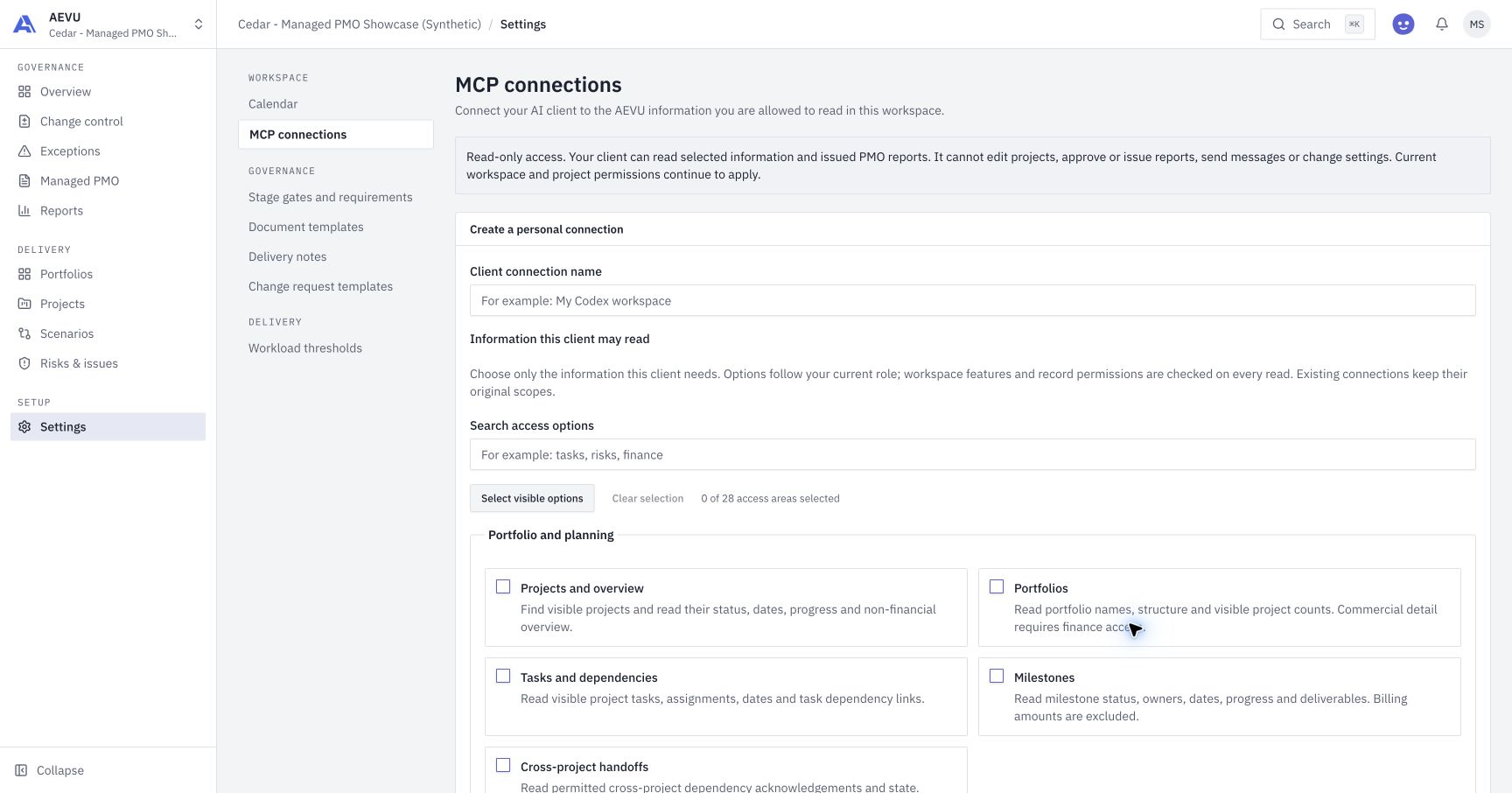
Actual hosted screen, captured 28 October 2026 with fictional Cedar data. This analyst can choose 28 of the 35 access areas; another role may see a different set. No credential is shown.
Before connecting
Choose an AI client approved for your organisation's data and confirm its retention and sharing policies. Read-only access can still disclose project information, financial data or contacts when you explicitly select those areas. Your provider may retain information after AEVU access ends.
MCP does not require an AEVU model run. Your external client may have its own provider charges. Ari's in-app AI controls and a personal MCP connection are different workflows; see Ari.
Create a personal connection
- Sign in and select the correct workspace. Creation requires a sign-in within the last ten minutes; sign in again if requested.
- Open Settings → MCP connections and enter a recognisable client name.
- Search or browse the five groups. Choose only the information the client needs. Nothing is selected by default. Select visible options selects the filtered choices; Clear selection removes your selections.
- Choose an expiry between 1 and 30 days. Use a short expiry for evaluation.
- Read the data-sharing acknowledgement, confirm it, then select Create connection.
- Save the token securely: AEVU displays it once. Put it in a private secret store or an environment variable named
PMO_MCP_TOKEN, available to the process that launches your client. Dismiss the one-time display after saving it.
Do not paste a token into a chat, ticket, screenshot, URL, shared repository or command history. If you lose it, revoke that connection and create a replacement. A token belongs to one person and one workspace; create a separate connection for another workspace.
Configure your client
Codex
In your private Codex configuration, add:
toml
[mcp_servers.aevu]
url = "https://api.aevupm.com/mcp"
bearer_token_env_var = "PMO_MCP_TOKEN"
Start the client with that environment variable available, then refresh its MCP connection and tool list. See OpenAI's Codex MCP documentation for the configuration location and version-specific controls. This example contains the variable name, never the token.
Claude Code
Use a private MCP configuration with environment-variable expansion:
json
{
  "mcpServers": {
    "aevu": {
      "type": "http",
      "url": "https://api.aevupm.com/mcp",
      "headers": { "Authorization": "Bearer ${PMO_MCP_TOKEN}" }
    }
  }
}
Set the variable before launching the client and review the server approval in Claude Code. See Claude Code's official MCP documentation. Keep tokens out of the saved configuration.
Other clients
The client must support Streamable HTTP and a custom bearer header. AEVU's personal-token flow does not provide browser OAuth discovery or consent. A browser-based connector that requires OAuth may therefore be incompatible. Do not use an ordinary AEVU login token as an MCP credential.
Check the connection with a useful question
For reusable instructions in Claude Code or Codex, install AEVU agent skills. Twelve optional workflows cover the current MCP catalogue. Installation and MCP authentication are separate; the skills grant no additional access.
Begin with get_workspace and verify that it names the intended workspace. For a customer report connection, select Issued PMO reports and decisions (pmo.read) and ask:
List the issued PMO packs in this workspace. Read the newest complete pack and summarise its decision requests. Include the reporting period, issue time, evidence cutoff and original fingerprint. Keep missing information separate from conclusions.
Follow every returned page or chunk. A single page may be only part of the portfolio or report. An AI client's answer is not an approved PMO report and cannot replace the issued source. See Managed PMO and the tool catalogue.
What access means
| Group | Examples |
|---|---|
| Portfolio and planning | Projects, portfolios, programmes, tasks, milestones and handoffs |
| Registers and governance | Exceptions, risks, issues, challenges, changes, document metadata, stakeholders and gates |
| Finance and reporting | Financial records, workload, analytics and issued PMO packs |
| Delivery intelligence | History, baseline records, progress, watches, issued reviews, scenarios, benefits, demand and stored evidence status |
| Workspace administration | Calendar, members, reference lists, templates, settings, audit, integration status and usage totals |
Every read checks the connection's selected areas against current workspace, project, record-owner and native module permissions. Existing connections keep their stored scope keys; a new area requires a new consented connection. Added tools within an already granted area use that area's existing consent.
PMO packs and decision reviews are issued-only. Other supported records, such as your own demand or progress drafts, keep their native privacy rules. Evidence intake returns stored status and timestamps only: it does not expose candidates/source text or refresh extraction runs.
Financial/contact areas have explicit descriptions. Member summaries exclude email/phone; integration reads exclude credentials and job payloads. Read the descriptions before selecting a broad set of areas. The full scope and permission reference explains additional boundaries.
Revoke access
Open Settings → MCP connections, find your connection and select Revoke. This closes subsequent requests, including an already connected client. It does not recall information already returned or necessarily cancel a read already authorised in flight. Remove the retired credential from your client's private environment or secret store as well.
Expiry, membership loss, workspace archival, account disablement and password/security-stamp changes can also close access. Your current role rights are checked again: a once-permitted read can later be refused.
Limits and troubleshooting
| Symptom | What to check |
|---|---|
| Connected, but tools are missing | Refresh discovery/reconnect and, if needed, start a new conversation. Check your installed client's instructions and version. |
| Authentication required / 401 | Correct MCP token, expiry, revocation, inherited environment and workspace; an app login JWT cannot substitute. |
| This connection or your current role does not allow this read | The selected area or a current native permission is missing. Ask your administrator to review the intended access. |
| A record or issued pack is unavailable | Check project visibility, module availability and issued status. A whole pack needs current access to every included project. |
| Sign in again before creating a connection | Return to AEVU, sign in again, then create access within ten minutes. |
| Browser Origin / OAuth refusal | Use a compatible native HTTP client with the personal-token flow; do not disable browser protections. |
| Result too large | Reduce the page, project or date range. Some single-record results need the native UI. |
| 429 / busy | Stop rapid retries, follow Retry-After and reduce parallel requests. |
MCP requests have size, rate, concurrency and timeout limits. Lists generally return 1–50 rows; issued text uses chunks of at most 8,000 characters. See the catalogue and limits.
A workspace-wide administrator MCP enable/disable policy and durable security-event delivery are not included in this release. Coordinate approved clients, minimum access and revocation with your organisation. AEVU's read-only tools do not approve, edit, send messages, download source files or run a model. Returned business text is untrusted data, never instructions to the client.