

Appearance
Importing from spreadsheets
The import wizard turns an Excel or CSV file, or a Google Sheet, into risks, issues or new draft projects, with checks before anything is created.
What you can import
- Risks into one project.
- Issues into one project.
- New draft projects into the workspace.
Who can import
All of these must be true: imports are enabled for your workspace, you hold integration.run, and you can create that kind of record (risk.manage, issue.manage or project.manage). For a project you must be able to see it and add to it. Google Sheets also needs the Google Sheets integration enabled.
Start from Import on a project's Risks or Issues tab, on the Risks & issues register, or Import projects on the Projects register.
The steps
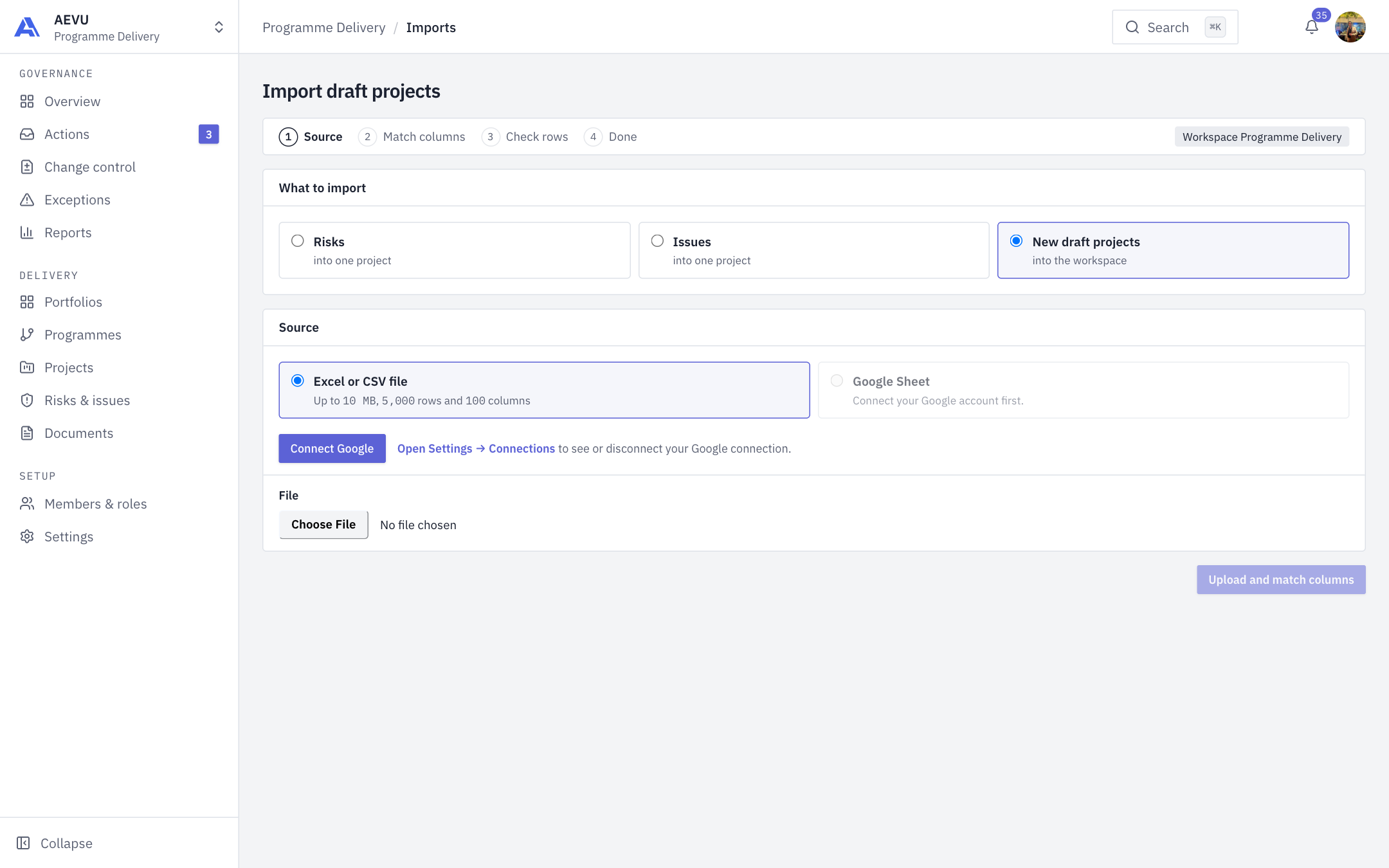
The wizard shows four steps: Source, Match columns, Check rows, Done.
1. Source
- Choose What to import, and the project if asked.
- Choose Excel or CSV file ("Choose an Excel workbook (.xlsx) or a CSV file (.csv)"), or Google Sheet (pick it with Google; you may be asked to connect Google first). For a workbook, pick the Worksheet.
- Click Upload and match columns (or Read the sheet and match columns).
2. Match columns
AEVU matches your headers to fields by name ("Risk ID", "risk_id" and "RiskId" are the same). There is no fuzzy matching. Use the dropdown on each column to choose a field or Don't import. Every required field must be mapped. If dates are numeric, choose how they are written (Day first or Month first). Click Check rows.
3. Check rows
Rows are read, shown as ready or needing attention, with reasons under What needs fixing. For each problem row you can exclude it, include it again, or change one value (for example pick the right person when a name matches several). Use Back to columns to remap, Download row report (CSV) for the full list of problems, and Check rows again after fixes.
Click Import N into … once every included row passes. Your preview is valid until the time shown (24 hours after upload).
4. Done
Counts of records created, rows skipped (already imported) and rows failed, links to the created records (Open record) and a table of Rows that failed with the reason and Download row report (CSV).
Limits
- File up to 10 MB, 5,000 data rows, 100 columns, 10,000 characters per cell. Larger sheets are refused, not cut short.
- Your plan may lower the row limit.
What is refused
- Old
.xlsand.xlsbfiles, password-protected workbooks, and macro-enabled files (.xlsm). - Formulas are never calculated; only the value Excel saved is read.
- Dates must be unambiguous. A date like 03/04/2026 is refused unless you choose the format. Two-digit years are refused.
- Numbers with commas, spaces or apostrophes ("1,234") are refused.
- Choices must match a known value. People must match an exact email or full name of someone you could pick on the normal form, otherwise unknown or ambiguous.
- Duplicate project codes or duplicate source IDs inside the file.
Good to know
- Importing the same file again never creates duplicates or updates records: rows already imported are skipped. There is no undo; edit or remove records from their own screens.
- Imported draft projects bring only basics: name, code, description, manager, dates, contract value, currency, priority and type. Never stages, approvals, payments or permissions.
- Each row goes through the same rules as the create screen and is audited as you.
- Uploaded cell content is removed after about 7 days; counts and outcomes stay.
- If an import is stopped, rows already created are kept.