

Appearance
Settings map
Settings is where a workspace admin, owner or PMO lead configures how one workspace behaves. This page maps the whole settings rail, so you can find the right screen and see who can open it.
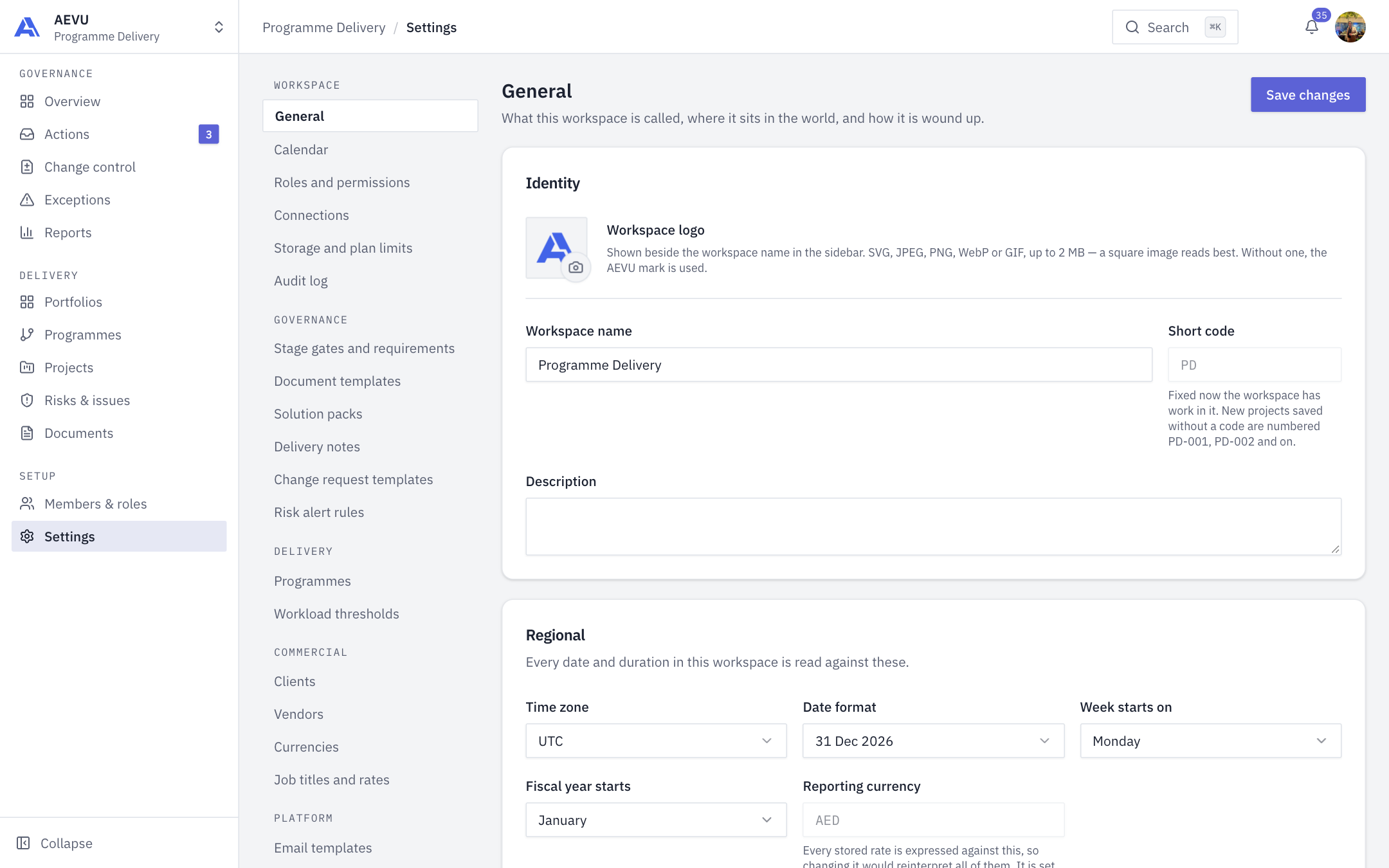
Settings belongs to the selected workspace. If your organisation has several workspaces, switch workspace first. Each workspace keeps its own calendar, templates, rates, clients and thresholds. Organisation-wide controls (plan, billing, AI policy) live elsewhere. See Billing.
How access works
The rail shows only the pages you can open. Each page opens on one permission key (or any of several). The key that lets you open a page is not always the key that lets you change it. For example, the three template pages open with template.view but are read-only without template.manage. Role grants are editable, so the defaults below can differ in your workspace. Check them in Roles & permissions.
INFO
The Settings entry in the main navigation appears if you hold at least one of the keys that open a settings page.
The rail
Workspace
| Page | Purpose | Opens with (default roles) |
|---|---|---|
| General | Name, logo, short code, time zone, date format, fiscal year, notification defaults, archive | workspace.manage (Owner, Admin) |
| Calendar | Weekend pattern and holidays | calendar.view (all built-in roles). Editing needs calendar.manage |
| Roles and permissions | The permission matrix | member.manage. See Roles & permissions |
| Connections | Entra ID, NetSuite and other links | settings.manage. See Integrations |
| Storage and plan limits | Storage used, workspace count against the plan | settings.manage (Owner, Admin) |
| Audit log | Read-only record of changes | audit.view (Owner, Admin, PMO) |
Governance
| Page | Purpose | Opens with |
|---|---|---|
| Stage gates and requirements | What a stage needs before it can be sent to the PMO, and the stage day limits | template.view. Editing needs gate.approve (Owner, PMO) |
| Document templates | The folder structure and expected documents new projects start with | template.view. Editing needs template.manage |
| Solution packs | Which starter plans appear when creating a project | workspace.manage |
| Delivery notes | The certificate a client signs on delivery | template.view. Editing needs template.manage |
| Change request templates | Pre-filled change requests and their categories | template.view. Editing needs template.manage |
| Risk alert rules | Rules that flag risks in the register | risk.alert_rules.manage (Owner, Admin, PMO) |
Delivery
| Page | Purpose | Opens with |
|---|---|---|
| Programmes | The programme list (also under Delivery) | programme.view. Editing needs programme.manage |
| Workload thresholds | The utilisation bands behind every workload colour | settings.manage |
Commercial
| Page | Purpose | Opens with |
|---|---|---|
| Clients | Who the work is for | reference.manage (Owner, Admin) |
| Vendors | Who work is bought from | reference.manage |
| Currencies | Currencies in use and their rates | reference.manage |
| Job titles and rates | What each role costs | reference.manage |
Platform
| Page | Purpose | Opens with |
|---|---|---|
| Email templates | Wording of the emails the product sends | template.manage (Owner, Admin, PMO) |
| Document types and phases | The two lists that classify documents | reference.manage |
| AI | Which AI drafts the workspace allows, project limits, usage | ai.manage or ai.usage.view (Owner, Admin) |
| Channel notifications | Teams and Google Chat alerts | integration.manage or integration.view. See Teams & Google Chat |
What new workspaces start with
A new workspace is seeded with editable defaults, so nothing is blank on day one: the permission matrix, stage gate requirements and day limits, both document template structures, one delivery note template, five change request templates, fifteen document types, five document phases, basic grades and job titles, and a set of currencies. These are the workspace's own rows. You can edit them, and changing them never affects other workspaces.
TIP
If a page you expect is missing from your rail, you don't hold the key that opens it. Ask a workspace Owner or Admin to review your role.