

Appearance
Details (project overview)
The Details tab is a project's front page: its health, its stage, the key figures and the things that need attention, on one screen.
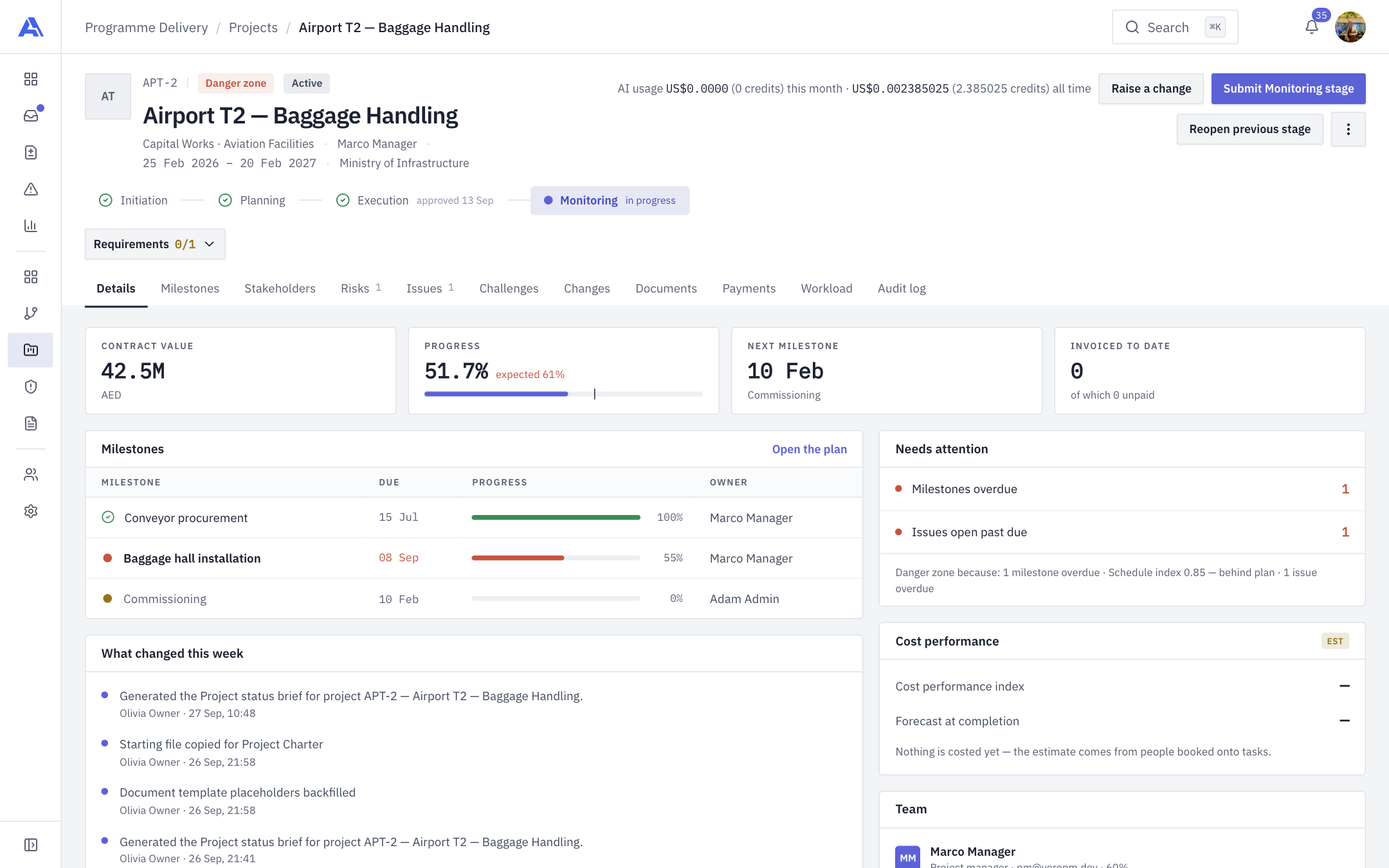
What you see
Every project opens on Details. The page is built from the header at the top and a set of cards below it.
The header
| Part | What it shows |
|---|---|
| Code and name | The project code (for example APT-2) and its name. |
| Health chip | On track, At risk or Danger zone (see Health). |
| Status chip | The project's status: Draft, Planning, Active, On hold, Completed or Cancelled. |
| Filing line | The portfolio and programme the project sits in (or "Unfiled"), the project manager, and the start and end dates. |
| Stage stepper | The five stages: Initiation, Planning, Execution, Monitoring and Closing. See Stage gates. |
| Requirements | A chip such as Requirements 0/1 that opens the checklist for the current stage. |
| Delayed chip | Delayed +Nd, shown when the open stage has run past its day limit. A Critical priority chip appears for critical projects. |
| Raise a change | Starts a change request. Shown if you may raise changes. See Changes. |
| Submit <Stage> stage / Reopen previous stage | The stage-gate buttons, shown only when you may use them. |
| Menu (three dots) | Edit project (needs project management rights) and Delete project (needs the delete permission), each shown only if your role allows it. |
Where your role may see AI usage, a line in the header also shows the project's AI usage this month and all time. See Ari, the assistant.
On every other tab the header shrinks to the code and name, with that tab's own buttons on the right.
INFO
The tabs Details, Milestones, Stakeholders and Workload are always shown. Risks, Issues, Challenges, Changes, Documents, Payments and Audit log appear only if your role can read them. Hiding a tab is a convenience; the system checks your permission again on every action.
The four tiles
| Tile | Meaning |
|---|---|
| Contract value | What the client pays: the project budget plus the cost of any applied change that is funded as Requires special approval. A small breakdown ("Initial contract value", one line per change, "Total") appears when changes count, and only if you can view change requests. |
| Progress | Actual progress, with "expected" next to it: the share of the start-to-end window that has already passed. A project that is ahead of its dates can read "100% · expected 0%". |
| Next milestone | The next milestone due and its date. |
| Invoiced to date | Money invoiced, and how much of it is unpaid. Shown only if you can view payments. |
Internal and funded initiatives have no client, so they show Planned budget instead of Contract value and have no Invoiced tile.
The cards
- Milestones lists each milestone with its due date, progress bar and owner. Open the plan takes you to the Milestones tab.
- Needs attention counts overdue milestones, overdue risks and issues and similar items, and each row links to the tab that fixes it. It only counts what you are allowed to see. Under it, a line explains the health verdict: "Danger zone because: …".
- What changed this week shows the project's audit lines from the last seven days. It is shown only if you can view the project audit log.
- Cost performance (marked EST) shows the Cost performance index (CPI) and the Forecast at completion. These are estimates from people booked on tasks, priced at the rate card. If nothing is costed yet the card says so, and if some booked people have no rate it warns that the cost is understated.
- Team lists the project manager and team members with their role and utilisation.
Health: On track, At risk, Danger zone
Health is calculated live from the project's data. Nobody sets it by hand.
Danger zone means at least one of these is true:
- One or more milestones are overdue.
- The schedule index is below 0.85 (well behind plan).
- The current stage gate was rejected and is awaiting resubmission.
At risk means no danger signal, but at least one of these is true:
- The schedule index is from 0.85 up to (but not including) 0.95.
- The stage gate has waited five days or more for a PMO decision.
- One or more risks or issues are overdue.
Anything else is On track. A Completed or Cancelled project always reads On track.
The schedule index is progress divided by expected progress. At 0.95 or above you are on track. For example, 51.7% done when 61% of the time has passed gives 0.85, which reads "behind plan".
TIP
The line under Needs attention lists every reason, danger reasons first. Fix those and the chip clears by itself.
Edit and delete the project
- Open the menu (three dots) at the top right.
- Choose Edit project to change the project's details (you need permission to manage the project). The form is the same one used when creating a project.
- Choose Delete project (you need the delete permission, held by Owner and Admin by default) and confirm.
WARNING
Deleting a project removes it from the register and hides everything under its tabs: stage history, milestones, payments, bookings, stakeholders, risks, issues, challenges, changes and documents. The audit log keeps the record. It cannot be undone from the app.
Common mistakes
- Expecting to set health by hand. You cannot. Change the cause (an overdue milestone, a late gate) instead.
- Missing tiles or tabs. They depend on your role. Ask an Owner or Admin if you think you need access. See Roles.