

Appearance
Stakeholders
The Stakeholders tab is the project's register of people with a stake in it: who they are, how much power and interest they have, where their attitude stands, and how you keep in touch.
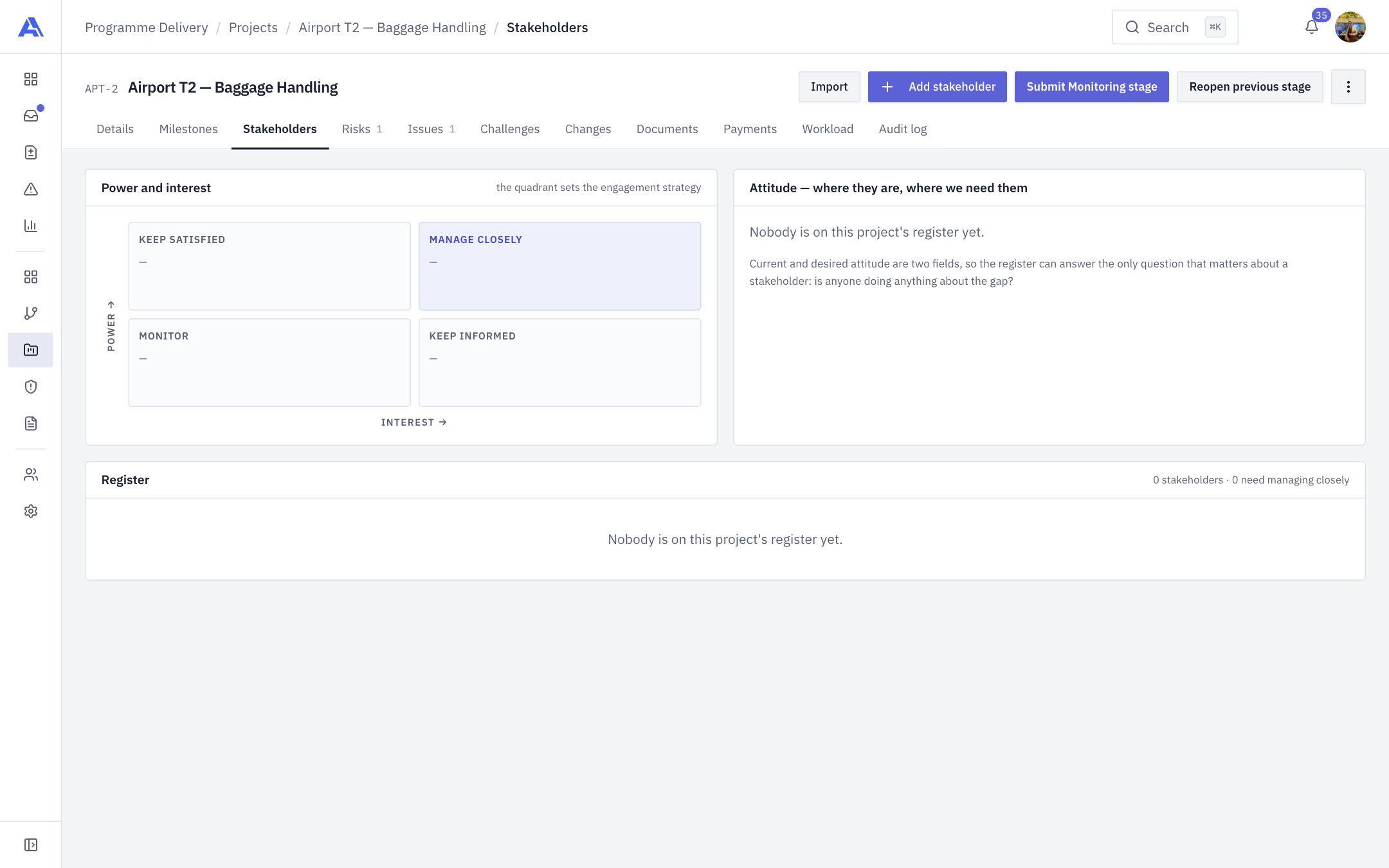
A project with no stakeholders yet (the register and both panels show their empty states):
Who can do what
| Action | Permission | Default roles |
|---|---|---|
| View the register | stakeholder.view | Everyone |
| Add, edit, import, log contacts | stakeholder.manage | Owner, Admin, PMO, Manager |
| Remove a stakeholder | stakeholder.delete | Owner, Admin |
Without stakeholder.view, email and phone are hidden ("Contact details are hidden from your role"), and an edit keeps the stored values.
The screen
- Power and interest is a four-quadrant grid. Each stakeholder is a chip in their quadrant. A warning triangle marks someone whose attitude gap is open.
- Attitude — where they are, where we need them lists every stakeholder, biggest gap first, as five steps: Unaware, Resistant, Neutral, Supportive, Leading. The current step is amber, the one you need is green, with an arrow between them.
- The register has a search box and Type, Strategy and Attitude filters, with columns Stakeholder, Organisation, Type, Strategy, Attitude, Engagement owner and Last contact.
Engagement strategy
The strategy is worked out for you from two answers (power and interest) and cannot be set separately.
| Power | Interest | Strategy |
|---|---|---|
| High | High | Manage closely |
| High | Low | Keep satisfied |
| Low | High | Keep informed |
| Low | Low | Monitor |
Add a stakeholder
- Click Add stakeholder (top right).
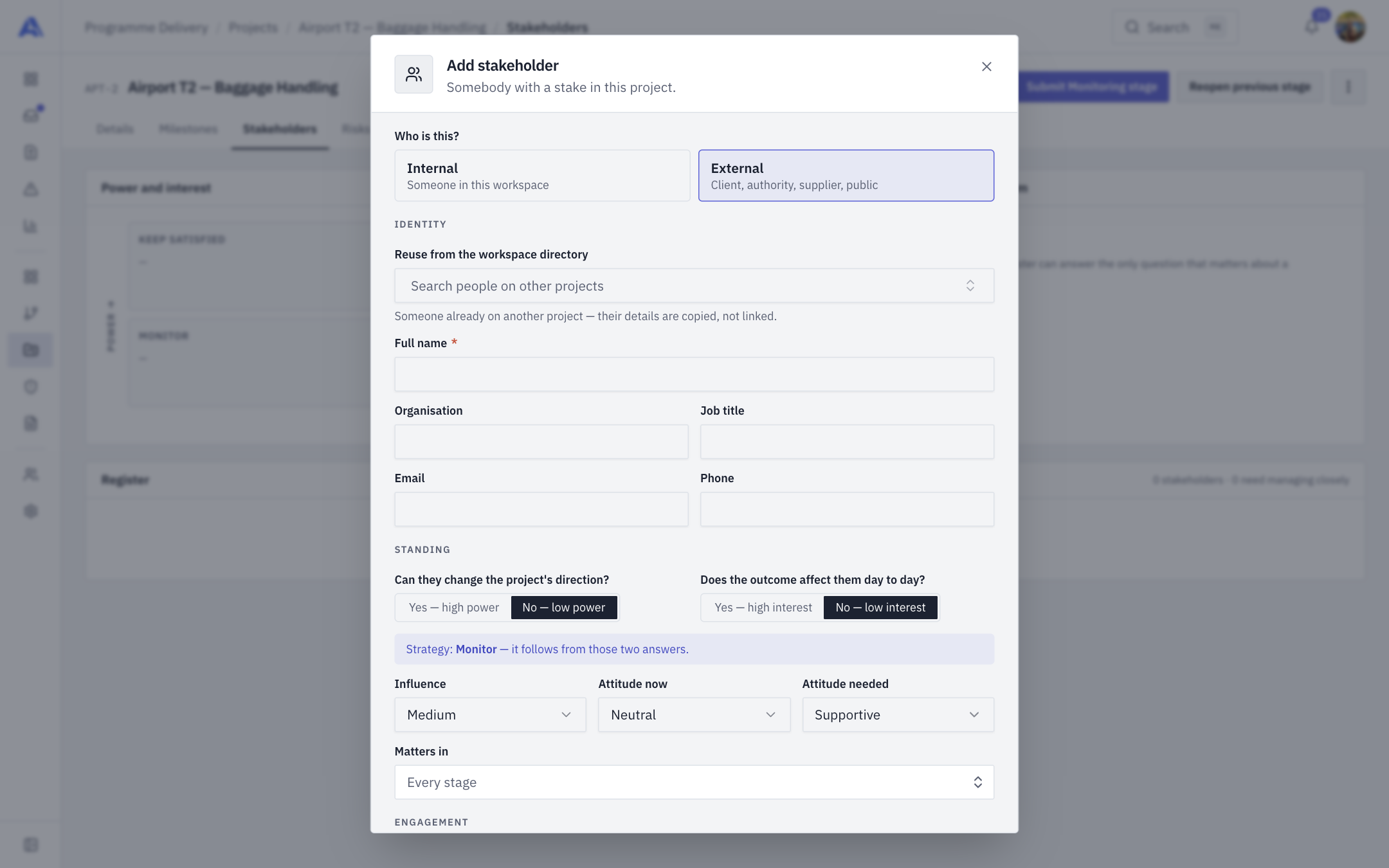
- Under Who is this?, choose Internal (someone in this workspace) or External (client, authority, supplier, public).
- Fill in the fields, then click Add stakeholder.
| Field | Notes |
|---|---|
| Workspace member | Internal only, required. Name and title come from the directory. |
| Reuse from the workspace directory | External only. Copies details from someone already on another project. They are copied, not linked. |
| Full name | External only, required. Must be unique on the project (case-insensitive). |
| Organisation, Job title | Optional. |
| Email, Phone | Shown only to people who can view stakeholder contact details. Email must be valid. |
| Power and interest questions | "Can they change the project's direction?" and "Does the outcome affect them day to day?" The dialog shows the resulting Strategy. |
| Influence | Low, Medium or High. |
| Attitude now / Attitude needed | Unaware, Resistant, Neutral, Supportive or Leading. |
| Matters in | Stages where they matter. Blank means every stage. |
| Preferred method | Email, Meeting, Report, Call or Portal. |
| How often | Daily, Weekly, Every two weeks, Monthly or At milestones. |
| Language, Engagement owner, Key requirements, Main concerns, Notes | Optional. The engagement owner is the team member who owns the relationship. |
Contact log
Open a stakeholder and choose the Contact log tab. Enter When (not in the future), How, What was discussed? and optionally Outcome, then click Log contact. The register's Last contact column follows.
Import
Click Import to load a CSV. Each row is written through the same rules as the form, so an invalid row fails exactly as it would by hand.
Remove
Open the stakeholder and click Remove. They leave the register with their contact log. The audit log keeps the record.
Why it matters
A stage can require a stakeholder before it can be submitted. See Stage gates.
Common mistakes
- Duplicate names. A name must be unique on the project.
- Leaving attitude needed at the default. The attitude gap is how you spot who needs attention.