

Appearance
Change control
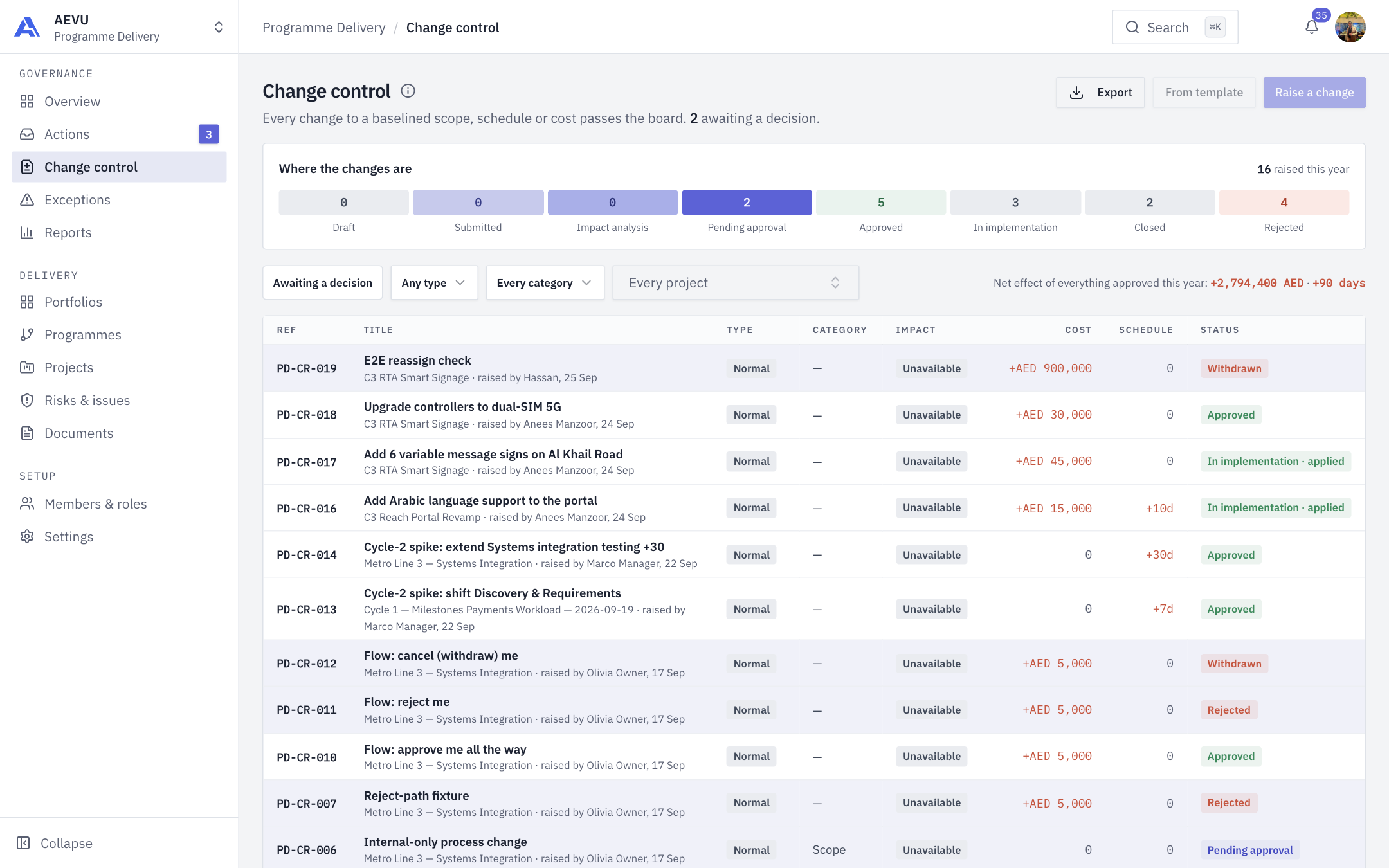
Change control is the register of every change request across the projects you can see, so you can follow each one to a decision.
Who can use it
You need changerequest.view. The Export button needs changerequest.export.
What you see
- A headline with the number awaiting a decision.
- Where the changes are: tiles for each stage (Draft, Submitted, Impact analysis, Pending approval, Approved, In implementation, Closed, Rejected) with counts, and how many were raised this year. Click a tile to filter.
- Awaiting a decision toggle, plus filters for Type, Category and project.
- The table: Ref, Title (with project, who raised it and when), Type, Category, Impact, Cost, Schedule and Status. A summary line shows the net effect of everything approved this year. Beyond the stages in the tiles, a status can also read Withdrawn, or "In implementation · applied" once the change has been applied to the plan.
Change types
Hover the info icon next to the title for the short version:
- Standard: a pre-approved catalogue item that applies itself and never reaches the board.
- Normal: takes the full change control board route.
- Emergency: runs the PM and sponsor approvals in parallel and requires a post-implementation review within seven days.
Raising a change
The register does not create changes itself. Raising happens on the project.
- Pick a project in the project filter.
- Click Raise a change, or From template to start from a template.
- You land on that project's Changes tab with the form ready. See Changes.
Both buttons stay disabled, with the hint "Choose a project in the filter first", until a project is chosen.
Exporting
Click Export to download the register as filtered. You see a toast with the number of changes exported.