

Appearance
Workload
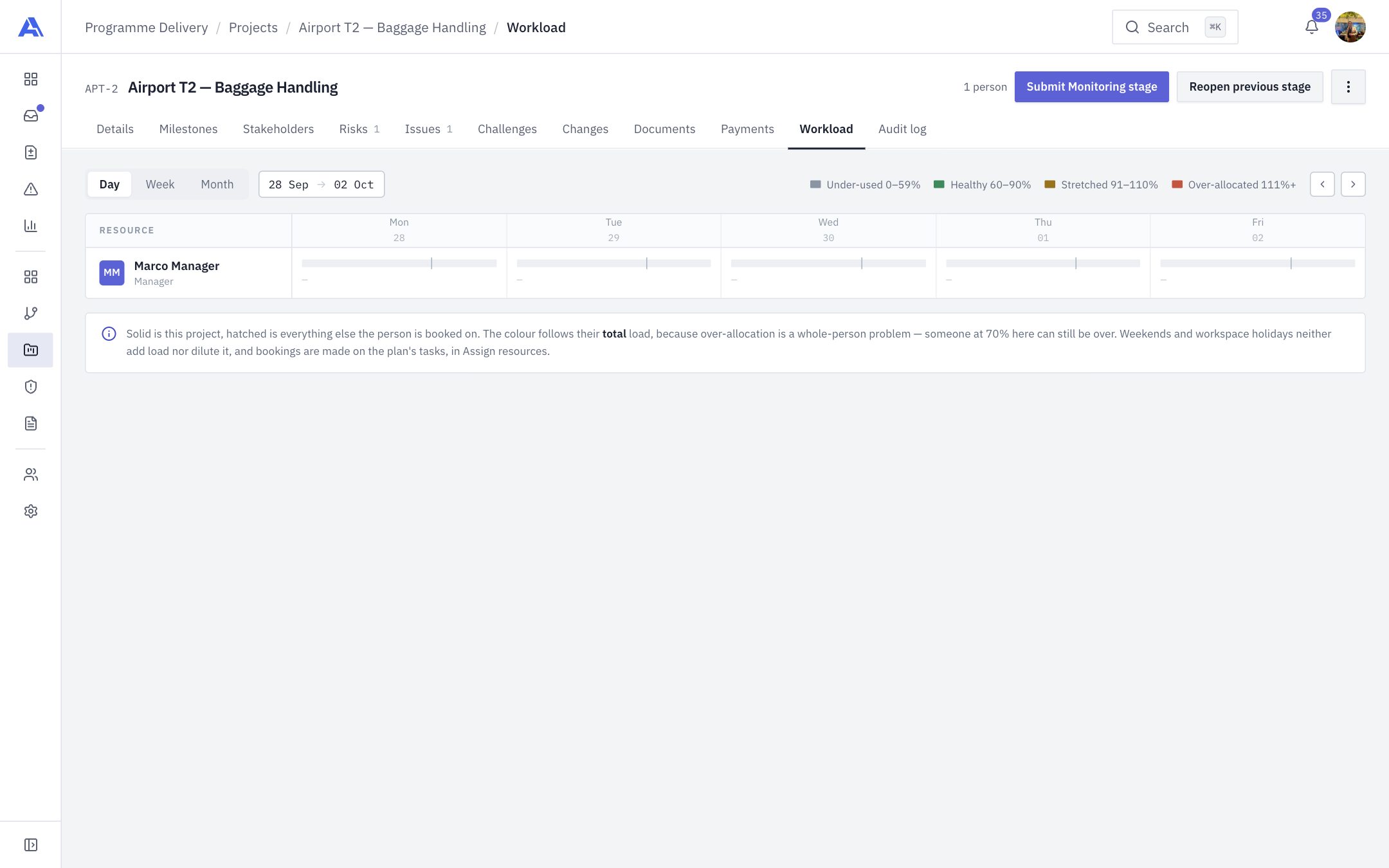
The Workload tab shows how busy each person on the project is, against everything else they are booked on.
What this tab is, and is not
It is a read-only view. You do not book anyone here. Bookings are made on tasks, with Assign Resources on the Milestones tab. The tab simply shows the result. The people count appears at the top right of the header.
Who can book people: workload.manage plus the right to edit the task (Owner, Admin, PMO and Manager by default).
The grid
- Rows: the project manager, the active team roster (Finance excluded), anyone with a task booking on the project, then guests and manpower booked on its tasks.
- Columns: switch between Day (the default), Week (8 weeks) and Month (6 months). The day view leaves out your workspace's weekend days. The date pill shows the range, and the arrows move it; clicking the pill returns to today.
- Each cell is a bar running to 150%, with a tick at 100%. The solid part is this project; the hatched part is everything else the person is booked on. The bar takes its colour from the person's total load, because over-allocation is a whole-person problem: someone at 70% here can still be over.
- The figure is each booking's percentage averaged over the period's working days. Weekends and workspace holidays neither add load nor dilute it. A total of 0% is shown blank.
Booking types
| Type | Row shows | Created as |
|---|---|---|
| Member | A workspace member with their role | Existing in Assign Resources, a percentage and dates. |
| Guest (External / Freelance) | Someone with no sign-in | External / Freelance in Assign Resources. A booking without its own dates uses its task's dates; with neither it is skipped. |
| Manpower | Outsourced labour | Manpower Outsourcing in Assign Resources. |
All three load the plan and feed the project's labour cost. All bookings are counted across the same workspace only.
Utilisation bands
The legend above the grid shows four bands. Your workspace owns the three boundaries, and the defaults are:
| Band | Default range | Colour |
|---|---|---|
| Under-used | 0 to 59% | Grey |
| Healthy | 60 to 90% | Green |
| Stretched | 91 to 110% | Amber |
| Over-allocated | 111% and above | Red |
A boundary belongs to the band it opens: exactly 111% is Over-allocated. An administrator can change these in Workload thresholds. Over 100% the figure turns red.
Drill into a cell
Click a cell to open a card beside the grid (below it on narrow screens). It lists This project (task and milestone, with %) and Other projects (project, task and its manager, with %), and a red note when the person is over 100%.
After you book
Bookings feed the Team utilisation on Details, the cost estimate there, and resource cost on Payments. Over-allocation shows up on Exceptions and in Reports.
Common mistakes
- Looking for a Book button. Use Assign Resources on the task.
- Reading the colour as this project's load. It reflects the person's total.
- Expecting an applied change request to move bookings. It does not. See Changes.