

Appearance
Risks
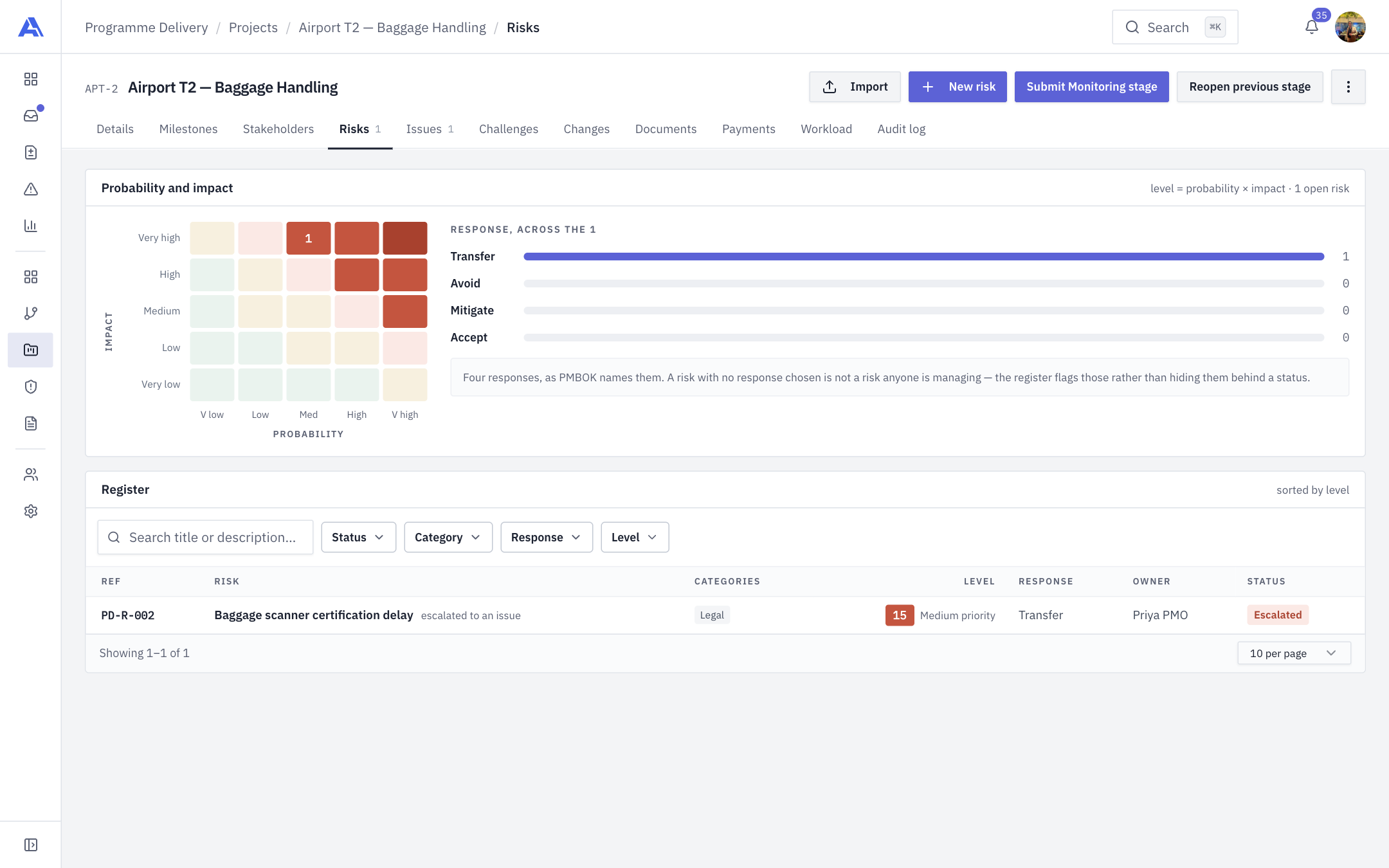
The Risks tab is the project's risk register: what could go wrong, how bad and how likely it is, what you will do about it, and who owns it.
Who can do what
| Action | Permission | Default roles |
|---|---|---|
| View risks | risk.view | Owner, Admin, PMO, Manager, Finance |
| Create, edit, change status, import, convert to an issue | risk.manage | Owner, Admin, PMO, Manager (not Finance) |
| Remove a risk (Remove risk in the drawer, two presses; refused while an issue is linked to it) | risk.delete | Owner, Admin |
With view-only access the buttons disappear and fields show as text. The server enforces this too.
The screen
- A Probability and impact heat map (5 by 5). Click a square that holds risks to narrow the register to that square. Beside it, a Response, across the N panel counts open risks by Transfer, Avoid, Mitigate and Accept, and flags those with no response chosen.
- The Register, ten rows a page, highest level first, with a search box and Status, Category, Response and Level filters. Columns: Ref, Risk, Categories, Level, Response, Owner, Status. A risk that has become an issue is tagged "escalated to an issue".
- Header buttons: Import and New risk.
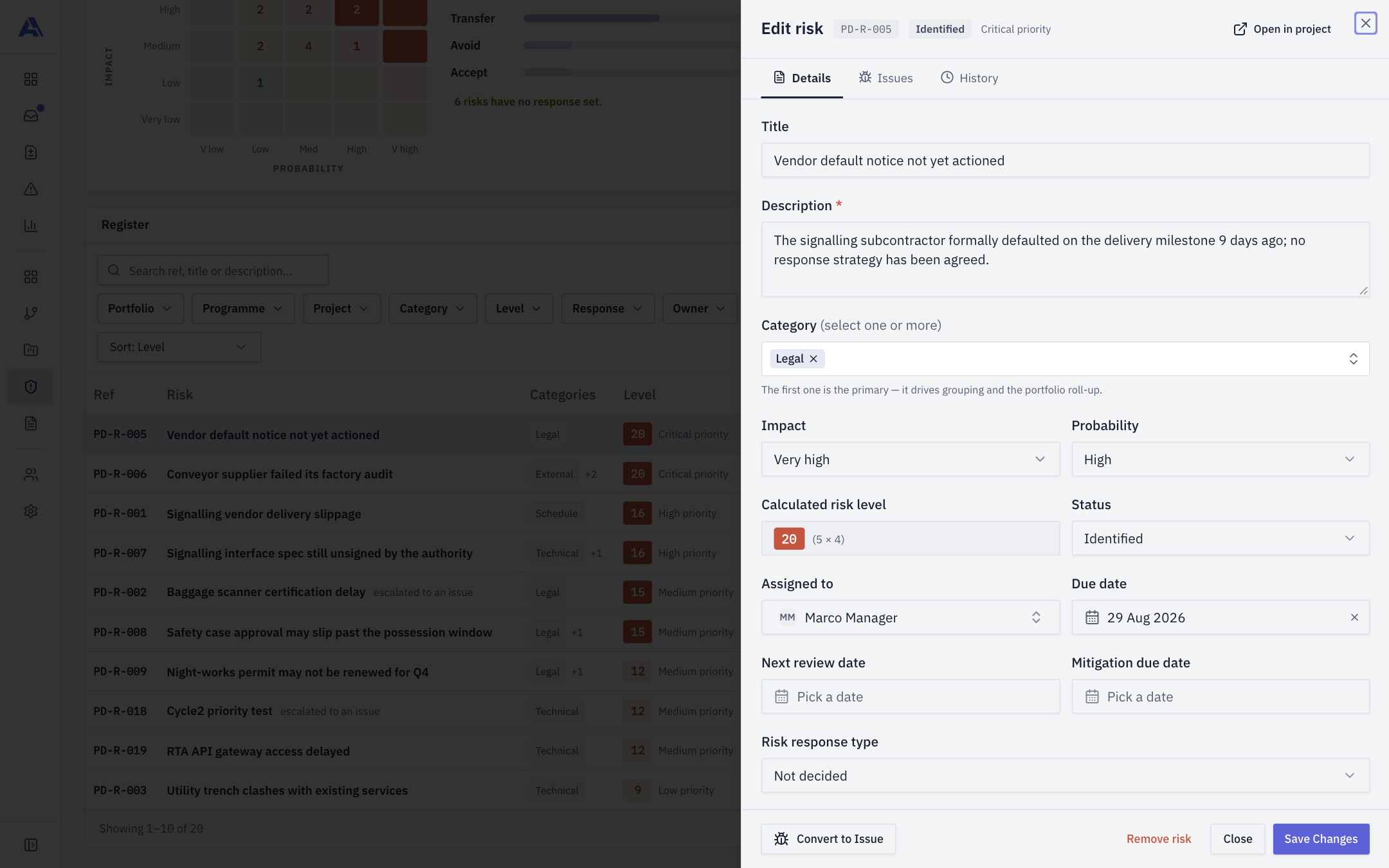
The risk drawer (shown here from the workspace register, which adds an Open in project link):
How a risk is scored
Level = Impact × Probability, each on a 1 to 5 scale (Very low, Low, Medium, High, Very high). The level is calculated for you ("Calculated risk level") and cannot be typed.
| Band | Level |
|---|---|
| Low | 1 to 4 |
| Medium | 5 to 9 |
| High | 10 to 14 |
| Very high | 15 to 24 |
| Critical | 25 |
Each risk also gets a priority word (Low, Medium, High, Critical) worked out from the level (cut-points 11, 16 and 20). It is shown beside the level as "<Word> priority". It is a different vocabulary from the bands: a level-12 risk is in the High band but reads Medium priority.
Log a risk
- Click New risk.
- The Log a risk dialog opens. Title and Description are required.
- Click Log a risk.
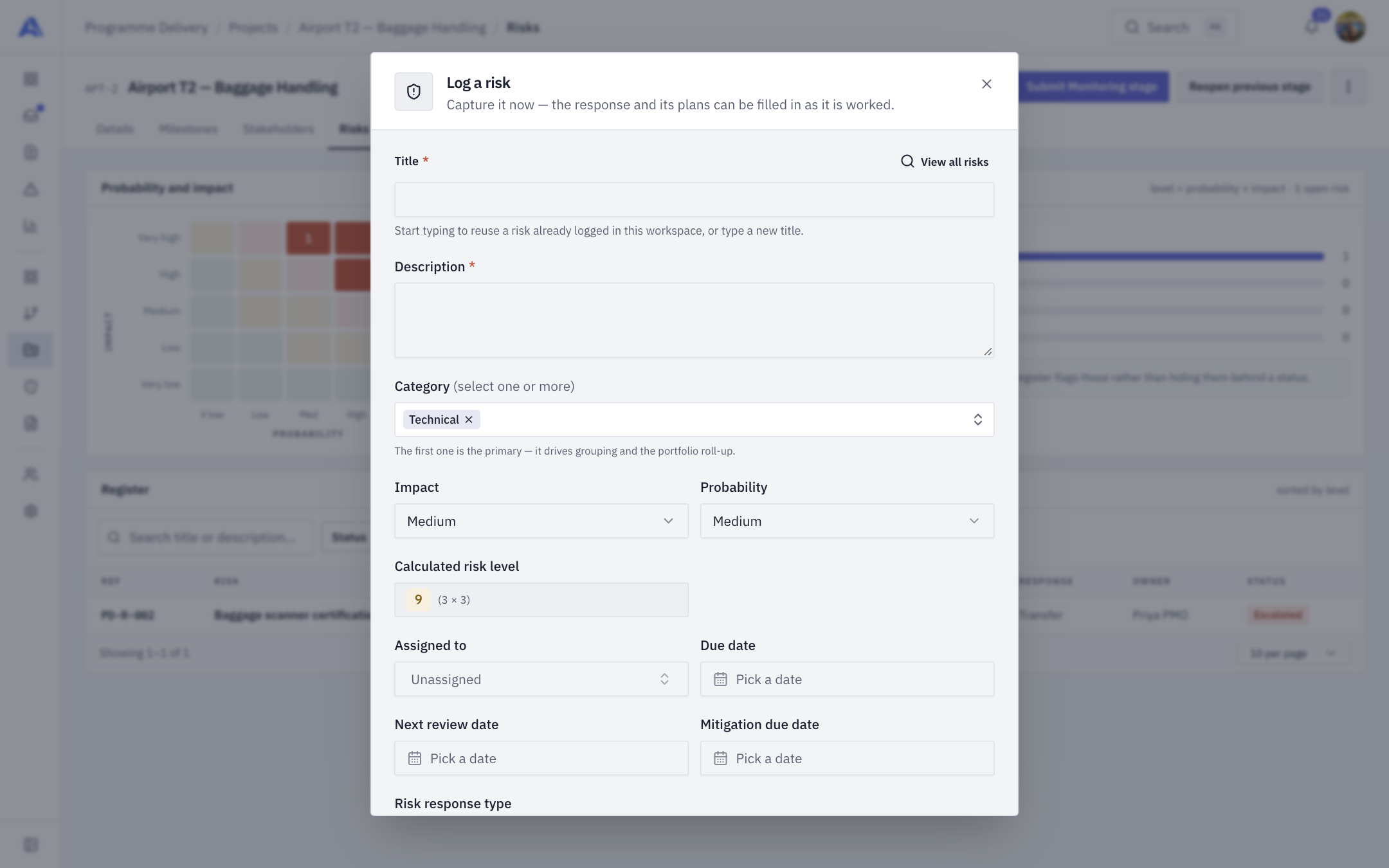
| Field | Notes |
|---|---|
| Title | "What could go wrong?" You can start typing to reuse a risk already logged in the workspace. |
| Description | Required. |
| Category | One or more of Technical, Financial, Resource, Schedule, Quality, External, Legal, Security. The first you pick is the primary one. |
| Impact, Probability | 1 to 5 scale. |
| Status | Identified, Analyzing, Planning, Monitoring, Mitigated, Closed, Escalated. |
| Assigned to | The project team. |
| Due date, Next review date, Mitigation due date | Optional. |
| Risk response type | Avoid, Mitigate, Transfer, Accept, or Not decided (the default). |
| Mitigation plan | Asked for when the response is Avoid or Mitigate. |
| If it happens anyway | The contingency plan; asked for with Mitigate, Transfer or Accept. |
| Cost impact | Optional amount. |
INFO
The response decides which plans are asked for. If you change the response, a plan that no longer applies is cleared on save.
The risk drawer
Click a register row to open it. It has three tabs:
- Details: the full form. The footer has Convert to Issue, Remove risk, Close and Save Changes.
- Issues: issues linked to this risk, with create, link and unlink.
- History: the risk's own timeline, newest first. Only fields that actually changed are recorded. It is separate from the audit log, so a Manager can see what they changed without audit rights.
Convert to Issue
If a risk has happened, open it and click Convert to Issue. This creates an issue, links the two, and records the conversion once. The footer then reads "Escalated to I-…". Converting does not change the risk's status. Escalated can only be set by conversion, not picked by hand.
What counts as "open"
A risk is open unless its status is Mitigated or Closed. An escalated risk is still open.
Risk alert rules
A PMO can define rules in Risk alert rules that raise an in-app alert when a risk reaches a level, matches a status, or comes due soon. Alerts show in the workspace Risks & issues register. They are not emailed.
After you save
- Overdue risks make the project At risk (see Details).
- A stage can require at least one risk before submission (Stage gates).
- Every change is audited (Audit log).
Common mistakes
- Leaving Response as "Not decided". The register deliberately flags undecided risks.
- Expecting to type the level. Change impact or probability instead.