

Appearance
Milestones & schedule
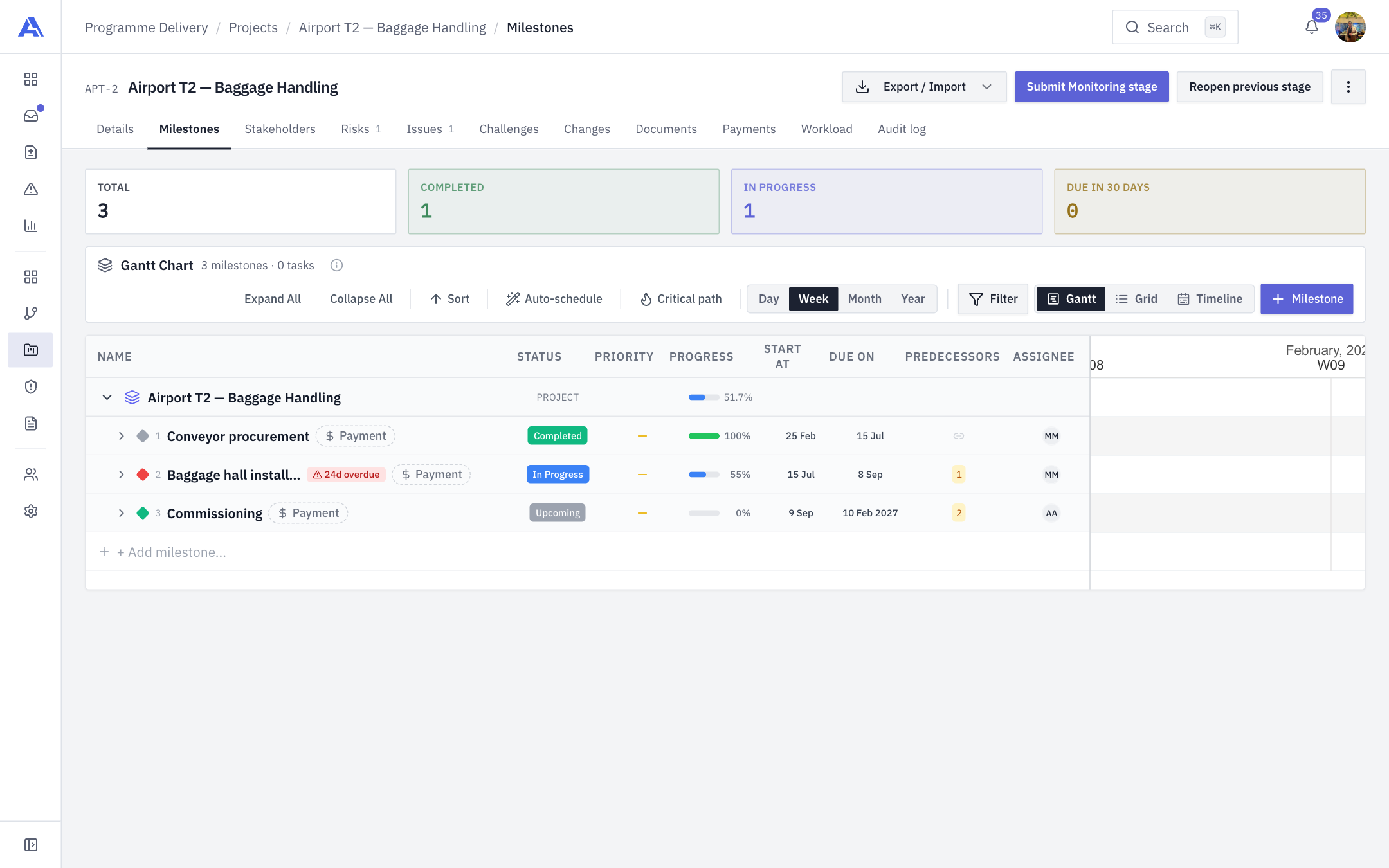
The Milestones tab is the project plan: milestones, their tasks and subtasks, the dates, the dependencies between them, who is booked on what, and which milestones trigger a payment.
Who can do what
| You want to | You need |
|---|---|
| See the plan | Any project member who can open the project (the tab is always shown). |
| Add, edit, delete, reorder and reschedule milestones | Permission to manage milestones (milestone.manage; Owner, Admin, PMO and Manager by default). |
| Delete a milestone | milestone.delete (Owner and Admin by default). |
| Create and edit tasks, auto-schedule | Task management permission (task.manage). Reading tasks needs task.view. |
| Book people onto tasks (Assign Resources) | workload.manage, plus the right to edit the task. |
| Open a milestone's payment flag in edit mode | Payment management permission (payment.manage, Finance). Others see it View only. |
See Roles and Permission keys.
The screen
- Summary tiles across the top: Total, Completed, In progress and Due in 30 days.
- The plan bar shows the current view's title and count (for example "Gantt Chart · 3 milestones · 0 tasks") and its tools: Expand All, Collapse All, Sort, Auto-schedule, Critical path, the Day / Week / Month / Year zoom, Filter, the Gantt / Grid / Timeline switch and the primary + Milestone button.
- Export / Import in the header row lets you export the plan as MS Project XML or import from MS Project XML.
Three views of one plan
| View | Best for |
|---|---|
| Gantt (default) | A table with bars. Edit dates, progress, status and predecessors inline. |
| Grid | A flat outline, one row per milestone, task or subtask, with indent, outdent and predecessor actions. Has its own Columns chooser. |
| Timeline | A roadmap. One lane per milestone, root tasks as smaller bars sized by percent complete, zoomable by Month, Quarter or Year. |
All three read the same data, so they never disagree. Grid and Timeline open the same edit dialogs as the Gantt.
Gantt columns
Name (with its WBS number and a $ Payment chip), Status, Priority, Progress, Start at, Due on, Predecessors, Assignee. Overdue milestones show a red "Nd overdue" chip. The top row is the project itself with its overall progress.
Add a milestone
- Click + Milestone (or the + Add milestone… row at the foot of the Gantt).
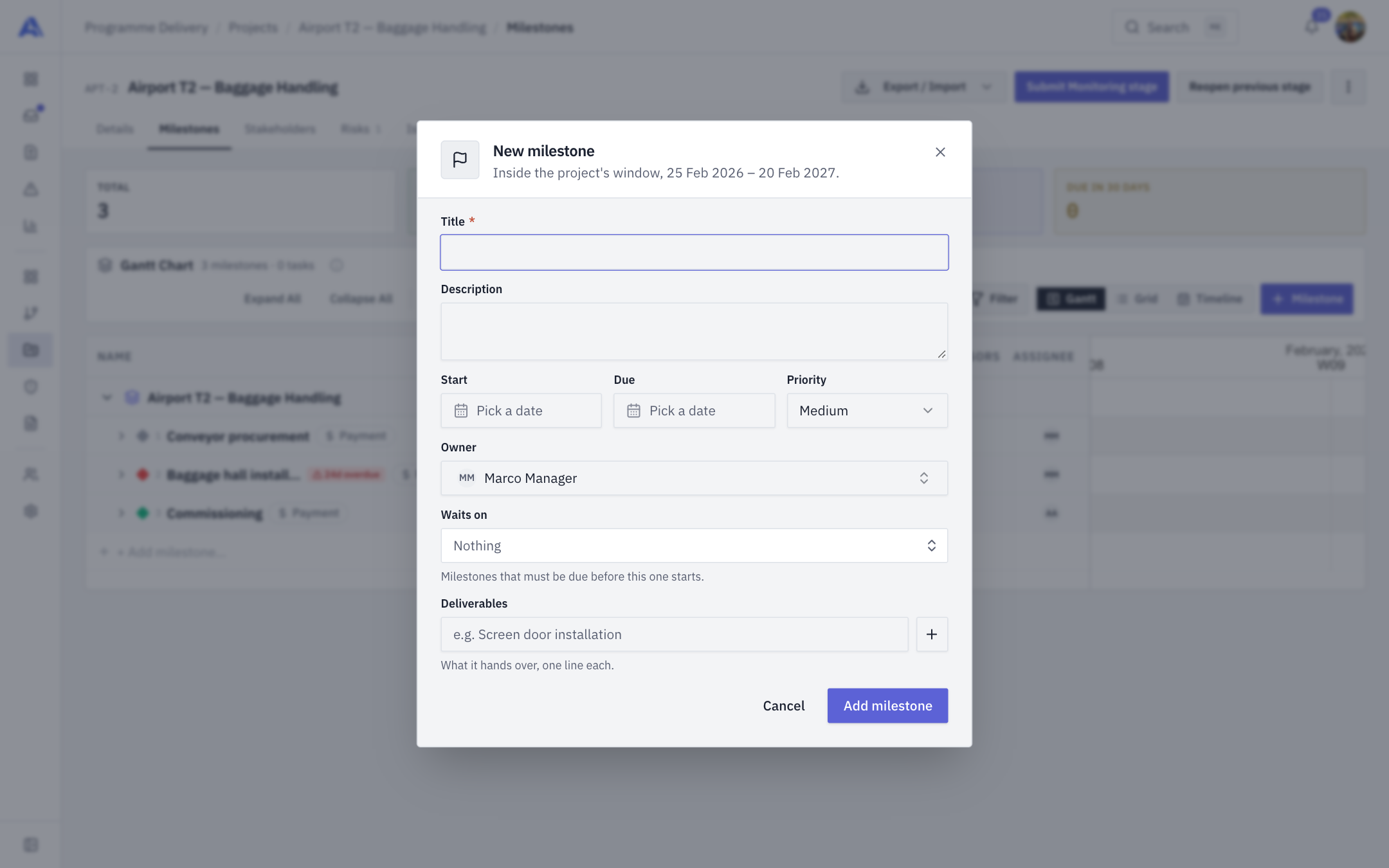
- Fill in the New milestone dialog (it states the project's window, for example "Inside the project's window, 25 Feb 2026 – 20 Feb 2027").
- Click Add milestone.
| Field | Notes |
|---|---|
| Title | Required. |
| Description | Optional. |
| Start and Due | Must sit inside the project's start and end dates. Start cannot be after due, and cannot be before the latest predecessor's due date. |
| Priority | Low, Medium, High or Critical. Defaults to Medium. |
| Owner | The person responsible. |
| Waits on | The milestones that must be due before this one starts. A circular dependency is refused. |
| Deliverables | What it hands over, one line each (use the + button to add more). |
TIP
The quick + Add milestone… row needs only a title. A milestone created with no dates at all takes the project's own start and end dates, so it is never blank and its payment line has a due date. If you give even one date, your date is kept.
Status and progress
- Progress is 0 to 100 and is typed by hand on a milestone that has no tasks. A milestone with tasks takes its progress from them (cancelled tasks are left out).
- The status follows the number. 100% is Completed. Anything between 0 and 100 is In progress. Falling back to 0% returns it to Upcoming. Lowering a completed milestone reopens it.
- A milestone can also be set to On hold or Cancelled (from its Status). Neither counts as overdue however late the due date is. A cancelled milestone's progress can't be changed until it is reopened.
- The project's default milestone cannot be deleted, and a milestone that has been invoiced cannot be deleted until the invoice is removed from its payment flag. Deleting a milestone also deletes its tasks, and the confirmation says how many ("…and all N tasks under it").
- Reordering must list every milestone exactly once. It is audited.
Tasks, subtasks and bookings
Open a milestone row to add tasks and subtasks. The task drawer has Title, Description, Status, Priority, Starts, Due, Estimated hours and Progress %. It shows Assignees read-only: people are assigned from the Assignee column on the plan, which is where the allocation is recorded.
To put people on work, open the Assignee cell of a task (the Assign Resources panel) and click Add New Resource. There are three kinds, and all of them count towards the Workload tab and resource cost.
| Tab | Who it is for | What you enter |
|---|---|---|
| Existing | A member of your workspace | Pick the person, then the allocation (a percentage of their time) and the dates. |
| External / Freelance | A guest with no sign-in | Name, email, resource type, role, then the cost as Hourly or Fixed cost. |
| Manpower Outsourcing | Outsourced labour priced by the month | Selling price, Calculation basis (working days or calendar days) and Deduct holidays (Yes or No); the end date is set from them. |
Each row in the allocation table shows the resource, dates, utilisation and status. Use the row actions to set the allocation or unassign the person from the task.
WARNING
Booking someone above their capacity is allowed but flagged. Utilisation bands are explained under Workload.
Dependencies and auto-schedule
- Set Predecessors in the Gantt (or Waits on in the milestone dialog) to link work. All four dependency types are supported.
- Auto-schedule pushes later any task that sits downstream of the one you changed. It never pulls work earlier and keeps each task's own length in working days.
- Critical path highlights the chain of work that decides the finish date.
- Working days follow your workspace calendar (see Calendar & holidays).
Comments and attachments
Use the row menu (View Comments) to open a milestone's discussion. Type @Name to mention a teammate. Replies go one level deep. Attachments are added from the same row menu.
Payment flags
A milestone can carry a payment flag, shown as a $ Payment chip. Opening it shows the Customer Invoice section (amount, currency), the invoice file, Mark as paid, and Vendor Payments. The full story is on Payments.
After you save
Dates, progress and status feed the project's Progress tile and health. An overdue milestone puts the project in the Danger zone (see Details). Once the Planning gate has been approved, the plan's baseline moves only when an approved change request is applied. See Changes.
Common mistakes
- Typing progress on a milestone with tasks. It takes the roll-up from its tasks instead.
- Dates outside the project window. Edit the project dates first, or the save is refused.
- Forgetting the payment flag. A billing milestone with no flag shows nothing in client payments.