

Appearance
Calendar & holidays
The workspace calendar defines non-working days: a weekly weekend pattern plus one-off and annually recurring holidays. Scheduling, allocation hours, workload and costs count only the working days that remain.
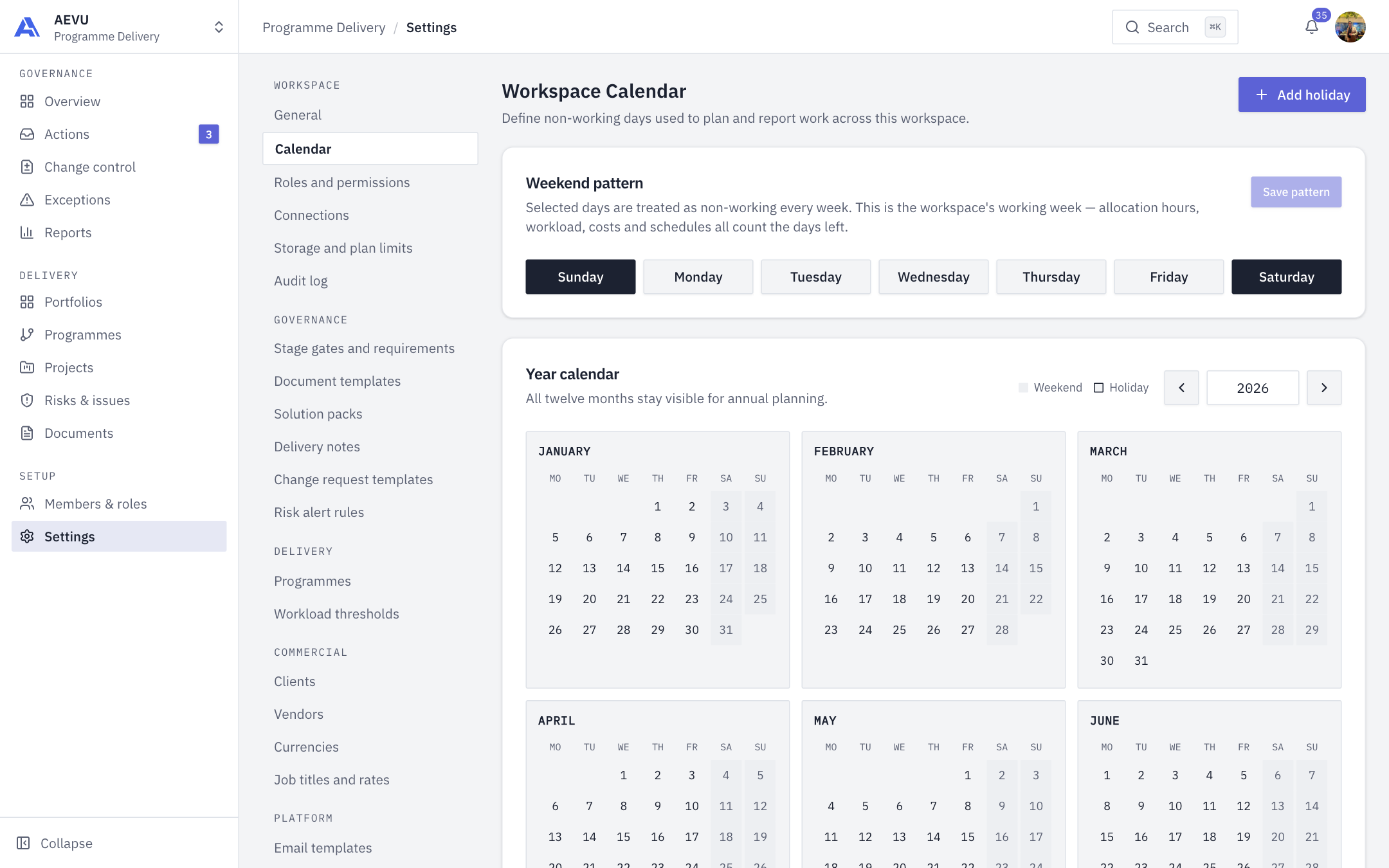
Who can open it: calendar.view. All built-in roles hold it. Who can edit: calendar.manage (Owner, Admin and Manager by default). Without it the page is read-only.
Set the weekend pattern
- Open Settings → Workspace → Calendar.
- In Weekend pattern, select the days that are non-working every week. Selected days turn dark.
- Select Save pattern.
A working week needs at least one working day, so you can't select all seven.
This is the same setting as the workspace's working days. There is one source of truth, so scheduling never sees two answers.
Add a holiday
- Select Add holiday, or select a date in the year calendar to prefill it.
- Fill in the dialog.
- Select Save holiday.
| Field | Rules |
|---|---|
| Holiday name | Required, up to 200 characters |
| From | Required date |
| To | Optional. Blank means the same day. Can't be before From |
| Description | Optional, up to 1000 characters |
| Repeat every year | Projects the holiday into every year |
Edit or delete a holiday with the pencil and bin icons in the Holidays table (columns Holiday, Dates, Repeats). Deleting asks for confirmation.
Reading the year view
All twelve months show at once. Weekends are shaded and holiday ranges are outlined. Use the arrows or type a year between 1 and 9999.
INFO
Recurring holidays cannot span more than 366 days. A holiday on 29 February is observed on 28 February in non-leap years.
Every change to the weekend or a holiday is written to the audit log.