

Appearance
Roles & permissions
A role is a named set of permissions. Administrators can edit what each role may do and create custom roles.
Who can do this
Viewing and editing the matrix needs Manage members and roles (Owner and Admin by default). Editing the Admin role is limited to Owners.
Open the matrix
Go to Settings → Roles and permissions.
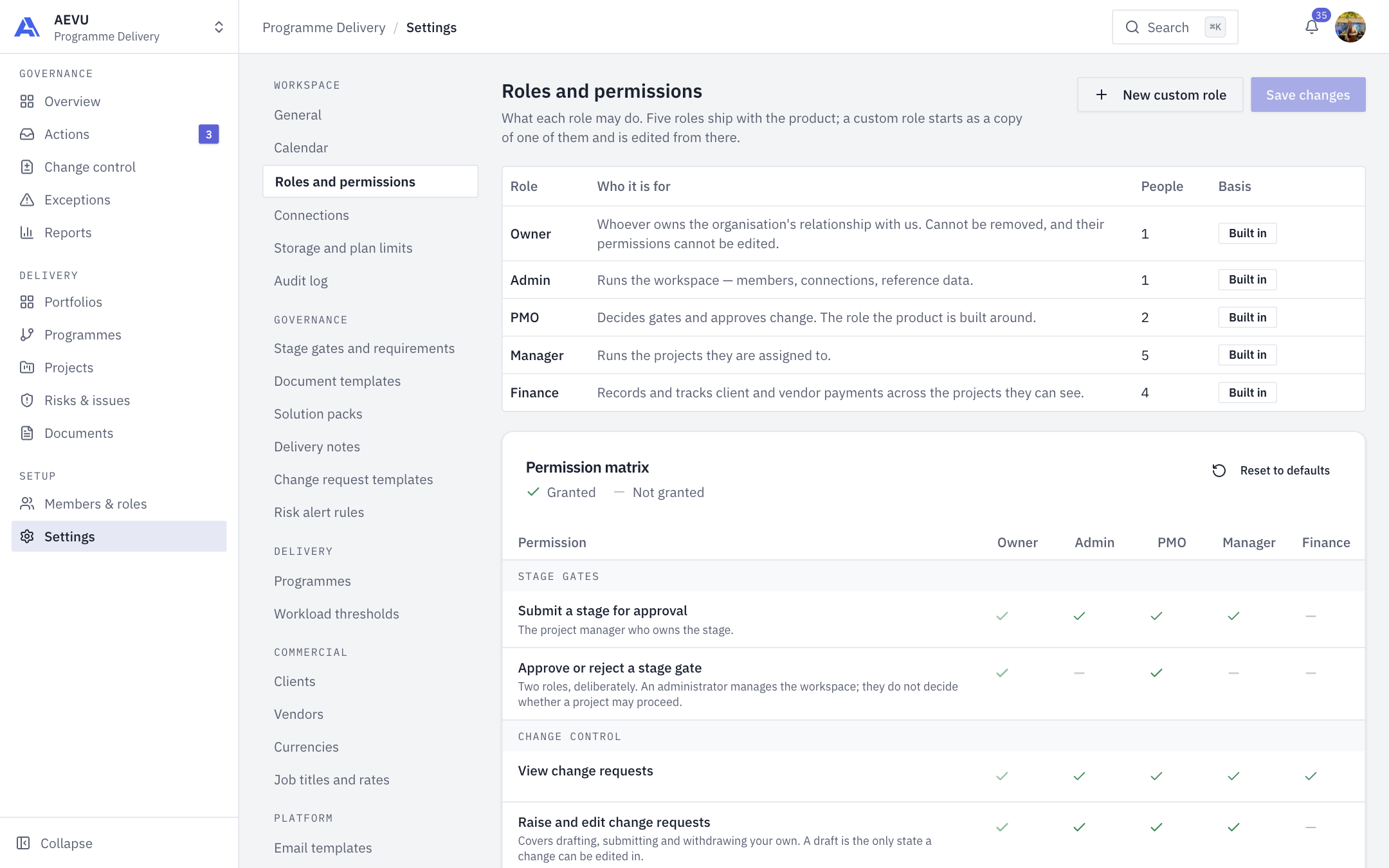
The top table lists every role, who it is for, how many people hold it and its basis (Built in or custom). Below it is the Permission matrix: permissions grouped under Stage gates, Change control, Projects and delivery, Calendar, Registers, Documents, Commercial, Configuration and Integrations and AI. A tick means granted, a dash means not granted.
Change a role
- Tick or untick permissions in the role's column.
- Click Save changes.
Changing a role changes it for everybody who holds it. Reset to defaults puts a role back to its built-in grants. The Owner column cannot be edited, so nobody can lock themselves out.
Changes are made directly in the matrix (there is no separate dialog). Save changes stays disabled until you change a tick; New custom role and Reset to defaults sit at the top and in the matrix header.
Create a custom role
- Click New custom role.
- Name it. It starts as a copy of a built-in role.
- Adjust its permissions and save.
- Assign it to people on Members & roles.
Good to know
- Each permission is also enforced on the server; hiding a button is not the only protection.
- A key added in a later release reaches new workspaces at its default; existing workspaces are granted it by an update, and custom roles get new keys only when you grant them here.
- When an organisation is read-only (trial ended, or grace period run out), only view-type permissions apply; everything that changes data is switched off for everyone.
Every key is listed in Permission keys; the quick summary is in Roles at a glance.