

Appearance
Audit log
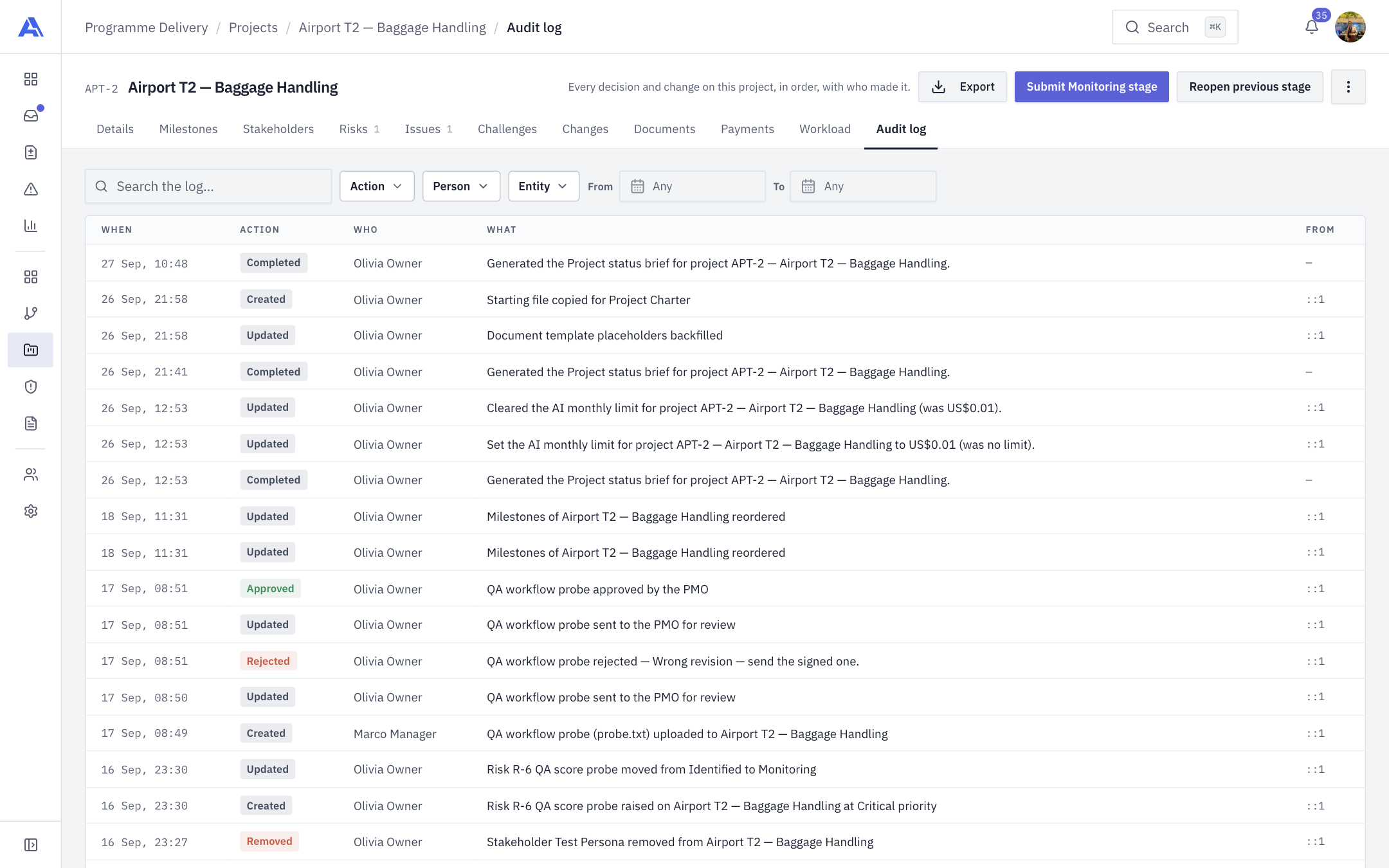
The project's Audit log tab is a read-only record of every decision and change on this project, with who made it and when.
Who can see it
You need the project audit permission (project.audit.view; Owner, Admin, PMO and Manager by default). Without it the tab shows "Your role doesn't include reading this project's audit log." IP addresses are shown only to people who hold the workspace-wide audit permission (audit.view). The workspace-wide log is on Audit log settings.
What is recorded
Every entry tied to this project: changes to the project itself and its stages, milestones, payments and bookings, stakeholders, risks, issues, challenges, change requests and documents. Entries are written after the action has succeeded and cannot be edited. The person's name is copied onto the entry, so renaming them later does not rewrite history. Withdrawals (such as revoking a document's approval) are logged as loudly as decisions.
INFO
A change request comment edit or an attachment upload writes a real audit entry, but it is not tied to a project, so it does not appear on this tab.
Use the tab
- Open Audit log on the project.
- Narrow the list with Search the log… (summary or person), Action, Person, Entity, and From and to dates.
- Read the columns: When, Action, Who, What and From (the IP address, only for holders of
audit.view). - Click Export to download a CSV of the current filter.
The export holds at most 5,000 of the most recent entries; if more match, a notice says "Exported the most recent 5,000 of N entries." Fields starting with =, +, - or @ are protected so they cannot run as a spreadsheet formula.
If nothing matches, the page reads "Nothing in the log matches."
Where else it appears
The last seven days of this log feed What changed this week on Details, but only for people who can read this tab.
Common mistakes
- Looking for a change request comment. Those are not shown here.
- Assuming the CSV is complete. It is capped; narrow the filter.