

Appearance
Workspaces
A workspace is a separate space for a team or client; you can belong to several and switch between them without signing in again.
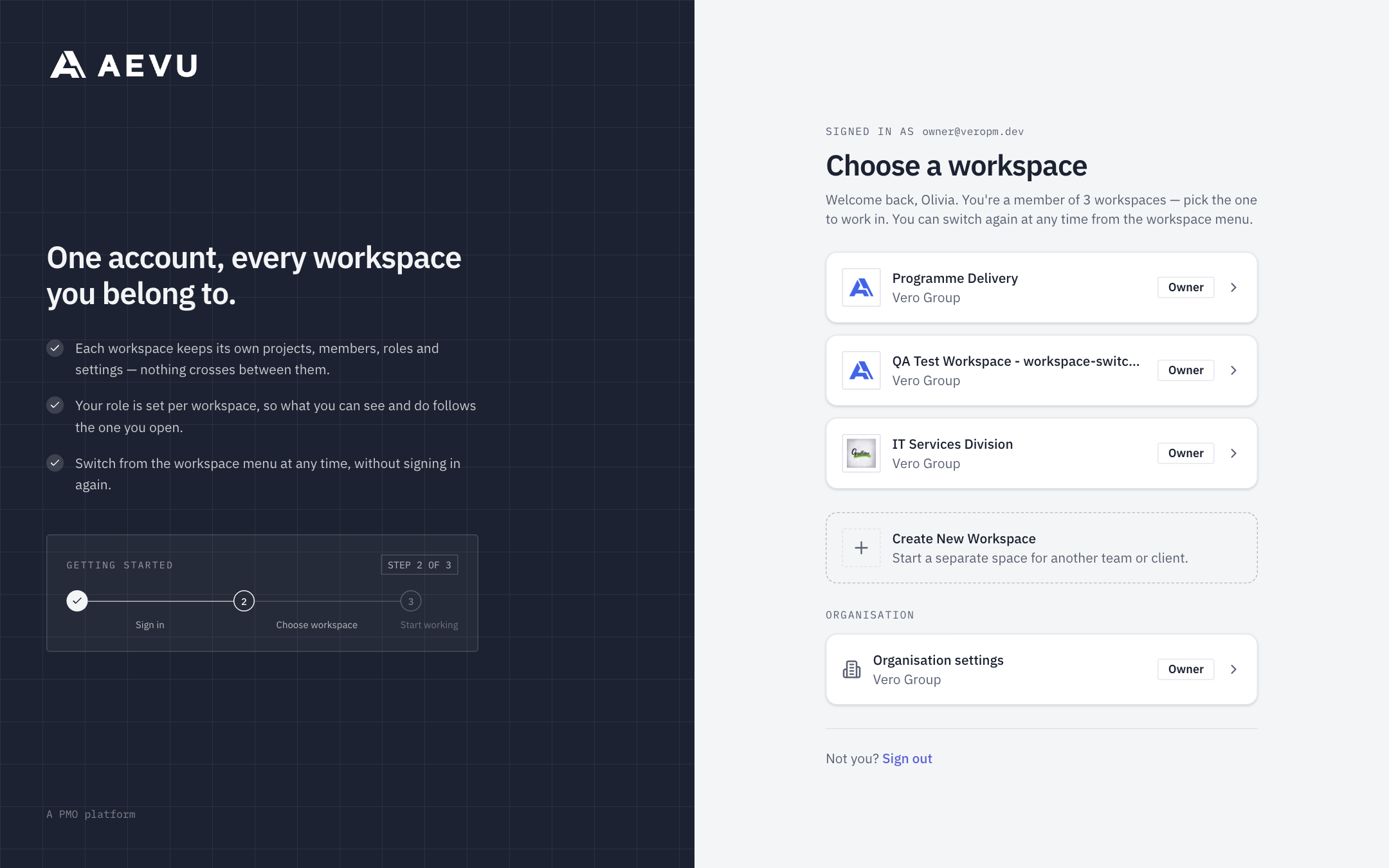
Switch workspace
- After signing in, if you belong to more than one workspace, the Choose a workspace page lists them with your role in each. Click one to enter.
- Any time later, click the workspace name at the top of the rail and pick another, or choose Switch workspace.
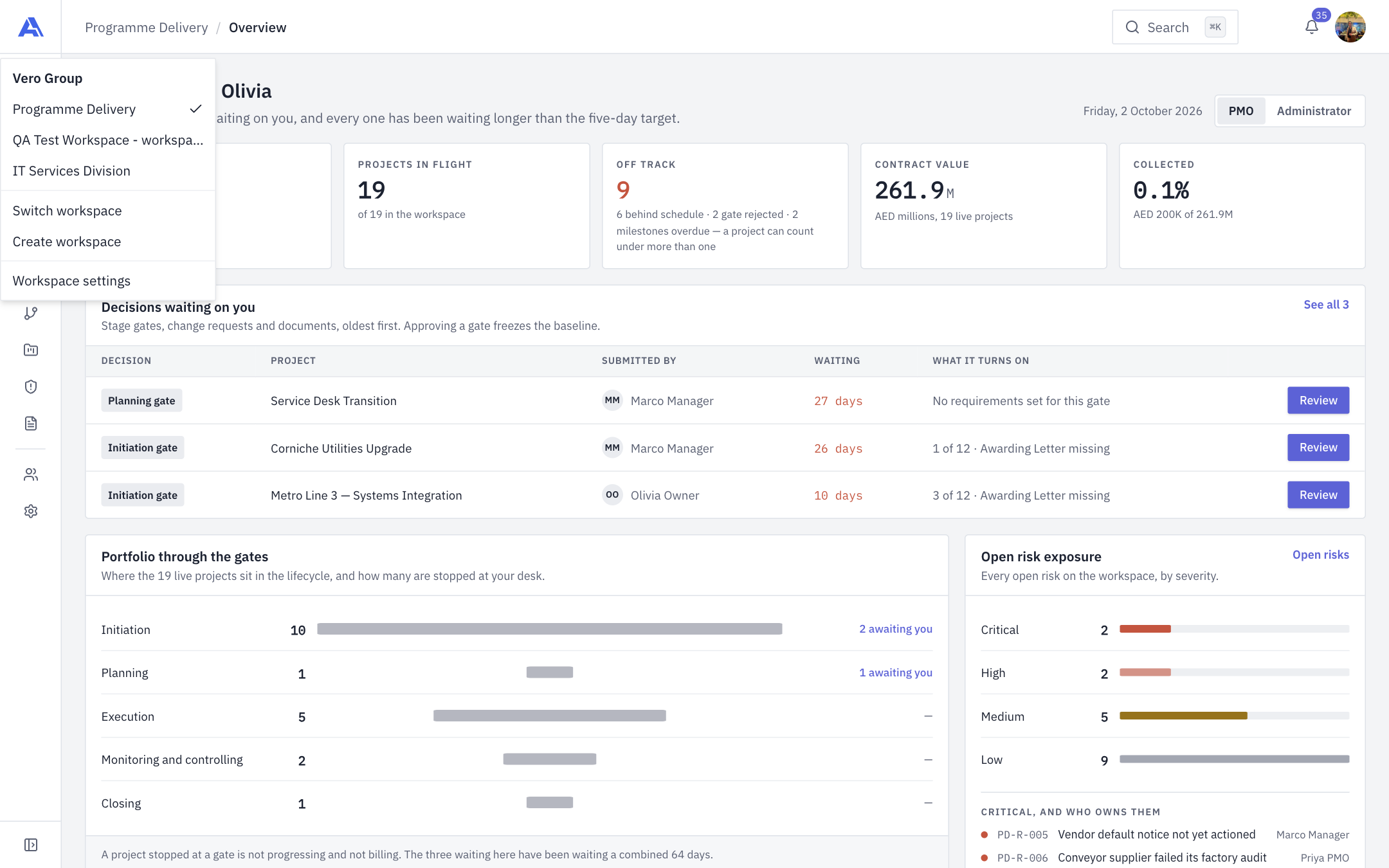
Your role is per workspace, so what you see and can do changes with the workspace you open. Selecting a workspace applies to the browser tab you are in.
The page also links to Organisation settings if you have access (see Organization).
Create a workspace
Who can do this
Needs Create workspaces (Owner and Admin by default). The person who creates it owns it.
- On the picker click Create New Workspace, or in the app open the workspace menu and choose Create workspace.
- Enter a Workspace name, an optional Description, and choose the type (Team or Personal).
- Click Create workspace.
New workspaces start with the same defaults as a new company (see Create your account).
WARNING
Your plan limits the number of workspaces (every workspace counts, archived included). Over the limit you get an upgrade prompt. See Plans, trials & billing.
Archived workspaces
An archived workspace is locked and unreachable from normal screens. It appears marked Archived and opens an "archived" page instead. Only an Owner can archive a workspace (Settings → General); see General & branding.
No open workspace
"You have no open workspace right now" means all of your workspaces are archived or you have been removed from them. Ask an administrator.