

Appearance
Your first project in 15 minutes
Create a project, add people and milestones, then submit its first stage for approval.
Who can do this
Creating and editing projects needs Create and edit projects (Owner, Admin, PMO, Manager by default). Submitting a stage needs Submit a stage for approval. See Permissions.
1. Create the project
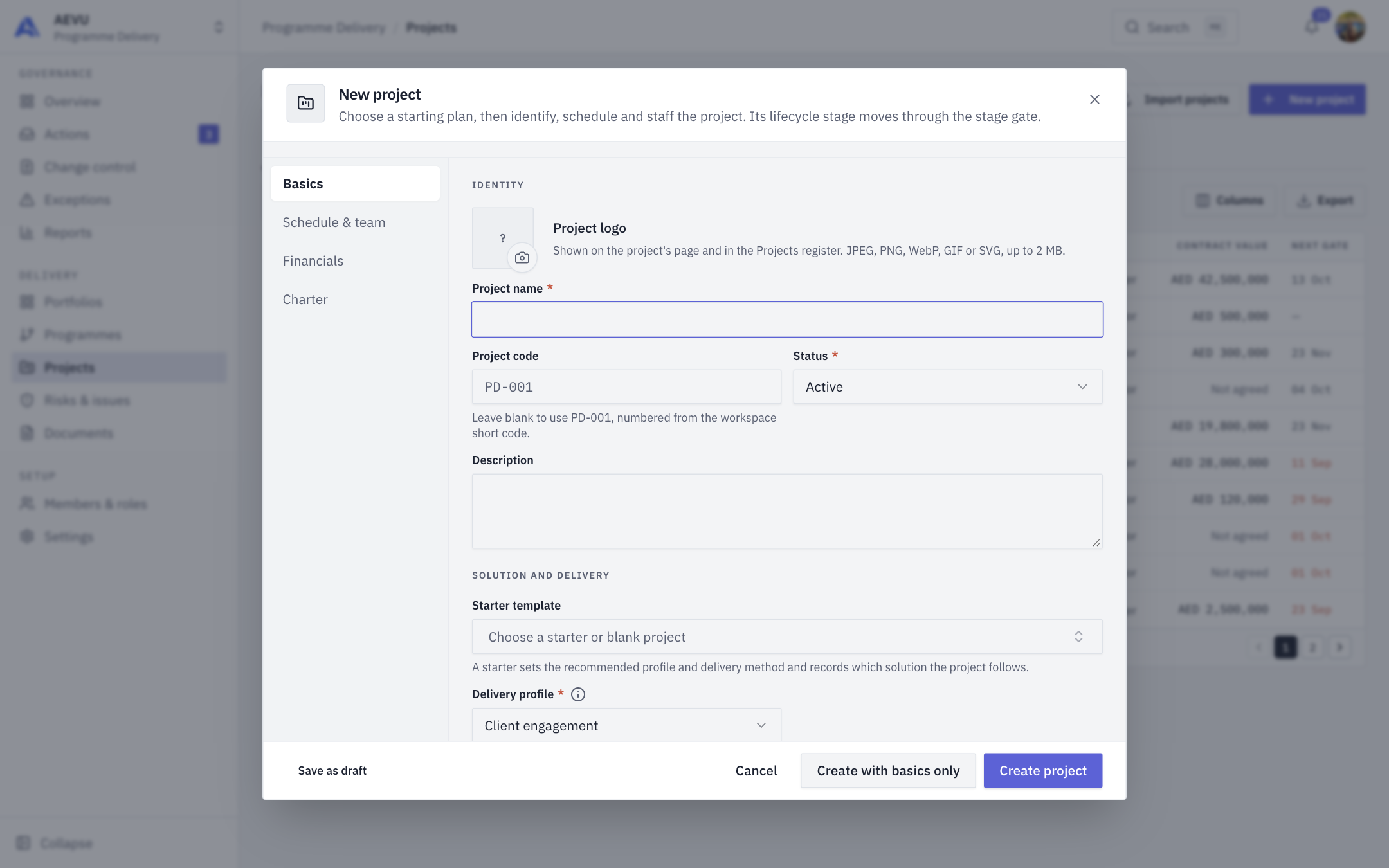
- Open Projects in the rail and click New project.
- Fill in the form, which has four tabs: Basics, Schedule & team, Financials and Charter. Typical fields: Project name, Project code, Client, Portfolio, Programme, Currency, Start date, End date, Project manager, Project sponsor and Visibility.
- Choose Create project (or Save as draft).
TIP
Need a client or portfolio that does not exist yet? The picker offers to add one on the spot, if you are allowed to create it.
WARNING
Plans limit how many projects you can have. If you see an upgrade prompt, the organisation has reached its limit. See Plans, trials & billing.
Full details: Creating a project.
2. Add stakeholders
- Open the project, then the Stakeholders tab.
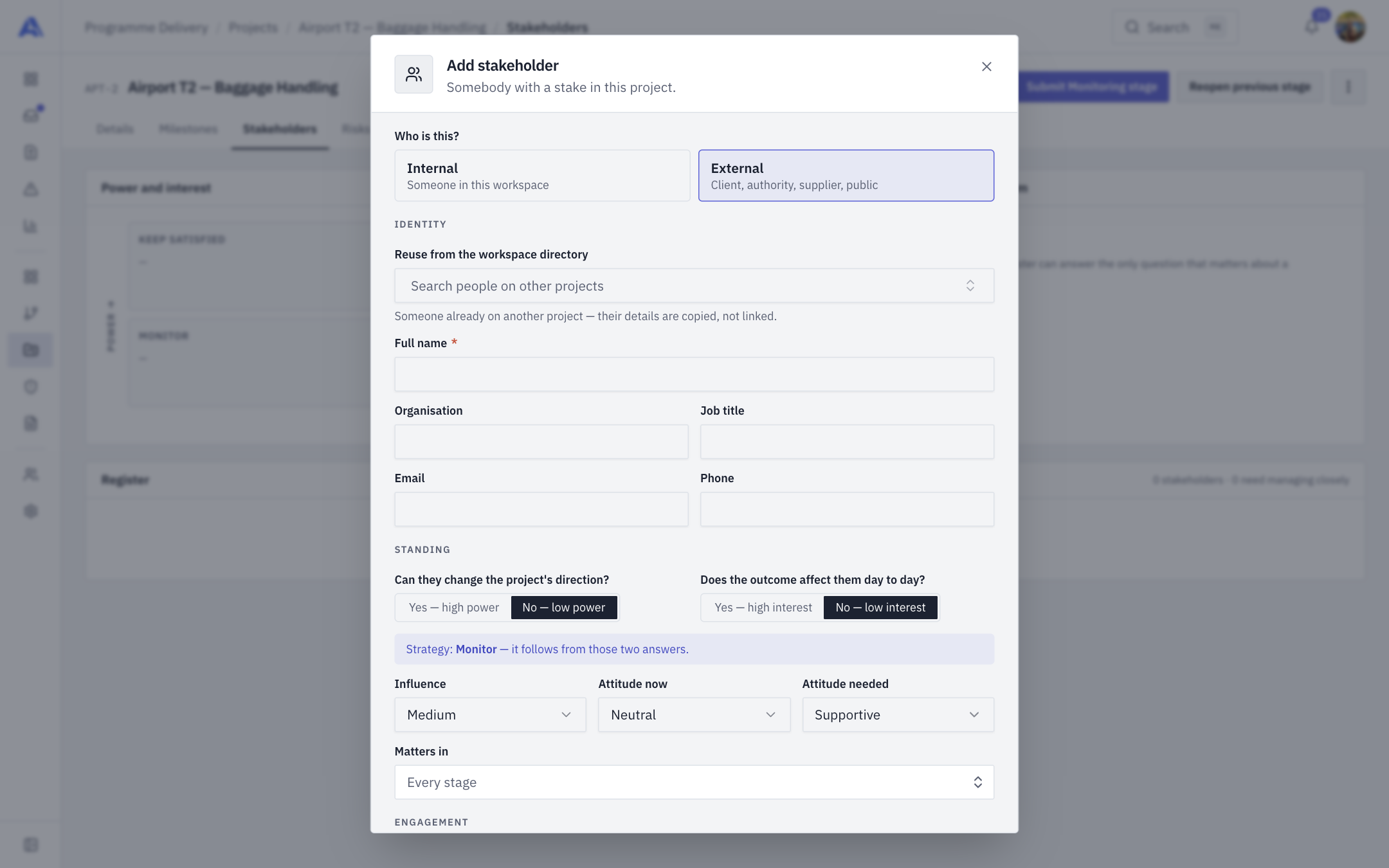
- Click Add stakeholder.
- Choose who it is (a workspace member, or reuse someone from the workspace directory) and fill in fields such as Stakeholder type, Influence, Attitude now and Attitude needed, Main concerns and Key requirements.
See Stakeholders.
3. Add milestones
- Open the Milestones tab.
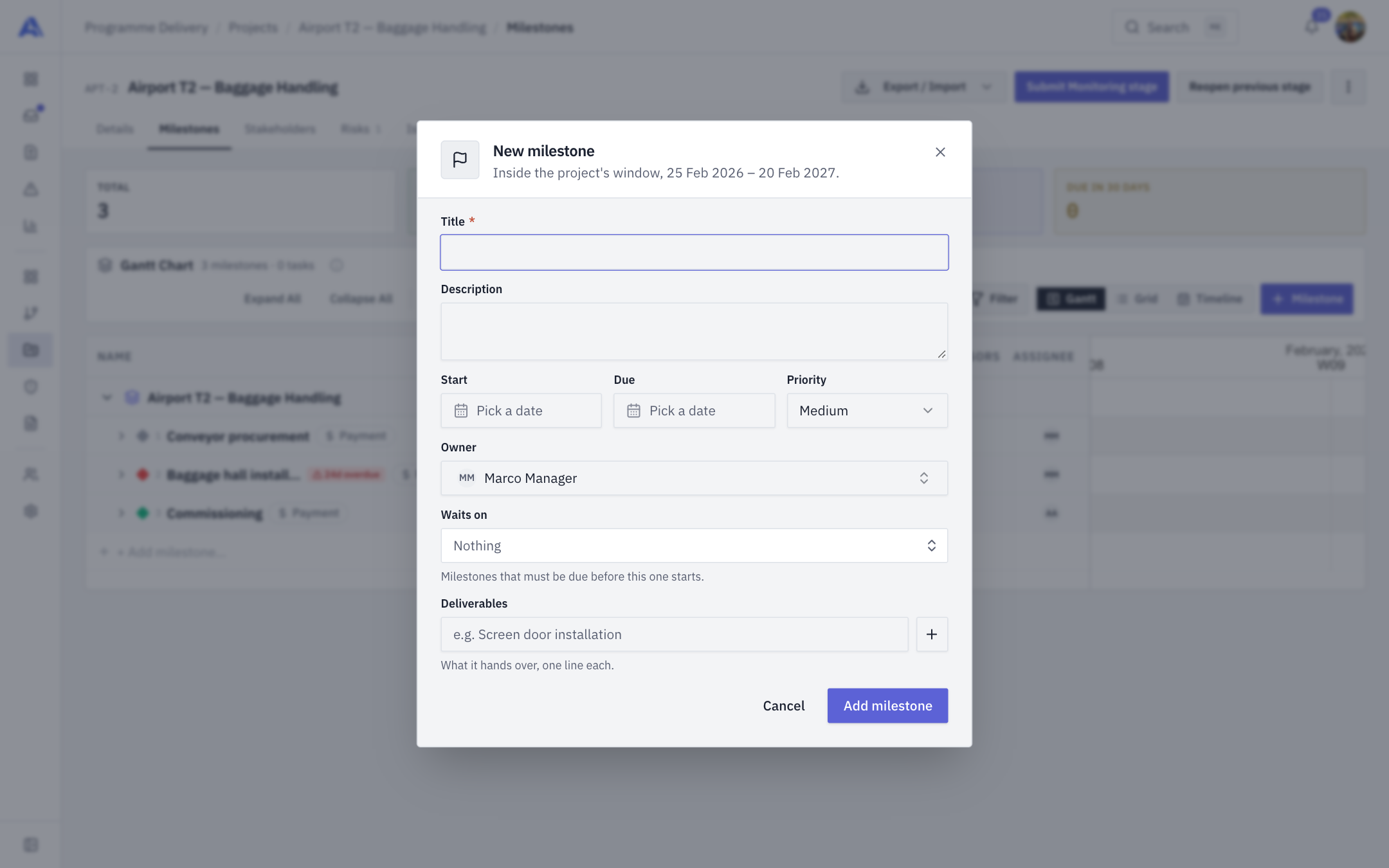
- Click Add milestone; give it a Title, Start, Due, an owner and any deliverables.
4. Check the stage requirements
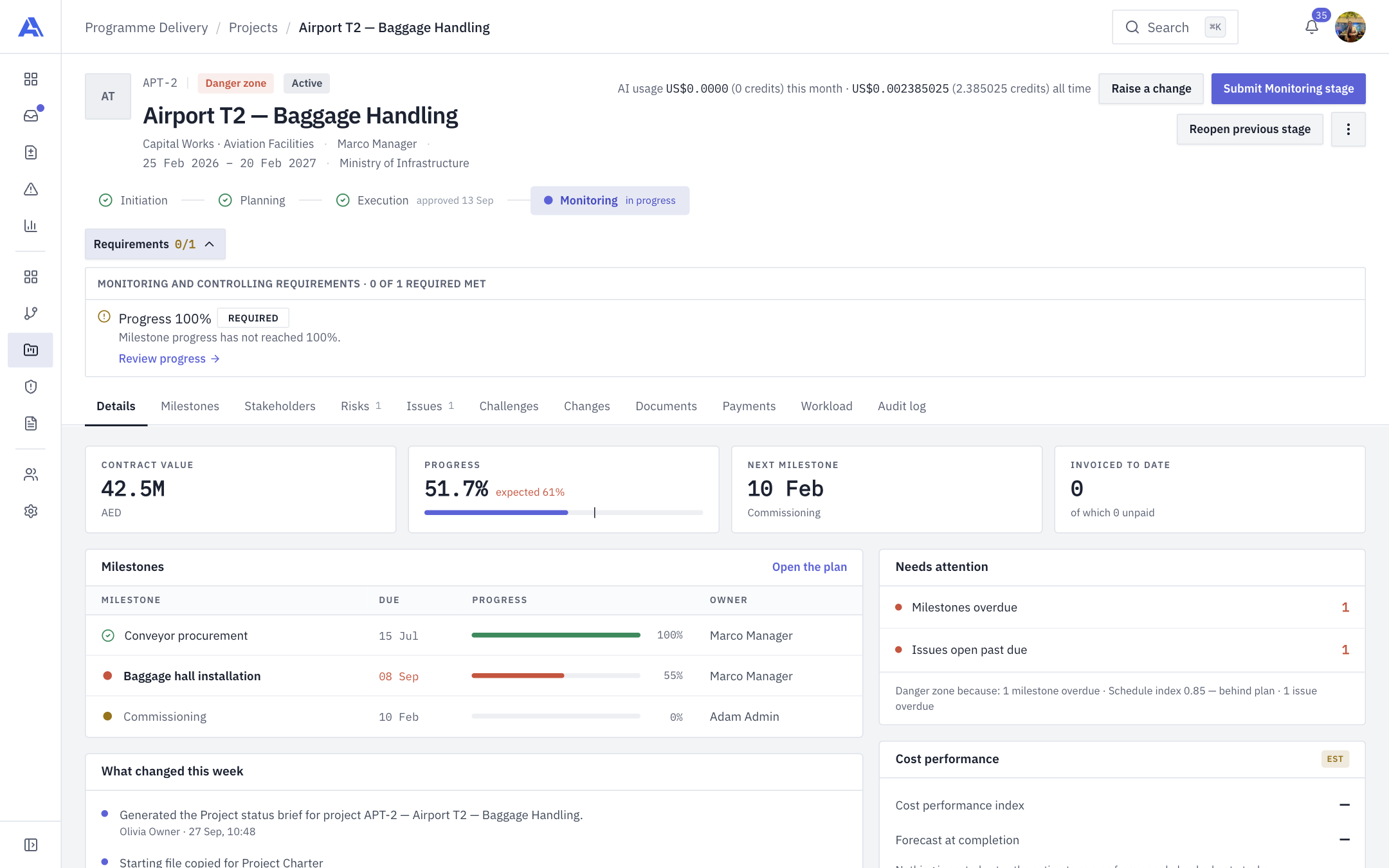
The project header shows the current stage (new projects begin at Initiation). Gate requirements, such as documents that must be provided, are listed with a count like "n of m required met". Provide them on the Documents tab.
5. Submit the stage
- Click Submit Initiation stage in the project header. The button appears only when the stage can be submitted by you.
- The dialog Submit the Initiation stage? shows who can decide and how many requirements are met.
- If something mandatory is missing, it is listed under "Still needed before it can be submitted" and you can only Close. Fix it and try again.
- Otherwise click Submit for approval.
The stage now waits for the PMO, who decide in Actions. A rejection carries a reason; see Stage gates for what happens next.