

Appearance
Organization
Above every workspace sits your organization: the account that owns the plan, the people who administer it, and the policies that decide what every workspace may use. Owning the organization is separate from working in a workspace; neither implies the other.
Open it from the account menu (your avatar in the header) → Organisation settings. Sections: Integrations, Ari, AI usage, Profile, Billing, People & seats and Members.
Organization roles
| Role | Can do |
|---|---|
| Owner | Everything below; grants, changes and removes organization roles; raises the AI monthly ceiling; manages billing. An organization always keeps at least one Owner |
| Admin | Sets integration and AI policy within the plan and the Owner's ceiling; manages billing (plan, seats, payments, credit purchases); asks Ari organization questions |
| Billing viewer | Reads usage, cost and the billing screen. Nothing else |
Organization roles are fixed, not an editable matrix, and are separate from workspace roles (Roles). If you hold no role in an organization, it appears not to exist to you.
Profile
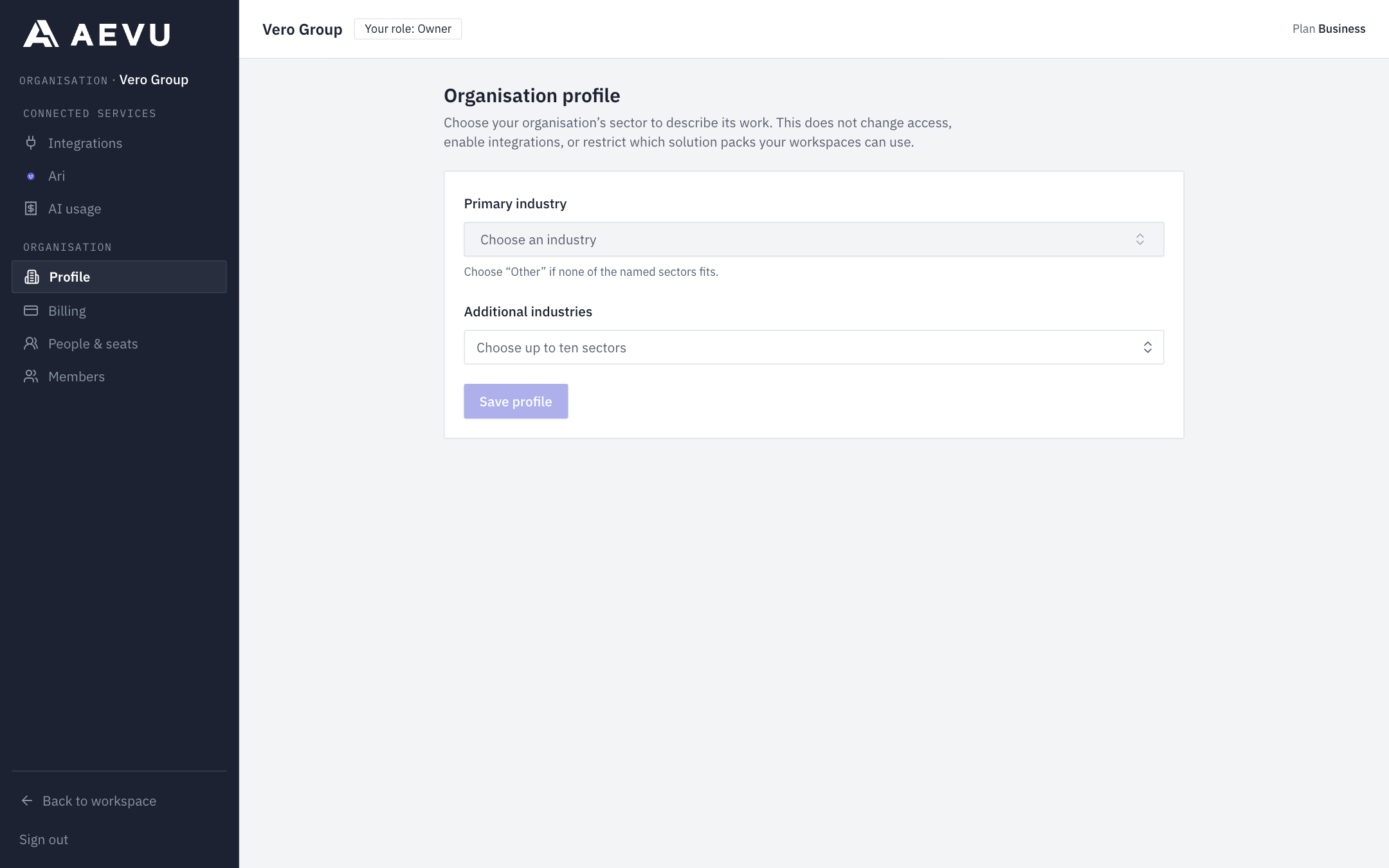
Organization → Profile holds the organization's name and its Primary industry and Additional industries. Owners and Admins can edit and use Save profile.
Members: who holds an organization role
Organization → Members lists the people who administer the organization.
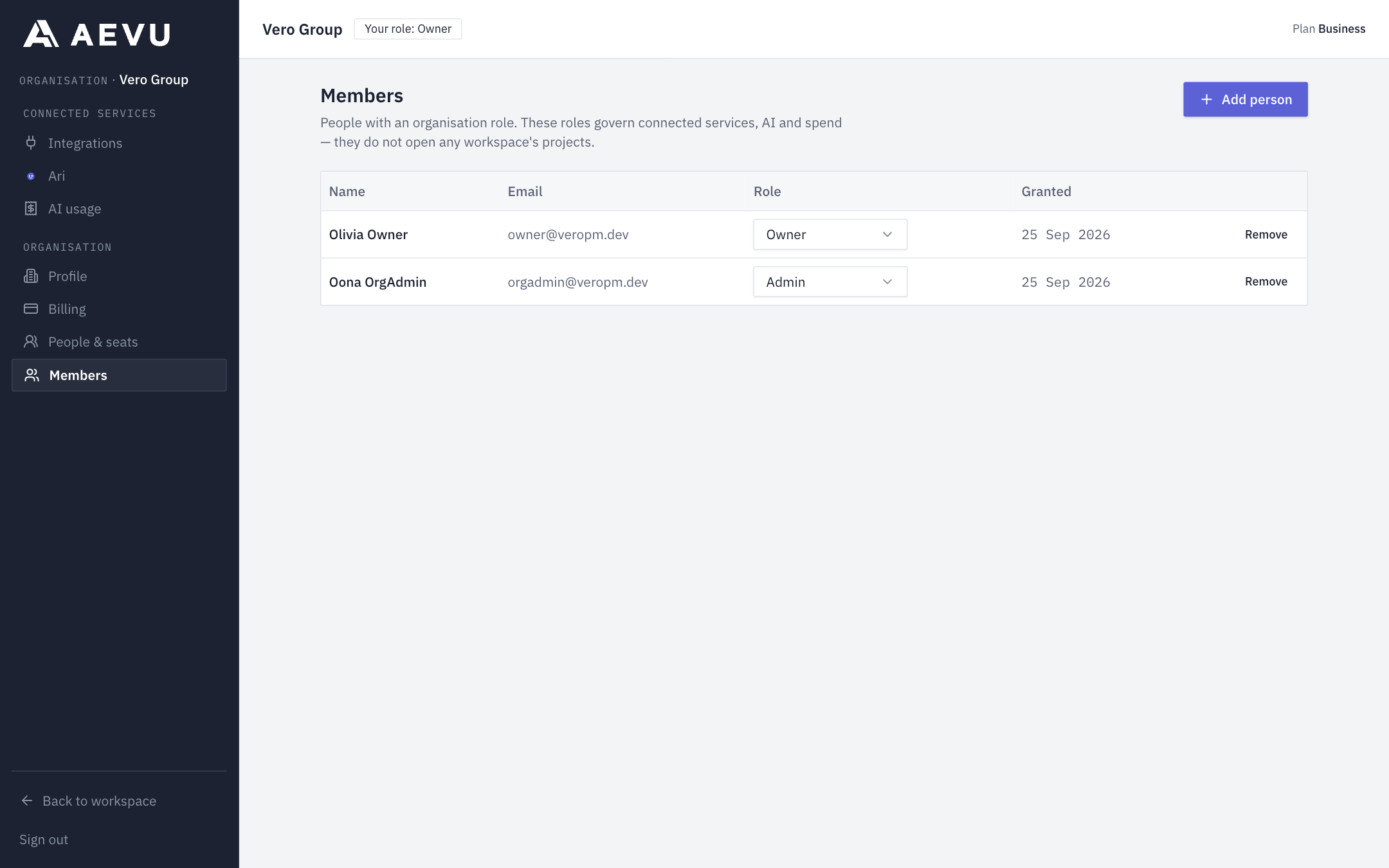
- Only an Owner can add, change or remove members.
- Choose Add person and pick the person. They must already be an active member of one of the organization's workspaces and not yet hold an organization role.
- Choose their role, and select Add person again to confirm.
- Change a role from the role drop-down on their row, or remove them with the remove button.
Demoting or removing the last Owner is refused: "An organization needs at least one Owner. Make somebody else an Owner first."
People and seats
Organization → People & seats shows who occupies the seats you pay for. One seat is one person who can sign in, counted once across every workspace of the organization. Resource-only people with no sign-in, and deactivated accounts, take no seat. Pending invitations reserve one.
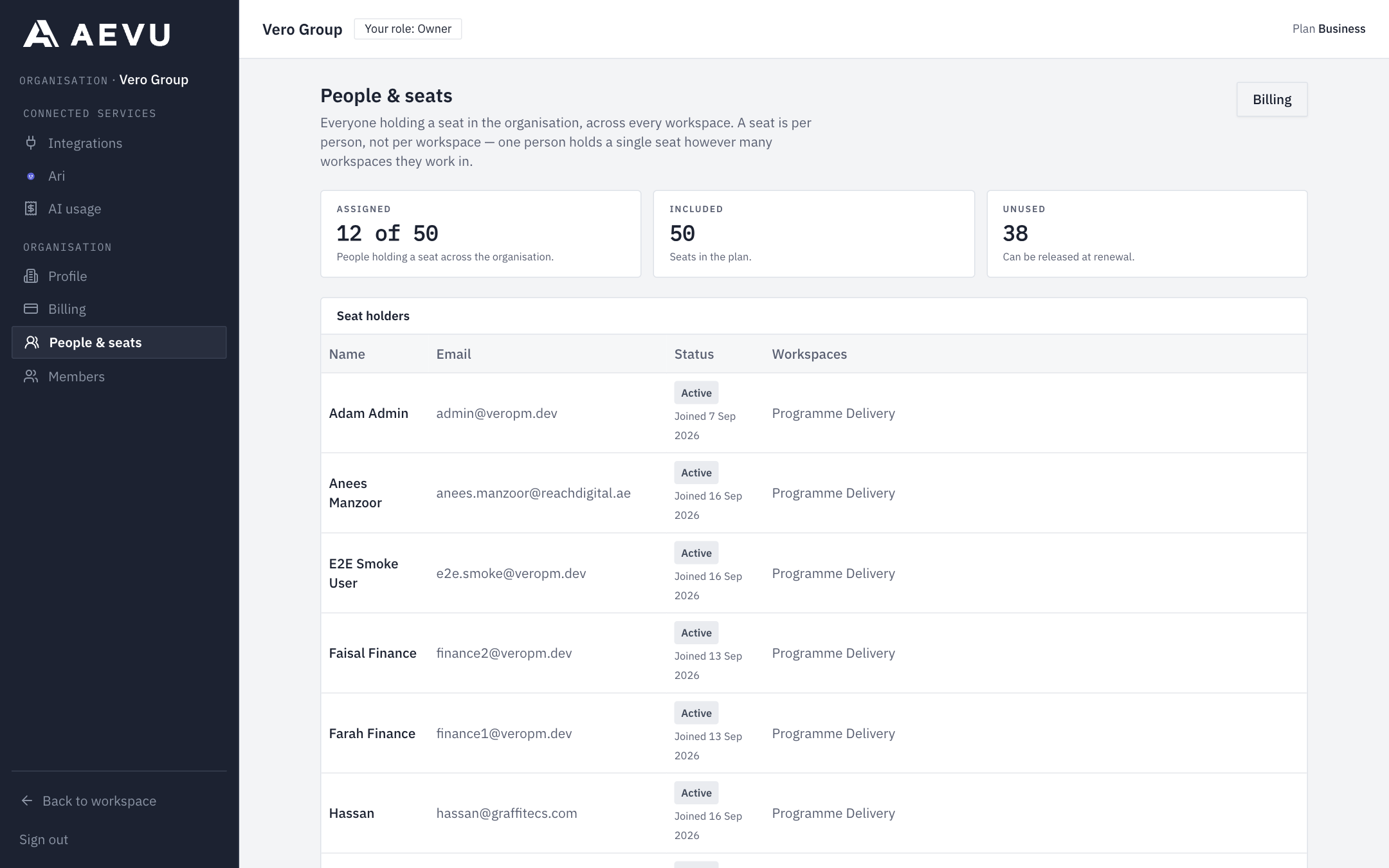
Figures: Assigned (used of bought), Included, Unused. See Plans, trials & billing to buy more.
Integrations policy
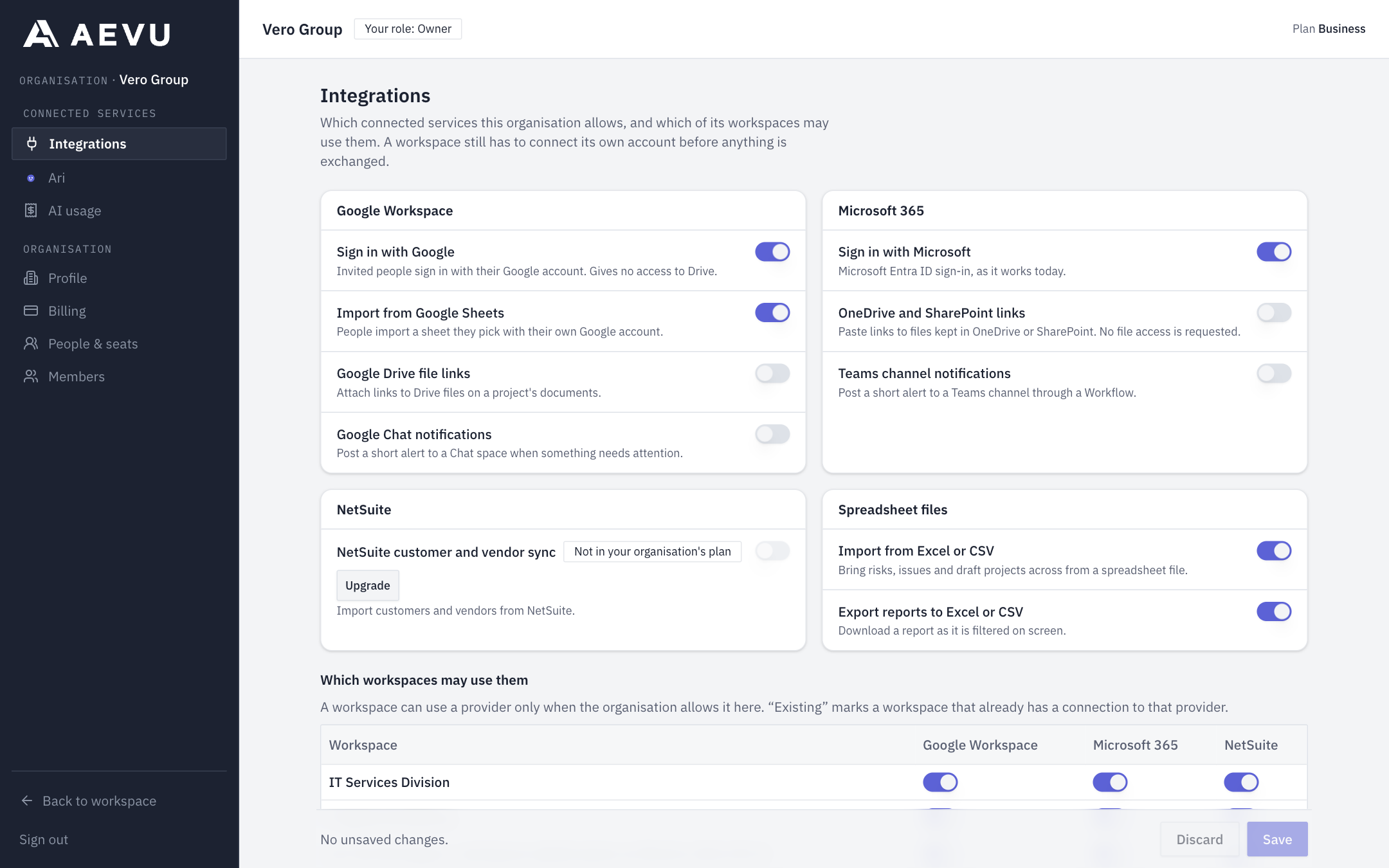
Organization → Integrations decides which connected services your organization allows and which workspaces may use them. A workspace must still connect its own account before anything is exchanged.
- Open Organization → Integrations. Capabilities are grouped as Google Workspace, Microsoft 365, NetSuite and Spreadsheet files.
- Switch on each capability to allow (for example Sign in with Microsoft, OneDrive and SharePoint links, Teams channel notifications, NetSuite customer and vendor sync).
- For each provider, tick the workspaces that may use it.
- Save.
Notes:
- A capability your plan does not include cannot be newly allowed (a link to upgrade is offered). One allowed before a downgrade stays listed and returns on upgrade.
- Only Owner and Admin can edit; others see it read-only.
- Nothing is allowed until a policy is saved, except importing and exporting spreadsheet files.
- Two admins saving at once: the second gets "Somebody else saved this policy since you opened it. Reload to see their changes."
AI policy
Organization → Ari controls the AI master switch and processing acknowledgement, which use cases and data categories are allowed, how long drafts are kept, the monthly ceiling, the organization-questions allowance and each workspace's cap. Full steps are in AI budget, credits & privacy. Only an Owner can raise the ceiling.
AI usage
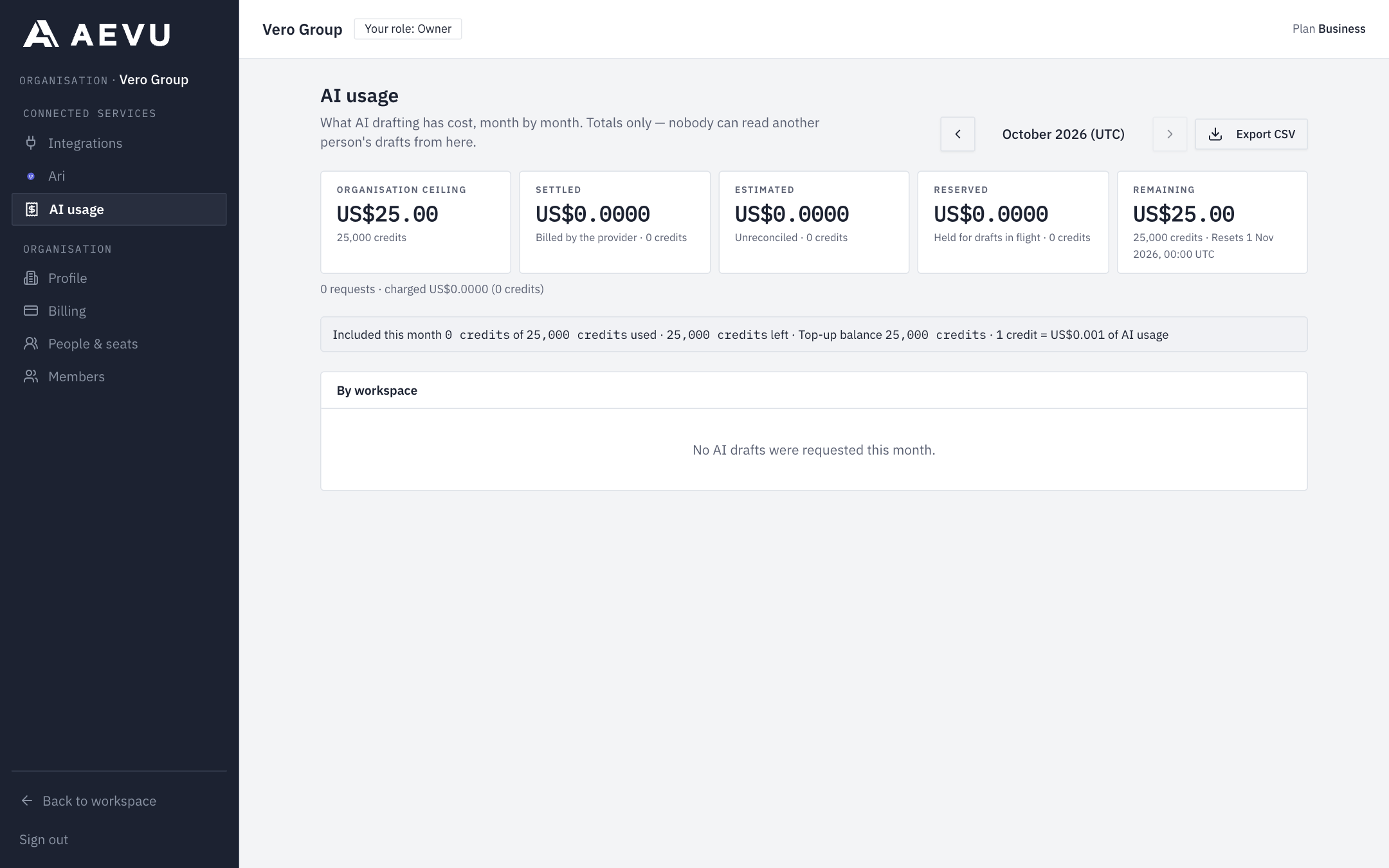
Organization → AI usage reports settled, estimated, reserved and charged totals and failures by workspace, project, use case and person, with a CSV export. Any organization role can read it; it never shows prompts or drafts.
Audit
Every policy save and member change is recorded in a separate organization audit trail, apart from any workspace's audit log so members of a workspace do not see organization decisions. There is no screen for it yet; the platform operator can investigate it.