

Appearance
Plans, trials and billing
Billing belongs to the organization. Organization → Billing shows the current plan, seats, payment method, invoices and AI credits.
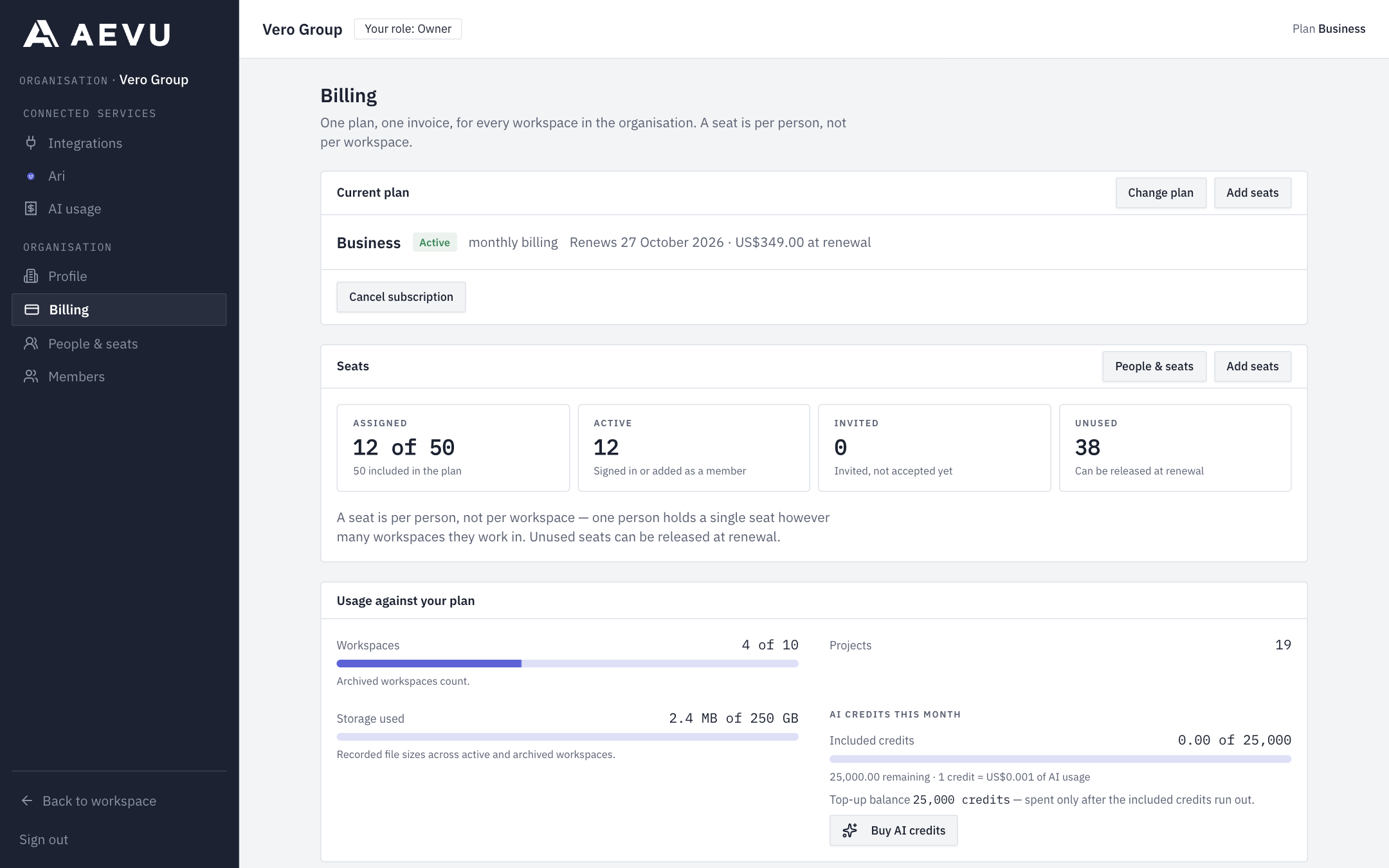
Who can do what: every organization role (including Billing viewer) can read billing, invoices and PDFs. Owners and Admins can change the plan, buy seats, manage the card, buy credits, edit the invoice email and tax number, cancel the subscription and switch automatic renewal back on. A Billing viewer sees the same screen with every control read-only, and the server refuses the same requests if they are sent by hand.
Plans
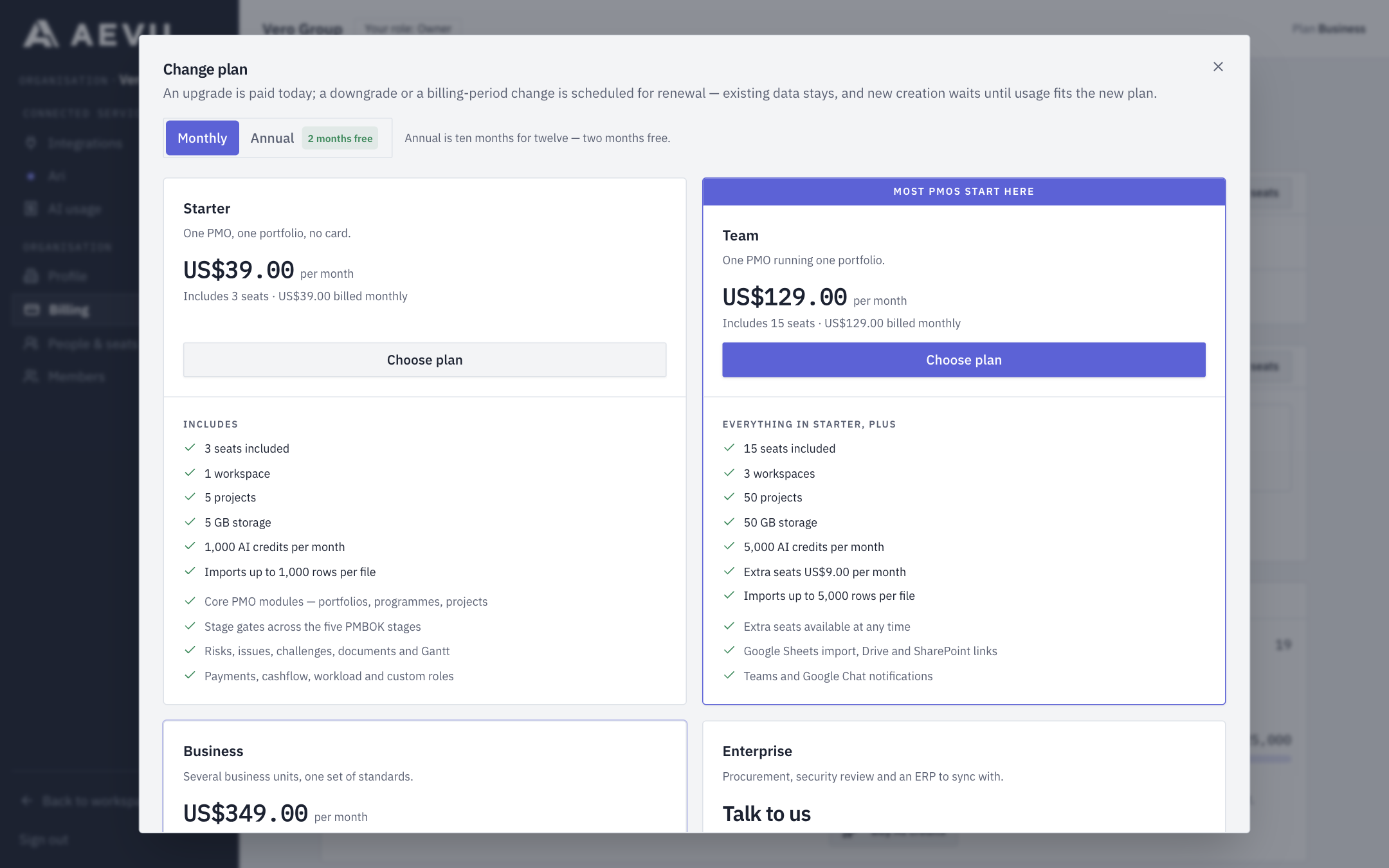
| Plan | Monthly | Annual | Included seats | Workspaces | Storage | Projects | AI credits per month | Extra seat per month |
|---|---|---|---|---|---|---|---|---|
| Starter | US$39 | US$390 | 3 (a hard cap) | 1 | 5 GB | 5 | 1,000 | not offered |
| Team | US$129 | US$1,290 | 15 | 3 | 50 GB | 50 | 5,000 | US$9 |
| Business | US$349 | US$3,490 | 50 | 10 | 250 GB | unlimited | 25,000 | US$7 |
| Enterprise | talk to us | talk to us | negotiated | custom | custom | unlimited | negotiated | not offered |
Prices are loaded from the plan catalogue and can change; the plan grid always shows the current figures. Annual billing is ten months for twelve. Import row limits grow with the plan (1,000, 5,000, 20,000 rows). Team adds Google, Microsoft and channel notifications; Enterprise adds NetSuite; Business adds enforced SSO and audit-retention entitlements. Enterprise cannot be chosen online: its card is Talk to us. The Free plan has been retired.
Trial
Choosing a plan starts a 14-day trial with no card taken. During the trial:
- Everything in the plan works.
- AI is capped at 500 credits for the whole trial.
- When the trial ends unpaid, the organization becomes read-only (below).
Pay: saved card
AEVU takes card payments through Safepay. You save a card once on Safepay's hosted page; no card data reaches AEVU, only the brand and last four digits. Every payment is then a charge of that saved card for the exact amount shown, in US dollars.
- Organization → Billing → Payment method → Add card (or Replace card). A mobile number on your profile is required by Safepay; you are asked inline if missing.
- Complete the hosted verification (a zero-amount check with 3-D Secure) and return to AEVU.
- Remove card deletes it from AEVU and from Safepay's wallet.
- Automatic renewal charges the card at renewal. Turning it on needs a usable saved card.
The Automatic renewal switch is on the Billing page whichever gateway your deployment uses. On a test gateway (the card-form checkout) no card is stored for charging, so a renewal always falls due for you to pay from Billing; the switch still decides whether a cancellation is scheduled, and it needs a card to have been paid with at least once.
Test mode
Which gateway runs is a deployment setting (Billing:Gateway): Dummy (the default) simulates charges with published test card numbers, and Safepay talks to Safepay, in its sandbox or in production (Billing:Safepay:Environment). On a test gateway the billing page shows "Test mode: card charges are simulated" or the sandbox equivalent, and invoices are marked "TEST PAYMENT — no money moved". Ask your AEVU contact which mode your deployment is in.
Change plan
- Change plan opens the plan grid with a Monthly/Annual toggle.
- Choose a plan. A confirmation shows the type of change, the amount due, any credit for unused time, the renewal date, and anything your current usage would break (for example more projects than the new plan allows).
- Upgrade: you pay the prorated amount and the plan applies on payment.
- Downgrade or period change: scheduled for renewal. Nothing is refunded mid-term. The confirmation shows the amount of the next renewal.
- Your plan's included AI credits become the monthly AI ceiling.
Downgrades are allowed even if you are over the new limits: existing data stays and only new creation waits until usage fits.
What happens to your seats on a downgrade. Every plan comes with its own included seats, and those do not carry over: moving from Business (50 included) to Team (15 included) does not turn 35 seats into paid extras. Only the extra seats you bought carry over, priced at the new plan's extra-seat rate, and the renewal never provides fewer seats than the people who hold one today (you would pay for the difference). A seat reduction you scheduled earlier is kept when you later schedule a plan or period change; choosing the same plan and period again cancels a scheduled change.
Seats
One seat is one person who can sign in, counted across all workspaces. Pending invitations hold a seat. Starter is capped at 3. On Team and Business:
- Add seats, choose the number of extra seats, confirm and pay. You pay only for the part of the current term still to run: seats bought halfway through an annual term cost half the annual price. The checkout lists the seats at the full term price and a credit for the part of the term already used, so the lines add up to what you pay. From the next renewal the seats are charged in full. Seats are granted only after payment succeeds; a declined payment grants nothing and does not put the subscription into grace.
- Reducing extra seats takes effect at renewal, and never below the seats in use. Nothing is refunded mid-term and the seats stay usable until then.
- In the last moments of a term, when there is nothing left to charge, the seats apply at once without a checkout.
- If you leave a seat checkout open and come back after its hold has lapsed, it is re-priced to the time that remains before it is offered again.
Limit refusals
When you reach a plan ceiling the action is refused with plan.limitReached and a message naming what ran out (workspaces, seats, projects or storage) and an Upgrade to <next plan> link. Counting rules: workspaces include archived ones; projects are all projects across the organization, drafts included; storage counts documents, attachments and uploads (not logos or avatars).
Grace period and read-only
| Situation | What happens |
|---|---|
| Payment fails on an active subscription | 14-day grace. Everything keeps working; a banner shows the date and Update payment |
| Trial ended unpaid, grace ran out, or subscription cancelled/expired | Read-only. You can read and export everything; every change is refused with plan.readOnly ("This organization is read-only until its subscription is paid. Your data is safe and nothing is deleted.") |
Paying restores access immediately. Organization-level AI also stops when read-only.
Cancel
Cancel schedules cancellation at the end of the paid period; access continues until then. You are shown the end date and days remaining before confirming. Cancellation does not refund a payment.
To resume, open Organization → Billing → Payment and invoicing and switch Automatic renewal back on before the end date: the scheduled cancellation is withdrawn, the plan carries on, and the audit log records it. The switch needs a card on file.
Invoices
Under Invoices, each issued invoice has a number (INV-<year>-<number>), period, amount and status. Numbers are given only when payment succeeds; unpaid or failed invoices read Awaiting payment or Payment failed and may offer Retry payment. Download a PDF per row or Download all as a zip. Set Invoices go to (billing email) and Tax registration number under Payment and invoicing; they print on invoices. The tax registration number takes up to 64 letters, numbers, spaces, dots, hyphens and slashes (for example AE100123456700003, GB 123 4567 89 or DE-123/456.789); anything else is refused with the reason shown. Receipts are emailed after each payment with the PDF attached. Refunds appear on the invoice as full or partial.
Buy AI credits
Buy AI credits offers the packs configured on the server (the default catalogue is 5,000 credits for US$10, 20,000 for US$40 and 100,000 for US$200; the operator can change them, and the dialog always shows the current prices). Credits last 12 months, do not reset monthly and are used after the month's included credits. See AI budget, credits & privacy.
Common problems
| Problem | Fix |
|---|---|
| Card setup asks for a phone number | Add a mobile number (billing.phoneRequired) |
| Card declined | Replace the card; the failed payment can be retried from Invoices |
| Billing unavailable | Payments are switched off for this deployment (billing.unavailable) |
| Add seats missing | Your plan does not sell extras, you cannot manage billing, or the organization is read-only |
| Seat count refused | The total exceeds what the plan covers (plan.limitReached: "covers up to N seats"), or is below the people already using seats |
| Cancelled by mistake | Switch Automatic renewal back on before the end date (see Cancel) |
| Tax number refused | Remove characters other than letters, numbers, spaces, dots, hyphens and slashes |
Refunds and chargebacks
Chargebacks have no automatic reconciliation; contact AEVU support.