

Appearance
Changes (change requests)
The Changes tab is where a change to a project's scope, cost or schedule is raised, assessed, approved and then applied to the plan. For the workspace-wide view see Change control.
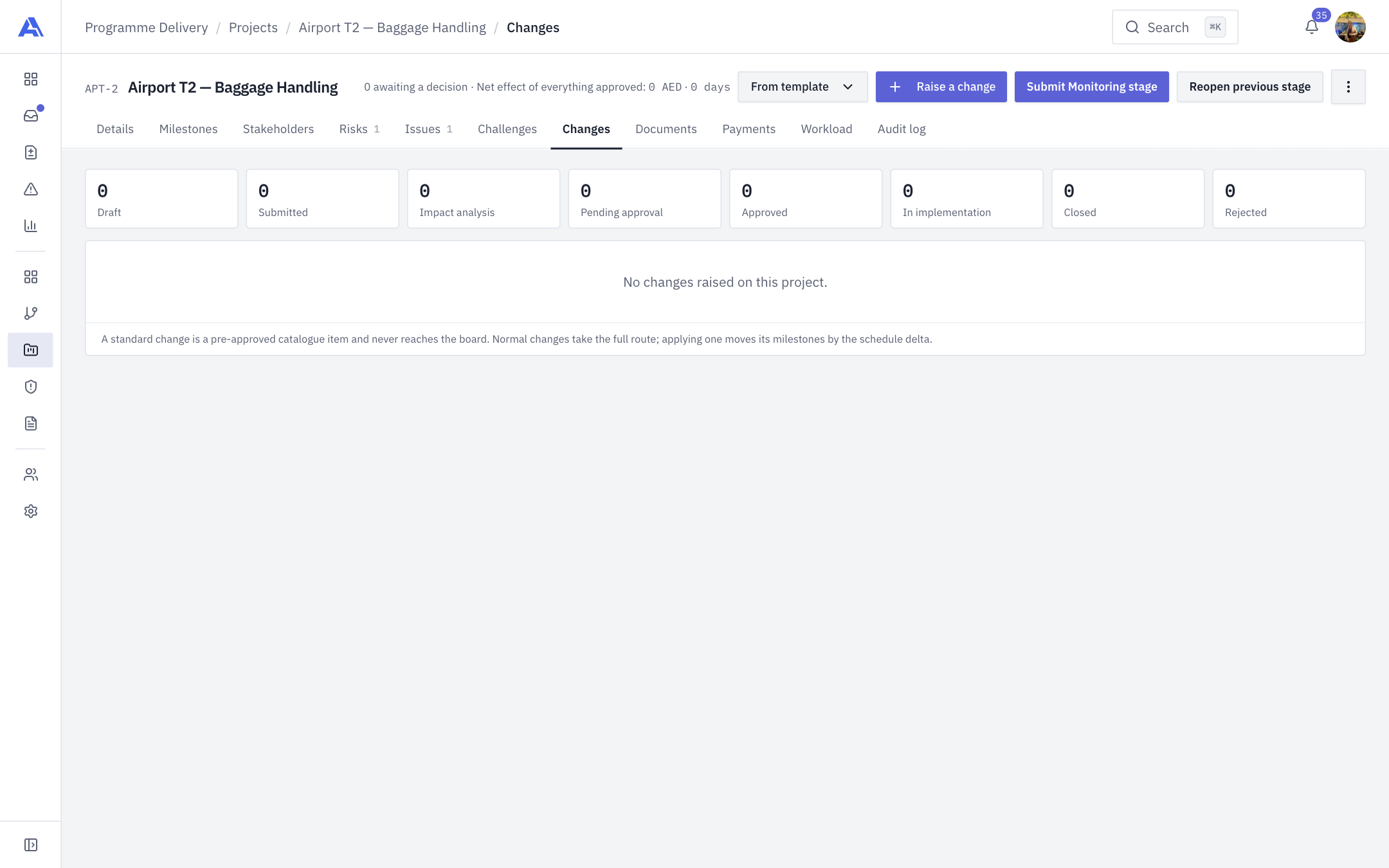
A project with no changes yet; the strip of counts and the header summary show even then:
Who can do what
| Action | Permission | Default roles |
|---|---|---|
| See changes | changerequest.view | Everyone |
| Raise, edit a draft, attach files, write the impact | changerequest.raise | Owner, Admin, PMO, Manager |
| Approve, confirm the impact | changerequest.approve | Owner, Admin, PMO, Manager |
| Apply, revert, mark implemented, close | changerequest.apply and being the project manager or a workspace Owner/Admin | |
| Reassign an approval level | changerequest.reassign | Owner, Admin, PMO |
| Delete | changerequest.delete | Owner, Admin |
Signing is more specific than the approve key. See Who signs.
The screen
- A strip of counts across the top: Draft, Submitted, Impact analysis, Pending approval, Approved, In implementation, Closed, Rejected. "Pending approval" is highlighted when something waits.
- The header summary reads "N awaiting a decision · Net effect of everything approved: cost · days".
- The table has Title, Category, Impact, Schedule and Status. Click a row to open the change sheet.
- Raise a change and From template (starts from a template defined in Change request templates).
Changes are numbered CR-001 per workspace.
Raise a change
- Click Raise a change (or the same button in the project header).
- Fill in the form and click Save as draft. Nothing is sent yet.
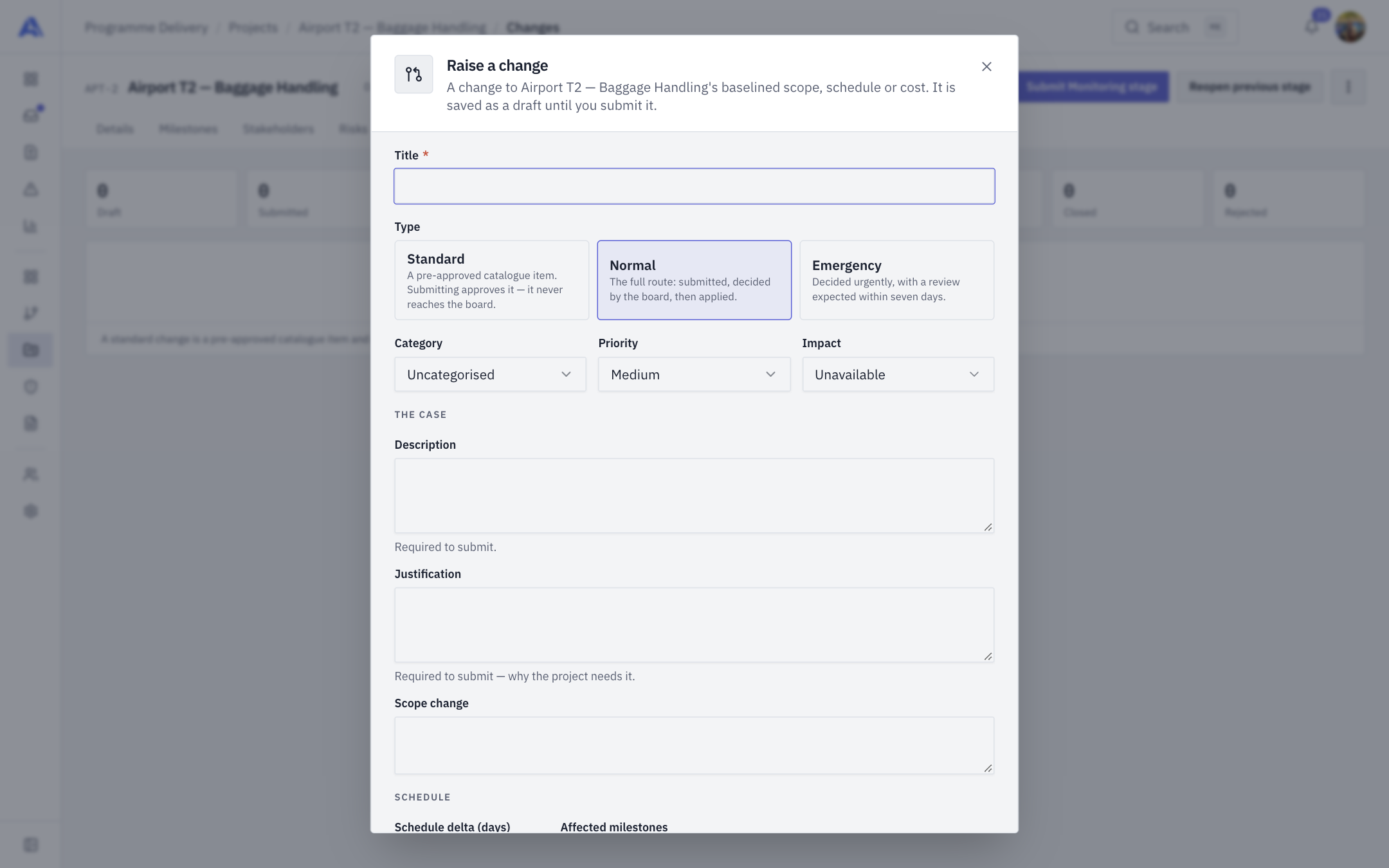
| Field | Notes |
|---|---|
| Title | Required. |
| Type | Standard (a pre-approved catalogue item; submitting approves it, it never reaches the board), Normal (the full route) or Emergency (decided urgently, with a review expected within seven days). |
| Category, Priority, Impact | Priority is Low to Critical. Impact is Unavailable, None, Low, Medium, High or Critical. |
| Description, Justification | Both required to submit. |
| Scope change | Optional. |
| Schedule delta (days) | A whole number. Negative pulls the plan in. |
| Affected milestones | Applying the change moves these by the delta. |
| One-time, Recurring, VAT, Currency | The total is shown. |
| Source of funding | Project contingency, Requires special approval, Internal resources or Other cost centres. |
| Quality, Risk, Other | Other impact notes. |
The form previews the approval route before you save: PM, then Portfolio manager (struck out when skipped), then Board (internal and client), then Finance when the cost exceeds the project's contingency. It updates as you change cost, currency or template.
INFO
A Standard change can only be submitted if it came from an active Standard template, or if the submitter holds the approve key. Otherwise it is refused.
Submit and the approval chain
- Open the draft and click Submit to the board.
- The system writes the approval chain once and it is never recomposed. Standard changes are approved immediately. Normal and Emergency changes become Pending approval.
The chain is built from the project, not configured:
- The project manager (if the project has one).
- The portfolio manager (if the portfolio has one). This level is skipped when the portfolio manager raised the change.
- The change control board: an internal sign-off always, plus a client sign-off when the template says a client must agree, or when there was no template. Both must sign.
- Finance, only when the change costs more than the project's contingency (no contingency named means no finance level).
Each level has a 72-hour window. A slot past it reads "Past its 72 hours — overdue". Nothing escalates automatically; a daily digest keeps chasing the approver.
Who signs each level
- Only an undecided slot on the level the change is waiting at can be signed.
- The raiser signs nothing after the PM level (they may sign the PM level when they are the PM).
- A slot that names someone (project manager, portfolio manager) is that person's alone.
- The Finance level belongs to the project's Finance members, who need no approve key. A person with the approve key who is not one is refused.
- The board slot names nobody, so the approve key is what is required. One person signs one side of a level. If you can sign either side, the sheet asks Signing for.
- The client side has no login: whoever records the sponsor's agreement enters a Client sponsor name ("Who agreed, on the client's side").
Decide
Open the change. Under Your decision, the sheet offers only what you may press.
| Button | What it does | Reason |
|---|---|---|
| Approve | Signs your slot. | Not needed. |
| Defer | Not an answer; the level keeps waiting and you may decide again. | Required, 5+ characters. |
| Approve in part | The whole change becomes Partially approved. | Required. |
| Reject | Rejects the change. | Required. |
The change reaches Approved only when every level on every side is decided. The raiser can withdraw a change before a decision (with an optional reason).
Reassign a level
An administrator can hand a waiting PM or portfolio-manager level to someone else. Open the change and click Reassign on that slot, pick the person under Reassign to, give a reason (5+ characters). The old slot is kept as history ("Reassigned from X to Y by Z"). You cannot reassign board or Finance slots, the raiser, someone who cannot open the project, or a person with no sign-in.
Apply, revert, implement, close
Approval alone changes nothing on the plan. Under Other moves:
- Apply to the plan. Available from Approved, Partially approved or Scheduled, to the project manager or an Owner/Admin with the apply permission.
- The system first takes a snapshot (a baseline) of the change and of every affected milestone's start, due date and progress, and every task on those milestones.
- It then shifts the affected milestones and their tasks by the schedule delta.
- It then cascades downstream through the scheduler: a downstream task moves only later, never earlier, and keeps its working-day length.
- A second Apply is refused until the first is reverted.
- A zero-day delta still snapshots and stamps the change but moves nothing. A negative shift that would start a milestone before the project start is refused.
- Mark implemented, then Close.
- Take back off the plan (revert). Every snapshotted milestone and task is restored exactly, the cascade is re-run so downstream work re-settles, and the change returns to Approved.
Both Apply and Revert add a "[System]" line to the change's discussion and an audit entry naming the milestones and tasks moved.
WARNING
Apply no longer moves resource bookings or the project's end date. A milestone can now finish after the project's stated end with no warning, and the Workload tab and cost estimate keep reading the booking's old dates. Review these after applying.
Impact assessment and AI summary
The sheet has an Impact summary panel. With AI off it still shows the product's own read-only comparison: baseline, current plan, if approved and applied, tasks that move, bookings left on old dates and scheduling conflicts. It needs permission to view tasks, and cost lines need payment view. If your workspace allows it, a private AI summary can be drafted from that comparison and edited into the impact narrative. Nothing in the panel approves or applies anything. See AI drafts & briefs.
The impact has a status (Draft until an approver confirms it). Once a change is submitted, only an approve-key holder may rewrite it, so the board reads what it was shown.
Comments and attachments
- Anyone who can read the change can comment. Only the author can edit or delete their own comment. System lines cannot be edited by anyone, and a comment cannot begin with "[System]".
- Attachments need the raise permission, are stored in the project's Documents area, and use the same allowed file types as documents. Only the uploader or an administrator can remove one.
Delete
Only a Draft, Withdrawn or Cancelled change can be deleted, by an Owner or Admin. The audit log keeps the record.
Good to know
- A closed project still accepts new changes.
- Contingency is never drawn down; Finance checks the cost against the fixed project contingency.
- Everything is audited: Created, Updated, Submitted, Approved, Rejected, Deferred, Partially approved, Withdrawn, Applied, Reverted, Implemented, Closed, Removed, Reassigned, Skipped.
Common mistakes
- Approving and expecting dates to move. They move at Apply.
- Waiting on Finance when the project has no Finance member. The level waits until someone joins the roster.
- Reassigning the raiser. That would be self-approval and is refused.