

Appearance
A tour of the app
A quick walk around the screen: workspace menu, navigation rail, top bar, search, notifications and your account menu.
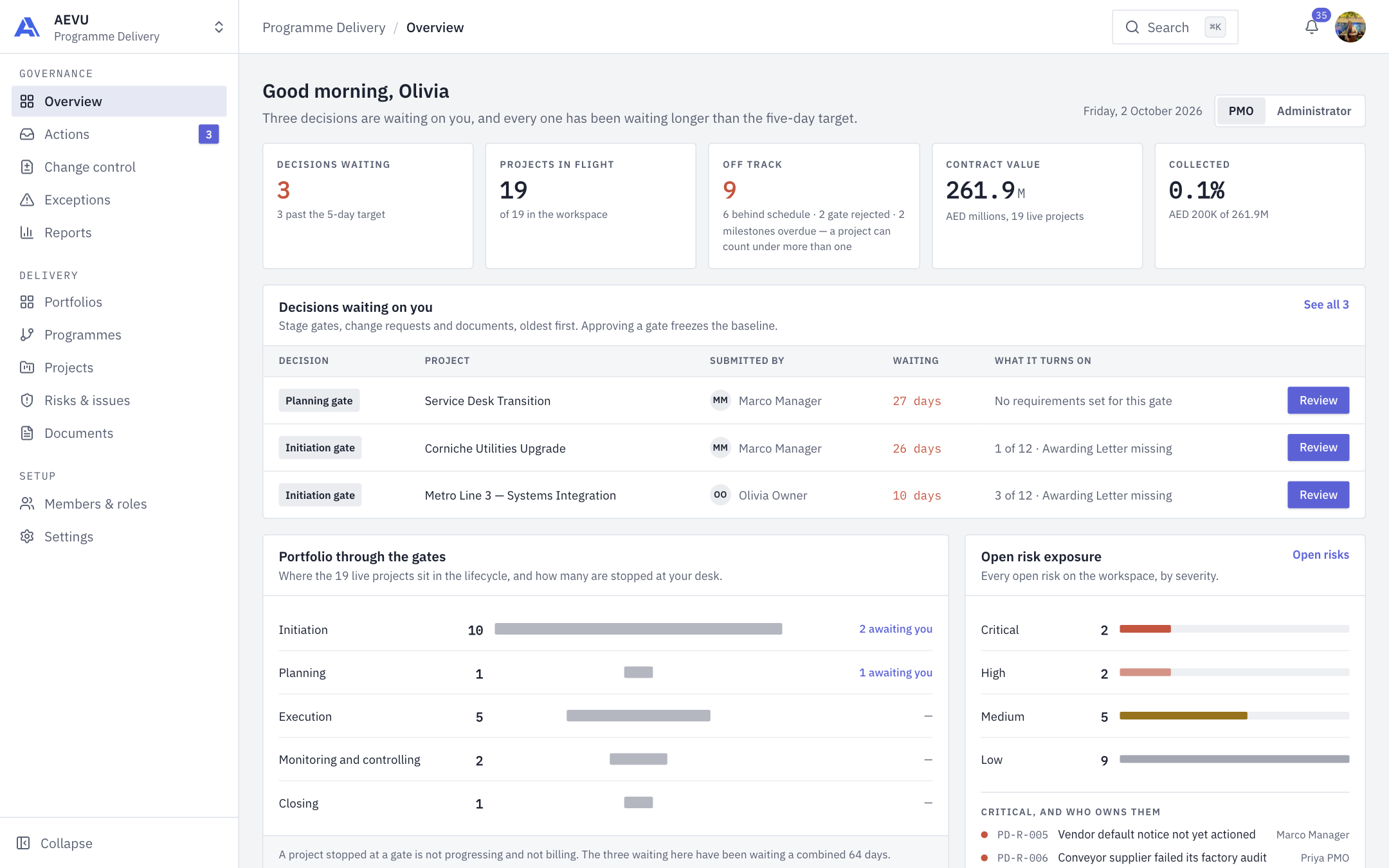
Left rail
The rail lists the modules you may use, in three groups: Governance (Overview, Actions, Change control, Exceptions, Reports), Delivery (Portfolios, Programmes, Projects, Risks & issues, Documents) and Setup (Members & roles, Settings).
- Items appear only if your role allows them.
- Actions shows a count of items waiting for your decision.
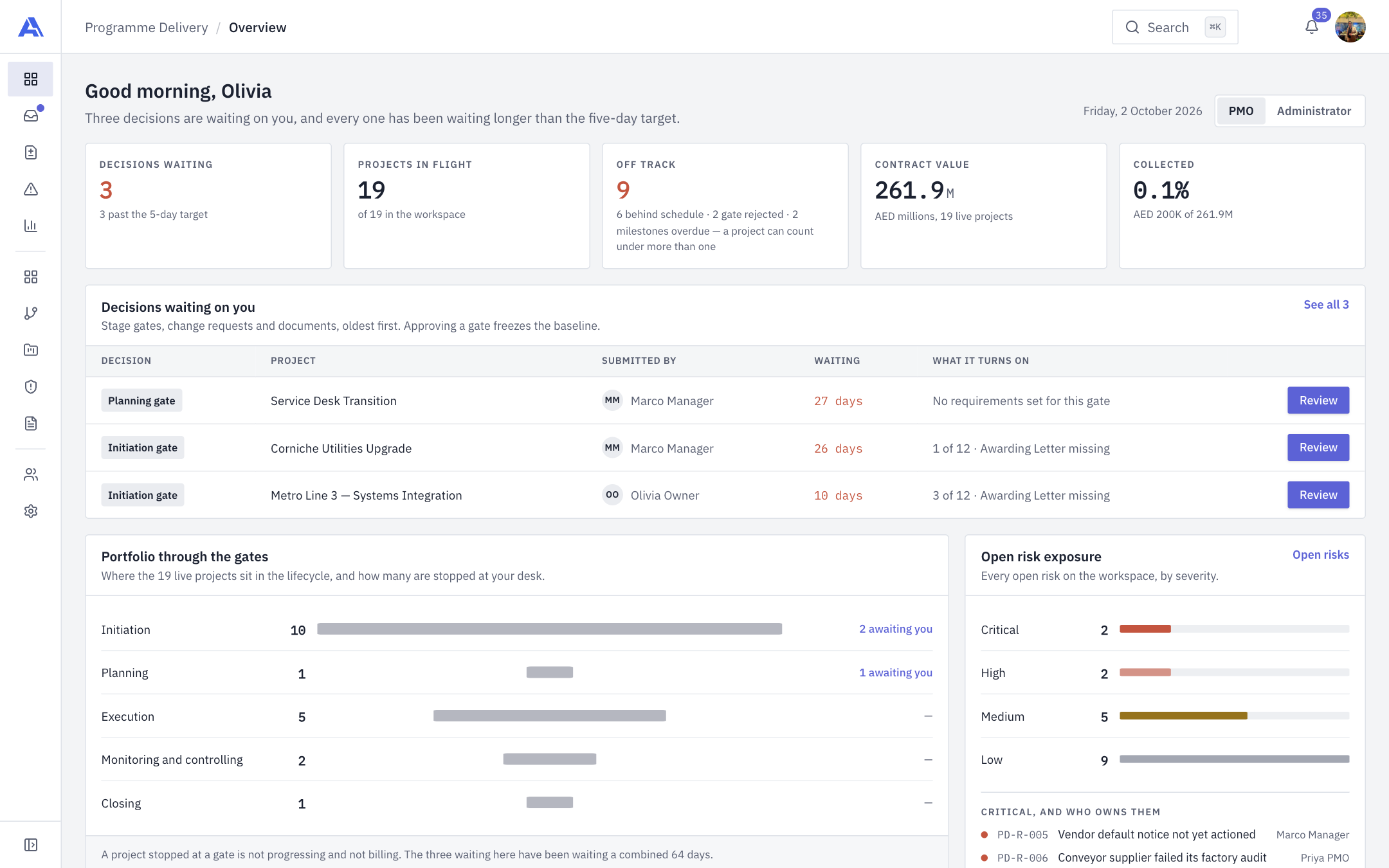
- Click Collapse at the bottom to shrink the rail to icons; click it again to expand. On a phone, use the menu button at the top left to open navigation.
Workspace switcher
At the top of the rail you see the organisation and the current workspace. Click it to open the menu:
- the workspaces you belong to (archived ones are marked Archived);
- Switch workspace — opens the picker;
- Create workspace — only if you have permission;
- Workspace settings.
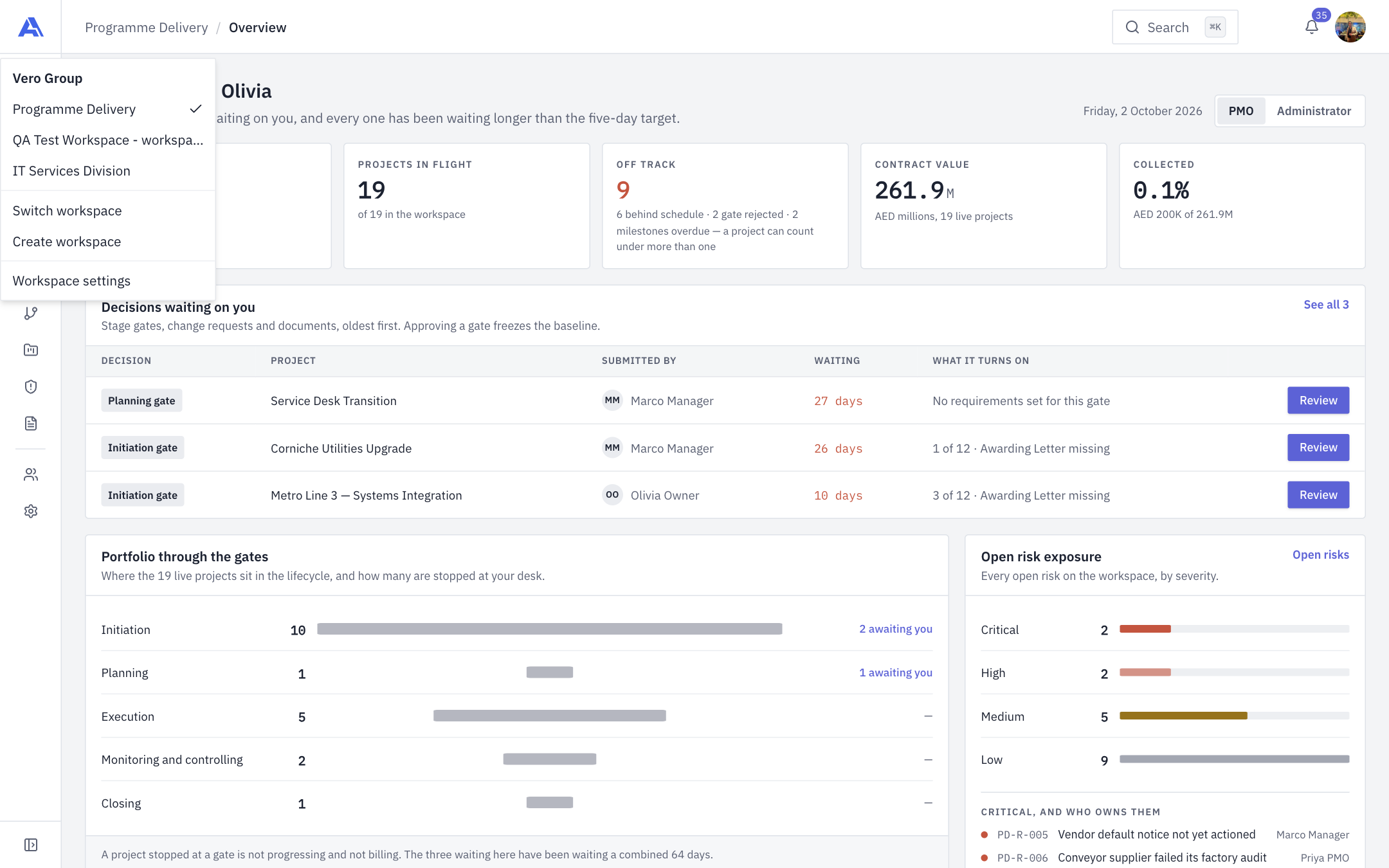
See Workspaces.
Top bar
The breadcrumb shows where you are (workspace / page). On the right:
- Search — or press ⌘K (Ctrl+K on Windows). Type at least two characters to search projects, milestones, tasks, risks, issues, documents, change requests and people. See Search.
- Ari — the AI assistant. See Meet Ari.
- Notifications (bell) — shows your unread count; open it to search, filter by type, switch on Unread only, Mark read or Mark all read. See Notifications.
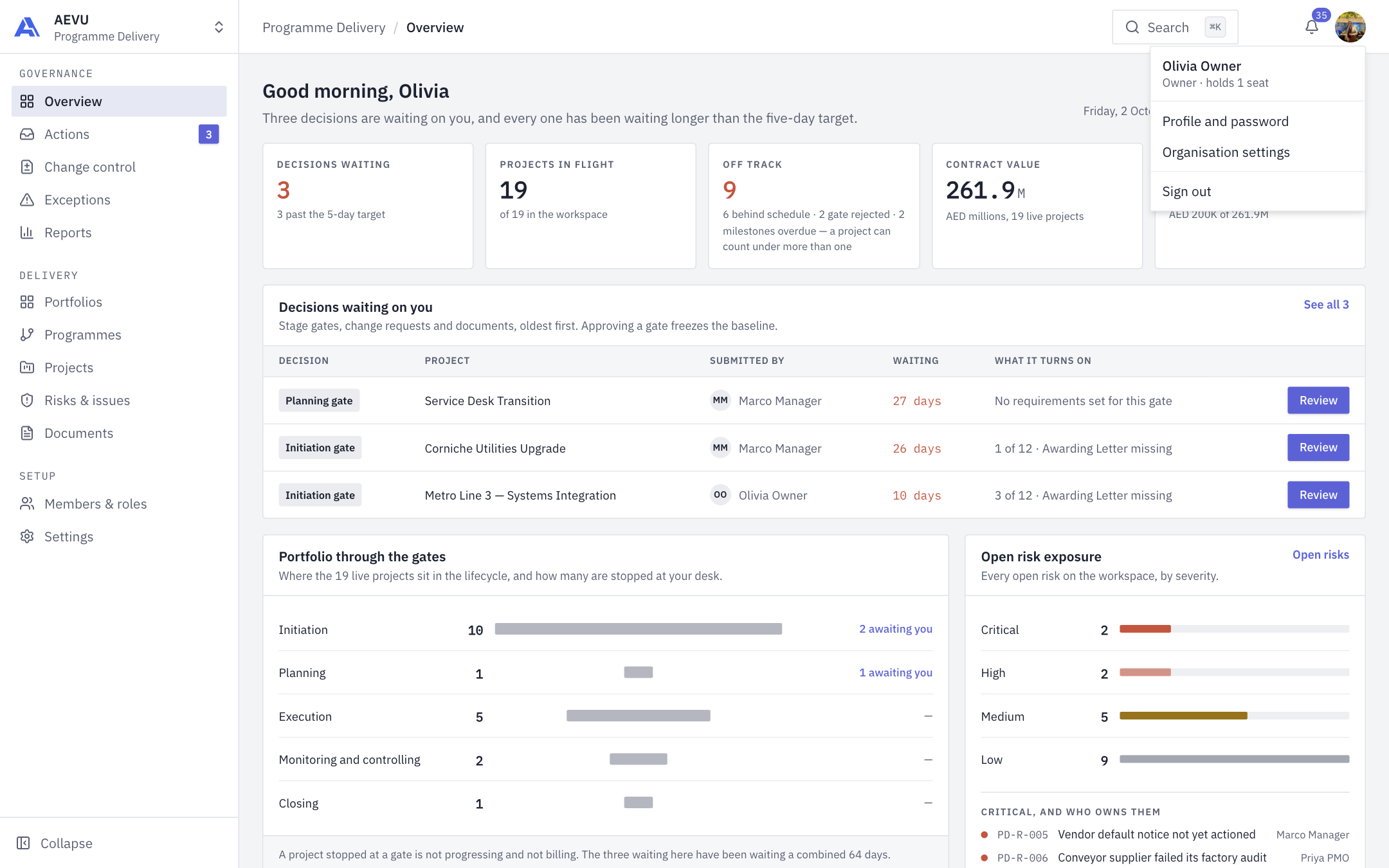
- Account menu (your avatar) — Profile and password, Organisation settings (if you have access) and Sign out. It also shows your role.
Banners
If your organisation's trial has ended or a payment has lapsed, a banner says the workspace is read-only: you can still read everything, but changes are blocked until the plan is active again. See Plans, trials & billing.