

Appearance
NetSuite
AEVU imports from NetSuite so that the project register and finance never disagree. It reads a saved search that you or your finance team own in NetSuite. Each project arrives together with the client it is billed to.
Who does this: a workspace administrator with Manage settings, together with a NetSuite administrator. The organisation must allow NetSuite (Organization → Integrations → NetSuite) and your plan must include it (Enterprise).
What gets imported
- Projects from the saved search, with the client each is billed to. NetSuite sub-customers are collapsed into one client, so a health authority with thirty sub-accounts is one client in AEVU.
- Projects are matched on their NetSuite project code (the
entityId), and clients on the parent customer name, so importing twice updates rather than duplicates. On a re-import AEVU changes only a project's name and its client link, and a client's name. Everything else you maintain in AEVU is left alone. - Customers and vendors are not imported as separate lists. Clients arrive only as the client of an imported project. (The organisation policy toggle still reads NetSuite customer and vendor sync; it is the same switch.)
- A new project starts at Initiation. After that its stage, status and portfolio belong to AEVU and no import moves them back.
- Import runs on demand (Import now) or nightly at 02:00 UTC.
Technical note
AEVU connects over NetSuite SuiteTalk SOAP (WSDL 2025.2) with token-based authentication (a signed token passport, HMAC-SHA256). The role behind the token needs SOAP Web Services permissions, not the REST permissions.
Step 1. Prepare NetSuite
Ask a NetSuite administrator to do the following. Menu names can vary slightly by NetSuite version.
Vendor menus may change
NetSuite renames menus between releases. The values AEVU needs (SOAP Web Services and token-based authentication, the role permissions, the saved search script ID) stay the same.
- Enable features. Setup → Company → Enable Features → SuiteCloud: tick SOAP Web Services and Token-Based Authentication, then Save.
- Create an integration record. Setup → Integration → Manage Integrations → New. Give it a name such as
AEVU, tick Token-Based Authentication, untick the user-credential options, and Save. NetSuite shows the Consumer Key and Consumer Secret once. Copy them now. - Create a role (or use an existing one) with the permissions SOAP Web Services and Log in using Access Tokens, plus view access to the records your saved search reads.
- Assign the role to the user that will own the token.
- Create an access token. Setup → Users/Roles → Access Tokens → New. Choose the integration record, the user and the role. Save, then copy the Token ID and Token Secret once.
- Find your Account ID. Setup → Company → Company Information. It looks like
1234567, or1234567_SB1for a sandbox. - Create (or choose) the project saved search. It is a Project (Job) saved search that joins the customer, and it must return the project's ID and name, its start date, and the customer's ID, name, address and web address (AEVU reads the columns
entityId,altName, the customer join'sentityId,altName,addressandurl). Note its script ID, for examplecustomsearch1106. Pointing at their saved search lets finance decide what is in scope and change it in NetSuite without anyone editing AEVU.
Account ID shapes
The Account ID appears in two shapes: lower-case with hyphens in the web address (1234567-sb1) and upper-case with underscores in the sign-in realm (1234567_SB1). AEVU lower-cases the Account ID and swaps underscores for hyphens to reach <account>.suitetalk.api.netsuite.com (the form shows the host it will call). Enter the form shown in Company Information (1234567_SB1).
Step 2. Enter the details in AEVU
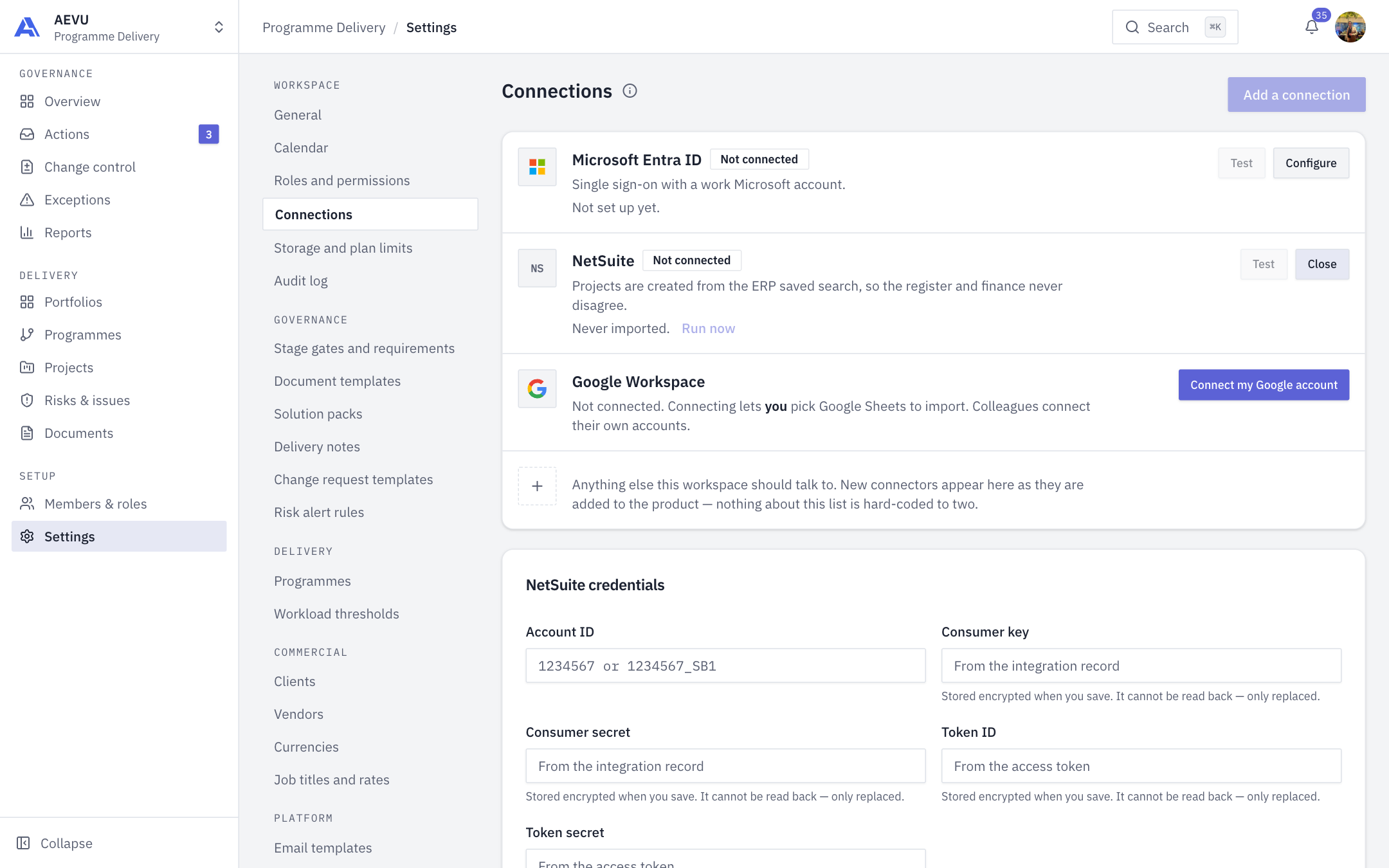
- Open Settings → Connections, find the NetSuite row and choose Configure.
- Fill in:
| Field | Value |
|---|---|
| Account ID | From Step 1.6 |
| Consumer key / Consumer secret | From the integration record |
| Token ID / Token secret | From the access token |
| Project saved search | The saved search script ID, e.g. customsearch1106 |
| Only codes beginning | Optional filter, e.g. INF-, that you can change without editing a search others rely on |
| Connection is on | Needed before importing |
| Import every night | Runs at 02:00 UTC. Off by default so the first import is one somebody watched |
- Save, then Test connection. Fix any message before relying on it.
- Choose Import now for the first run and read the result: a summary, any skipped rows (listed, not hidden), and a note if the search had more pages than one run reads.
Rotating credentials
Create a new access token in NetSuite, paste the new Token ID and Token secret (dots with Replace), and Save. Empty fields keep what is stored. Old values can never be read back.
Disconnect
Disconnect discards the stored token and stops imports. Clients and projects already imported stay as they are.
Common errors
| Symptom | Likely cause |
|---|---|
| Authentication failed on Test | A wrong key, secret, token, or Account ID shape; or the role lacks SOAP Web Services / Log in using Access Tokens |
| Couldn't reach NetSuite | Wrong Account ID, or the AEVU server cannot reach NetSuite |
| Import now is disabled | Connection is on is off |
| Some rows listed as skipped | A row with no project code, a project with no name, or a code AEVU cannot file because another project already uses it; fix them in the saved search or in AEVU |
credentials.unreadable | The server cannot decrypt the stored secret (shown for a test job); re-enter the credentials |
| Test refused: capability | The organisation or workspace has NetSuite off |
Security
Credentials are encrypted at rest, never shown again, and AEVU refuses a secret that equals your own AEVU password. Saves are rate limited. Every save, test, import and disconnect is audited.
INFO
Import is not queued as a background job: Import now runs while you wait, and the nightly run is separate. Avoid pressing it around 02:00 UTC.