

Appearance
Stage gates & requirements
This page decides what a project manager must have in place before a stage can be sent to the PMO for approval, and how many days a stage may stay open before the project counts as delayed. For how gates work day to day, see Stage gates.
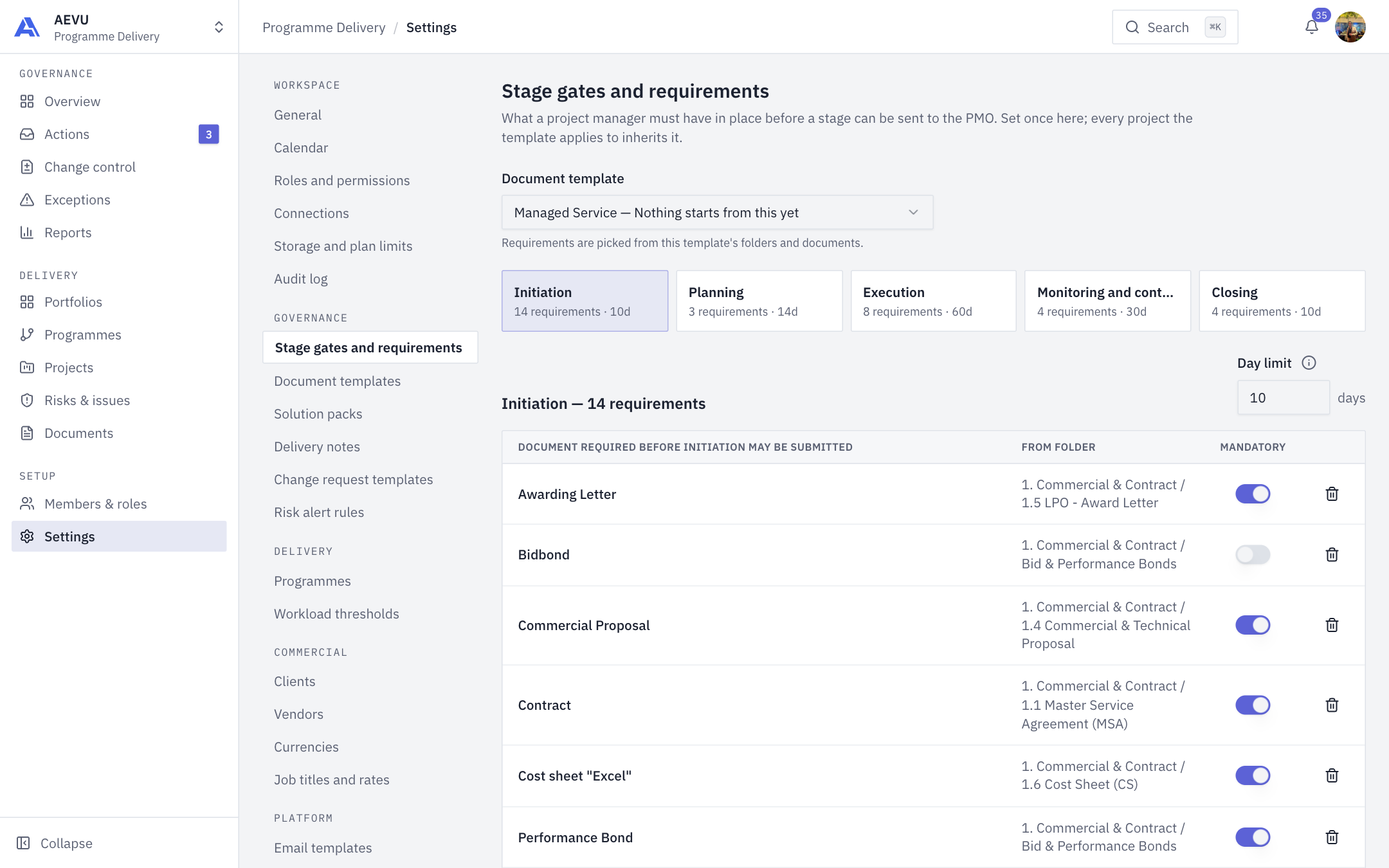
Who can open it: template.view. Who can edit: gate.approve (Owner and PMO by default). Others see the page read-only.
Changes save as you click. There is no Save button.
Configure a stage
- Open Settings → Governance → Stage gates and requirements.
- Choose a Document template. Requirements belong to one template, which decides which projects they reach.
- Select a stage in the strip: Initiation through Closing, including Monitoring and controlling. Each shows its requirement count.
- Add required documents, switch on conditions, and set the day limit.
Required documents
Add document opens a searchable picker of the template's documents and folders. Documents already required are left out, so add them under Document templates first if missing. Each row shows the document, its folder, and a Mandatory switch. A mandatory document stops the stage being sent until it is provided.
Conditions
Conditions are checks on the project's own data, in three groups.
| Group | Conditions |
|---|---|
| Something must be on the record | Stakeholders, Risks, Issues, Milestones, Client payment, Assignments |
| The work must actually be finished | All work complete, Progress 100%, Delivery notes signed, Invoices uploaded |
| The money must have moved | Client payments received, Vendor payments paid |
TIP
All work complete asks whether every milestone and task has reached its finished state. Progress 100% asks whether the weighted progress figure has reached the top. A plan can satisfy one without the other, so both are offered.
Day limit
Enter whole days from 1 to 3650, or leave it blank for no limit. It commits when you leave the field. The limit colours the stage when exceeded and does not block anything.
WARNING
The day limit is workspace-wide, not per template. Changing it changes it for every template.
Effects
- Requirements are set once and every project using that template inherits them.
- A mandatory requirement blocks submission. The PMO can still approve a gate over a gap that opens after submission, and that override is recorded.
- If two people edit at once, a later save may be refused with "Stage gates changed. Reload and try again."
- Every change is written to the audit log.