

Appearance
Workload thresholds
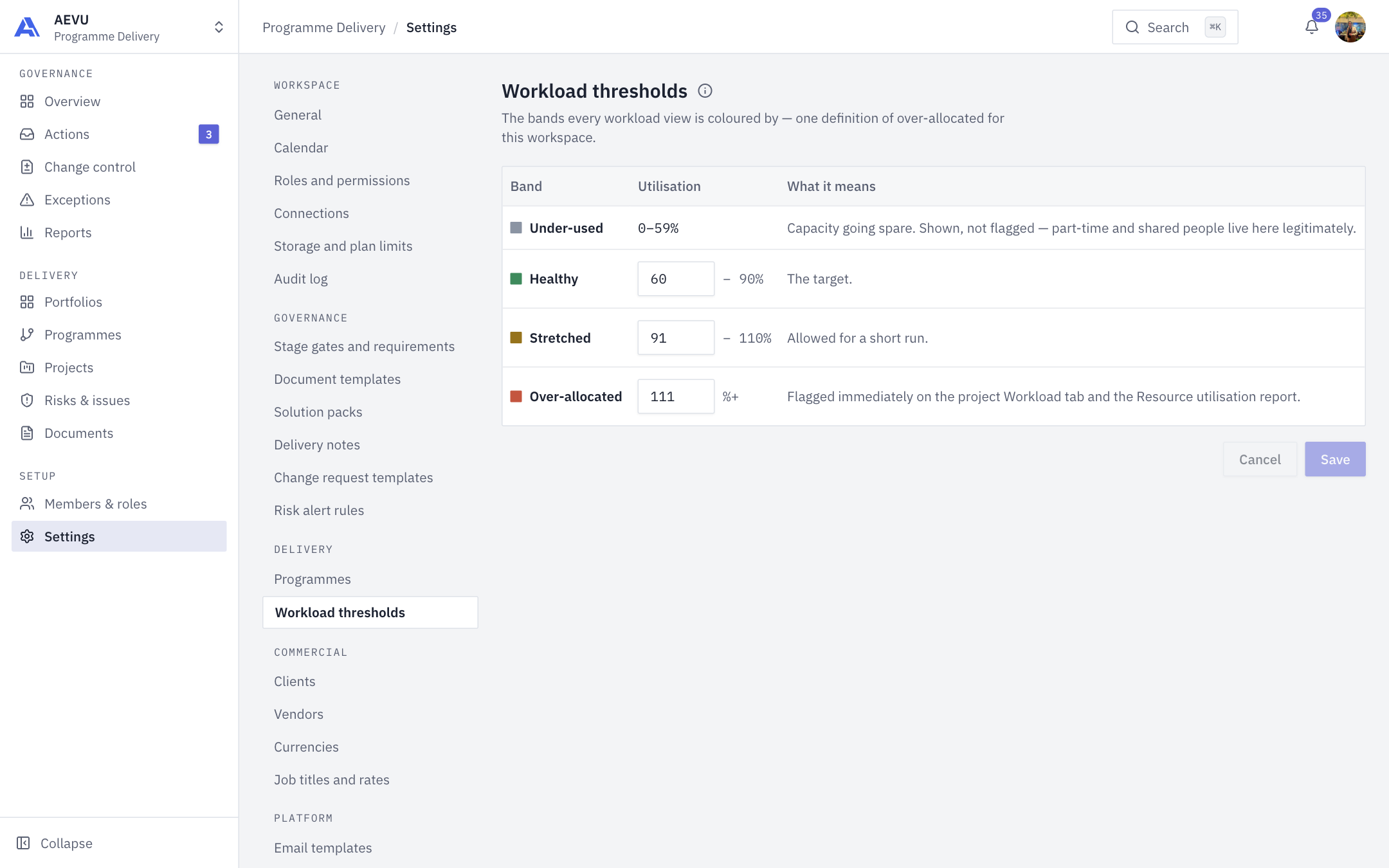
Workload thresholds are the bands every workload colour is drawn from. They give your workspace one definition of "over-allocated".
Who can open and edit it: settings.manage (Owner and Admin by default). Without it the fields are read-only.
The four bands
| Band | Range | Meaning |
|---|---|---|
| Under-used | Below Healthy | Capacity going spare. Shown, not flagged |
| Healthy | From the Healthy threshold | The target |
| Stretched | From the Stretched threshold | Allowed for a short run |
| Over-allocated | From the Over-allocated threshold | Flagged immediately on the project Workload tab and the Resource utilisation report |
Only the starting point of Healthy, Stretched and Over-allocated is editable. Each upper end follows from the next boundary, so bands never overlap or leave gaps. Defaults are 60, 91 and 111 percent.
Change the thresholds
- Open Settings → Delivery → Workload thresholds.
- Edit Healthy from, Stretched from and Over-allocated from.
- Select Save. Cancel discards edits.
Rules, shown inline:
- Whole numbers only.
- Healthy from must be greater than 0.
- Stretched from must be greater than Healthy from.
- Over-allocated from must be greater than Stretched from, and at most 300.
What reads the bands
The project Workload tab, resource allocation screens, the Resource utilisation report (including its over-allocated headline) and the Exceptions over-allocation rule all use these values. A save that changes nothing writes no audit entry.
INFO
A full working week, 100 percent, is a capacity fact and is not configurable.