

Appearance
Microsoft Entra ID sign-in
Entra ID (formerly Azure AD) lets people sign in with their work Microsoft account using Continue with Microsoft on the sign-in page.
Who does this: a workspace administrator with the Manage settings permission. Only a workspace Owner may change the directory (tenant) ID and client ID after they are saved. You also need access to your company's Microsoft Entra admin center to register the app.
Platform sign-in or a company connection?
The platform can offer Microsoft sign-in without a company connection. When the button is shown, link your work or school Microsoft account from Profile while signed in to AEVU. Platform sign-in creates no account and accesses no files. An unlinked identity cannot sign in, even if its email matches an AEVU account.
The setup below is for a company's own directory, domain routing and optional provisioning. Typing a matching work email on the sign-in page selects this connection ahead of the platform registration. Existing Microsoft identity links work through both paths.
Before you start
- An organisation Owner or Admin has allowed Sign in with Microsoft (under Microsoft 365) at Organization → Integrations and ticked your workspace, and the platform offers it. Otherwise the Microsoft Entra ID card shows "Switched off" and Test is disabled.
- You know which email domains your people use (for example
company.com). - Your AEVU API address. You do not have to type it: the form shows the exact Redirect URI to copy.
Step 1. Copy the redirect URI from AEVU
- Open Settings → Connections.
- On the Microsoft Entra ID row choose Configure.
- Copy Redirect URI to register in Entra (use the copy button). It is built from the address your browser reached the API on, and has this shape:
text
https://<your AEVU API host>/api/auth/entra/callback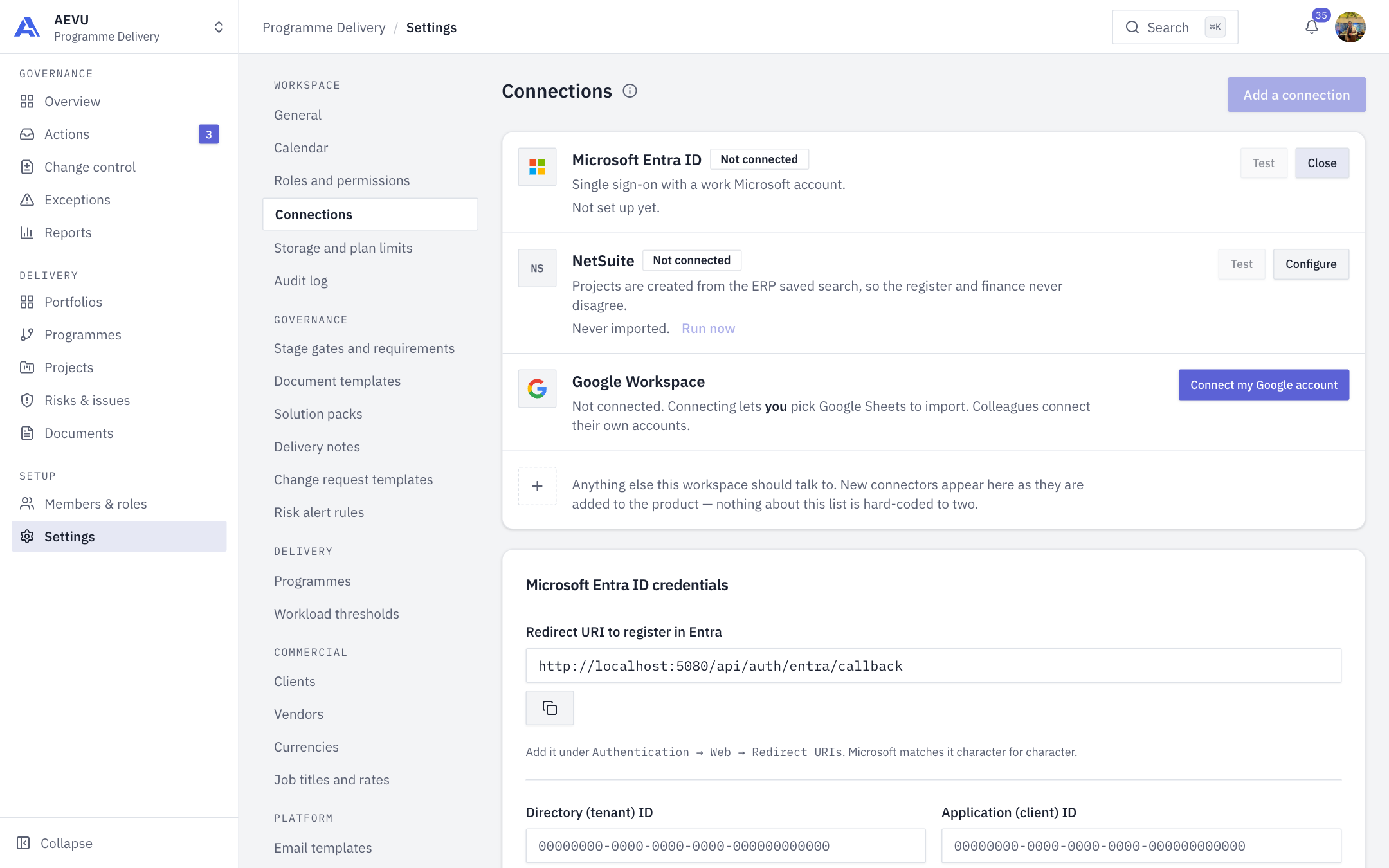
Step 2. Register the app in the Microsoft Entra admin center
- Sign in to the Microsoft Entra admin center as an administrator of your tenant.
Vendor menus change
Microsoft renames portal menus from time to time. The values AEVU needs (redirect URI, openid profile email) stay the same.
- Go to Identity → Applications → App registrations → New registration.
- Name: for example
AEVU sign-in. - Supported account types: Accounts in this organizational directory only (single tenant).
- Redirect URI: choose platform Web and paste the URI you copied. Microsoft matches it character for character.
- Select Register.
- On the app's Overview page, copy the Application (client) ID and Directory (tenant) ID.
AEVU asks Microsoft only for the openid profile email permissions, so no extra API permission or admin consent is needed for sign-in.
Step 3. Create a client secret
- In the app registration open Certificates & secrets → Client secrets → New client secret.
- Give it a description and an expiry (note the date).
- Copy the secret Value immediately. It is masked afterwards.
Value, not Secret ID
Paste the Value column. The Secret ID is a different field and will not work. AEVU reports "Microsoft rejected the client secret. Paste the secret VALUE from the app registration, not its ID."
Step 4. Fill in the AEVU form
On Settings → Connections → Microsoft Entra ID → Configure:
| Field | What to enter |
|---|---|
| Directory (tenant) ID | The tenant ID from Step 2 |
| Application (client) ID | The client ID from Step 2 |
| Client secret | The secret Value from Step 3 |
| Secret expires on | The expiry date. Optional but strongly recommended: Entra secrets expire silently and this date is the only warning |
| Email domains | Comma separated, for example company.com, company.ae. Nobody is signed in when they press the button, so the domain of the address typed tells AEVU which workspace handles them. A domain can belong to one workspace only |
| Create accounts on first sign-in | Off by default. When on, anyone in your directory on those domains gets an account at the role you choose in Role they start with. New accounts can never start as Owner |
| Offer Microsoft sign-in | Switch on after a successful test |
- Select Save.
- Select Test connection. A good result reads "Microsoft accepted these credentials" (with your directory name when it can be read).
- Switch Offer Microsoft sign-in on and Save again.
TIP
Saving is not enabling. You can store and test credentials first. A failed test does not block saving, but fix it before enabling.
What your people do
- Press Continue with Microsoft on the sign-in page and enter their work email.
- If their Microsoft sign-in name uses a different domain from their email (for example
@tenant.onmicrosoft.comagainst a custom-domain mailbox), they first sign in with their password and use Link Microsoft account on their Profile. After linking, the directory identity decides.
Rotating or replacing the secret
Create a new secret in Entra, open Configure, paste it into Client secret (shown as dots with Replace), update Secret expires on, and Save. Leaving the field empty keeps the stored secret. The old value can never be read back.
Disconnect
Disconnect discards the credentials and stops the sign-in page offering Microsoft. Everyone keeps their account and password.
Common errors
| Message | Fix |
|---|---|
| Microsoft rejected the client secret | Paste the secret Value, not the Secret ID |
| That client secret has expired | Create a new secret and paste it |
| Microsoft has no application with that client ID in this tenant | Re-copy the Application (client) ID |
| Microsoft has no tenant with that ID | Re-copy the Directory (tenant) ID |
| Microsoft refused these credentials | Check all three values and the redirect URI |
| Couldn't reach Microsoft | The AEVU server could not reach Microsoft; contact your AEVU administrator |
| Test passes with a note about Microsoft Graph | This is a pass. The app has no Graph application permission, which sign-in does not need |
More in Connection jobs & troubleshooting.
Security
- The secret is encrypted at rest (ASP.NET Data Protection) and never shown again; the form shows only a four-character hint.
- AEVU refuses to save a secret that matches your own AEVU sign-in password.
- Saves are rate limited (10 per 15 minutes per person).
- Sign-in is bound to the browser that started it, so a forged callback cannot complete.
- Each save, test and disconnect is written to the audit log.