

Appearance
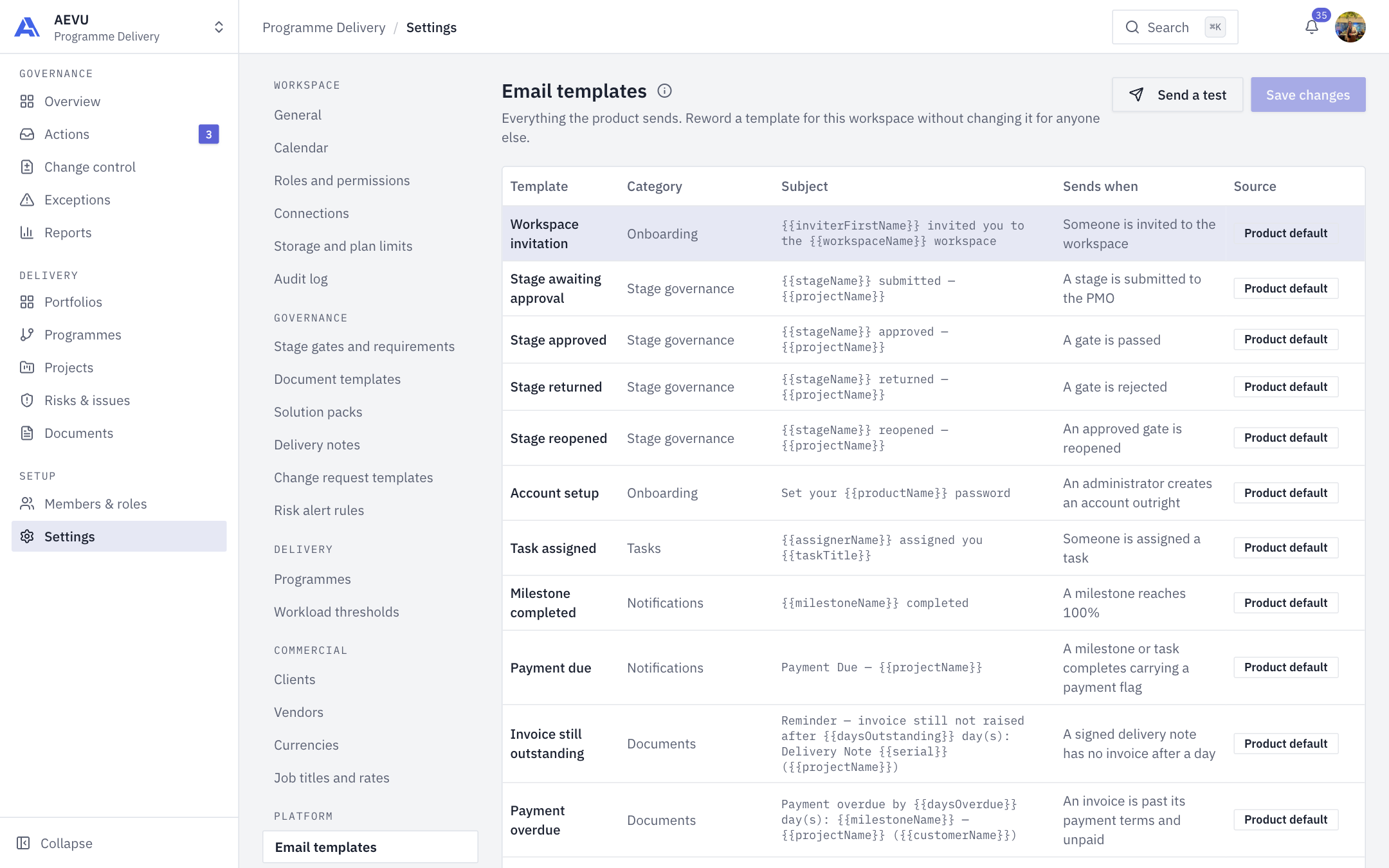
Email templates
Email templates are the wording of everything the product sends. A template can be reworded for this workspace without changing it for anyone else.
Who can open and edit it: template.manage (Owner, Admin and PMO by default).
How wording resolves
Each template resolves in order: this workspace's version, then the product default. Editing creates the workspace version and moves nothing else. Reset to product wording removes it and falls back to the default.
Template statuses
| Badge | Meaning |
|---|---|
| Product default | Using the shipped wording. Editable |
| Edited here | The workspace has its own wording |
| Switched off | Nothing sends it. Wording is kept. The member-credentials email ships switched off |
| Not sent yet | The email isn't being sent yet. You can edit it and the wording is kept |
| Product-owned | Sent before someone belongs to a workspace (such as account confirmation and password reset). Can't be changed |
The table lists Template, Category (for example Stage governance, Tasks, Change requests, Documents, Projects, Notifications), Subject, Sends when and Source.
Edit a template
- Open Settings → Platform → Email templates and select a row.
- Edit the fields. The preview refreshes as you type.
- Select Save changes.
| Field | Limit |
|---|---|
| Subject | Required, up to 256 characters |
| Preheader | Up to 256 |
| Body | Required, up to 4000. A blank line starts a new paragraph |
| Button label | Up to 64 |
| Button link | Up to 512. Must resolve to http or https |
Use tokens from the Available placeholders list for that template. A placeholder that is malformed or not available is refused.
The switch This message is sent / is not sent turns the email on or off.
Send a test emails the draft to your own address, marked [Test].
TIP
An unchanged save does nothing. No override, version or audit entry is created.
WARNING
If someone else saved the same template first, your save is refused. Reload and reapply.