

Appearance
Portfolios
A portfolio is the top of the delivery hierarchy: a commercial arrangement with a manager, terms and a document structure that rolls up programmes and projects.
Who can use it
Portfolios is on the rail for everyone and is read with portfolio.view (all five built-in roles). Creating and editing needs portfolio.manage; archiving needs portfolio.delete.
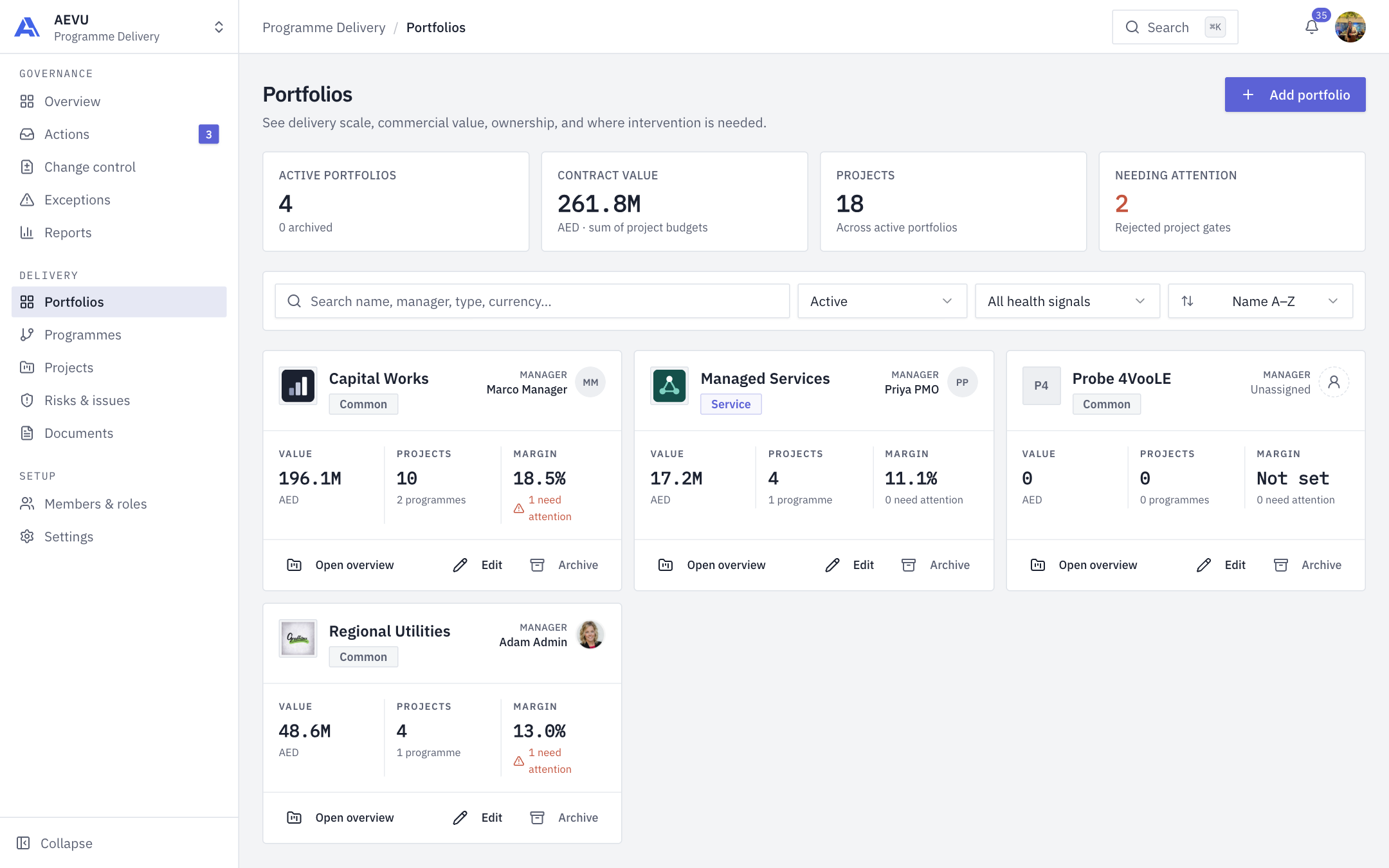
The register
Four tiles sit above the list (Active portfolios, Contract value, Projects, Needing attention). Each card shows the portfolio and its type badge, its manager (top right), Value, Projects and Margin with an attention note, and the actions Open overview, Edit and Archive. If a portfolio's agreed currency differs from the reporting currency, an "Agreed in X" badge appears. Use search (name, manager, type, currency), the status filter (Active, Archived, All statuses), the health filter (All health signals, Needs attention, No rejected gates) and the sort menu (Name A–Z, Highest value, Most projects, Most attention).
Create a portfolio
- Click Add portfolio. The New portfolio form opens.
- Enter a Name (required, unique in the workspace; spaces and capitals are ignored when checking).
- Choose the Portfolio manager. Only active members with system access are offered.
- Optionally set Agreed markup (%) or Agreed margin (%). They stay in sync, so setting one fills the other.
- Choose the Currency (default is the workspace default).
- Choose the Type: Common (ordinary delivery), Service (a managed service engagement) or Outsourcing.
- Review the Portfolio-only folder structure. It starts as a copy of the workspace template and any changes are saved as this portfolio's own copy. Reset to the workspace default undoes them.
- Click Create portfolio.
INFO
The type decides the document structure every new project in this portfolio starts from. See Document templates.
Inside a portfolio
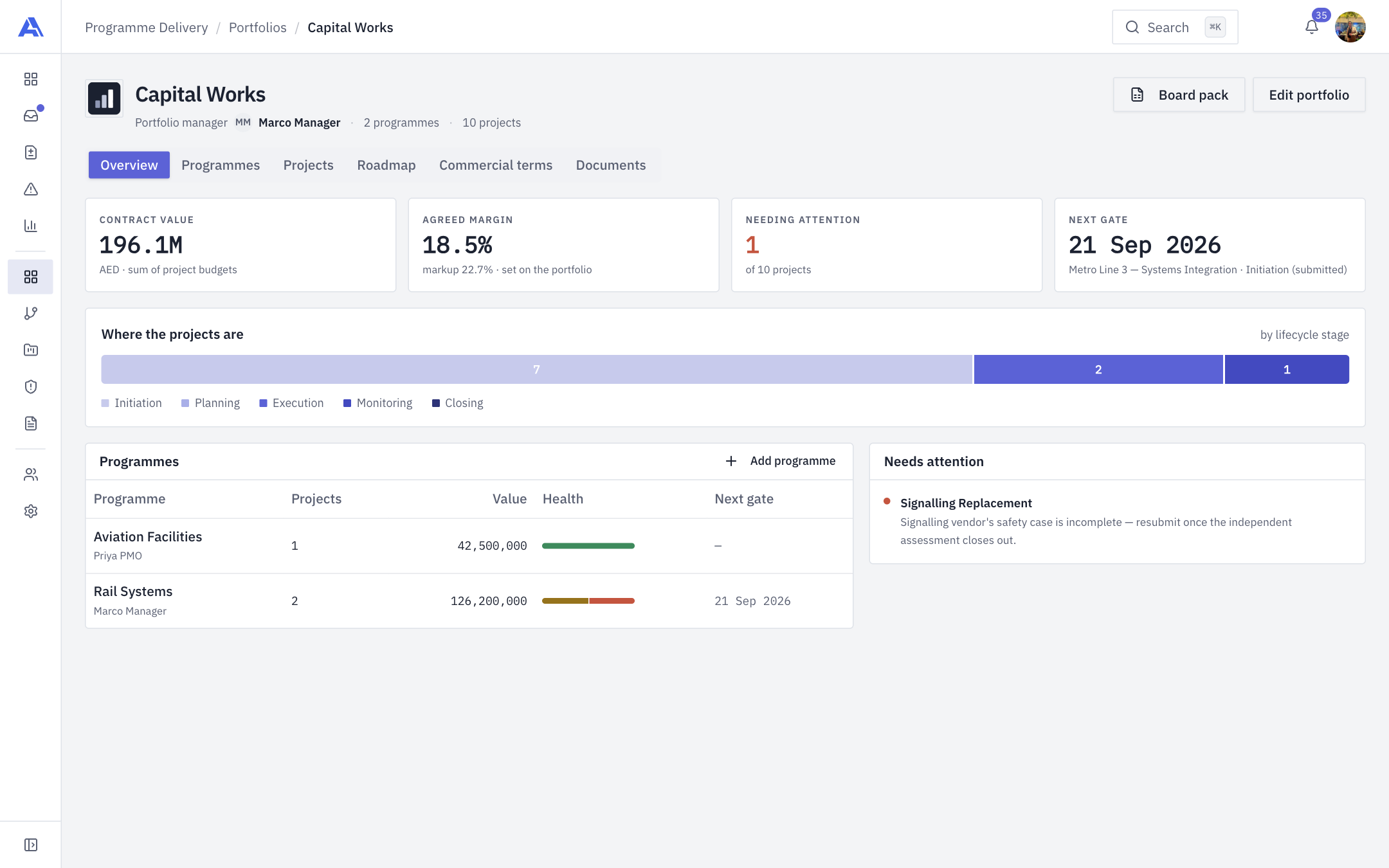
Open a card. Tabs:
- Overview: tiles for Contract value, Agreed margin, Needing attention and Next gate, a "Where the projects are" stage bar, a Programmes table (with Add programme) and a Needs attention list.
- Programmes and Projects in the portfolio.
- Roadmap: a timeline of the portfolio's work.
- Commercial terms.
- Documents (needs
document.view).
The Board pack button opens a printable summary (headlines, where the projects are, programmes, needs attention, commercial). Use your browser's Save as PDF to keep a copy. Edit portfolio changes the settings.
Archiving
Archiving is how you remove a portfolio. It needs portfolio.delete and is refused while it still has active programmes or projects. An archived portfolio leaves pickers and the default list, but history and audit stay. Show archived ones under Status, then click Restore. An archived portfolio cannot be edited.
If two people edit at once, the second save is refused and the dialog reloads.