

Appearance
Actions & approvals
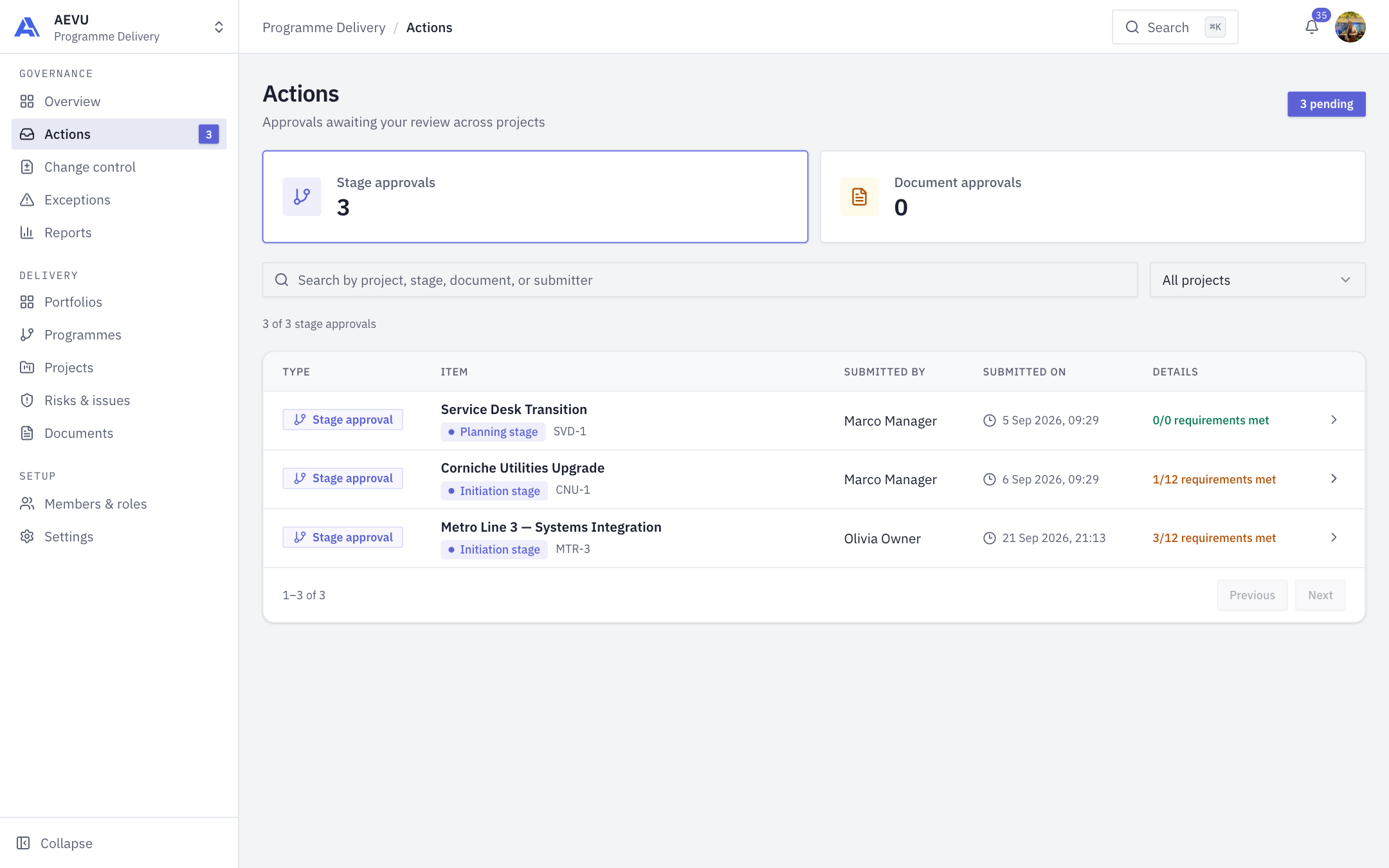
Actions is your approval queue: the stage gates and documents waiting for your decision across all projects.
Who can use it
The Actions item appears in the sidebar if you can approve stage gates (gate.approve, by default Owner and PMO) or approve documents (document.approve). A badge on the item counts what is waiting.
The queue
Actions has two tabs:
- Stage approvals: stages that project managers have submitted to the PMO.
- Document approvals: documents sent for PMO review.
Use Search actions (by project, stage, document or submitter) and the All projects filter to narrow the list. The stage table has the columns Type, Item (project, stage and code), Submitted by, Submitted on and Details (for example "1/12 requirements met"); a counter above each tab shows how many are waiting.
Deciding a stage gate
- Open Actions and choose the Stage approvals tab.
- Click the row (or its arrow). The stage review opens.
- Read the sections (project details, project plan on a Planning review, documents, risks, issues, stakeholders, audit history). The Why is this gate ready or blocked? panel lists every requirement and its state.
- Under Stage decision, choose:
- Approve: the project moves past this stage and the next stage opens. Approving the Closing stage closes the project and marks it Completed.
- Request update: sends the stage back to the project manager.
- For Request update you must write PMO review comments of at least 10 and at most 1000 characters. Confirm with Submit decision. (Rejecting from the list opens a Reject this gate? dialog with a Reason box and a Reject gate button.)
TIP
The reason you write is shown to the project manager on the stage timeline and in their notification, so say what needs to change before resubmitting.
After a decision the review page shows the result, who decided and when, as read-only. A returned stage lets the manager fix things and submit again.
Deciding a document
On the Document approvals tab you can approve or reject straight from the row, or open the document review. Rejecting asks for a return reason (10 to 1000 characters). You can select several documents and approve them in bulk.
On an approved document the review page offers Revoke to undo the approval (needs document.approve).
INFO
A document can only be sent for review after the client has signed off and a file or bypass note is present. See Documents.
How the project manager gets here
Managers submit a stage from the project header once its requirements are met. See Stage gates. People are told by in-app notifications and email.