

Appearance
Documents
The Documents tab is the project's file area: folders, files, the PMO approval workflow, client sign-off, and the checks that stage gates rely on.
Who can do what
| Action | Permission | Default roles |
|---|---|---|
| View documents | document.view | Everyone |
| Add files and folders, rename, move, submit for PMO, request a change, write a bypass note | document.upload | Owner, Admin, PMO, Manager |
| Delete documents and folders | document.delete | Owner, Admin |
| Approve, reject, revoke, answer a change request (the PMO half) | document.approve | Owner, PMO |
| Link a SharePoint, OneDrive or Google Drive file | externalfile.link | Owner, Admin, PMO, Manager, and only if your organisation allows the provider (otherwise the Linked files panel says "Turned off by your organisation") |
Client sign-off is a separate act by a separate person from the PMO's approval. For a cross-project search see Documents lookup.
The screen
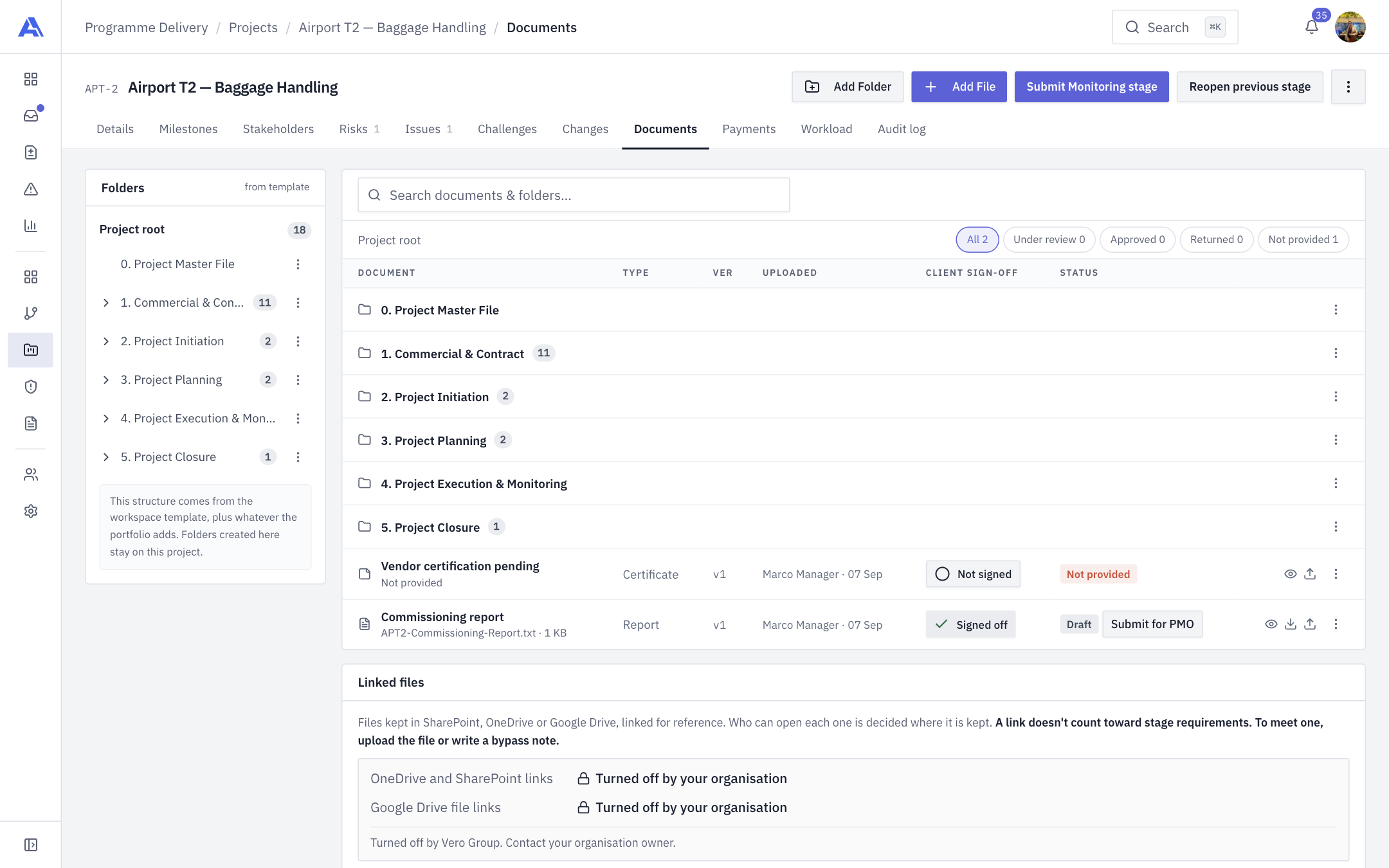
- A Folders tree on the left starting at Project root, with counts of documents (rolled up through sub-folders).
- The Documents list on the right: sub-folders first, then files, with columns Document, Type, Ver, Uploaded, Client sign-off and Status (the PMO column). A Search documents & folders… box searches the whole project and shows each result's path.
- A row of status chips with counts above the list: All, Under review, Approved, Returned and Not provided. The Show what is required / Hide what is required toggle lists the stage's required documents that are still missing, marked Not provided and Required.
- Beside the tree a note says the structure "comes from the workspace template, plus whatever the portfolio adds". A banner showing the current stage's gate readiness, if your workspace requires documents.
- Add Folder and Add File at the top right.
Folders are the project's own copy of your workspace's document template tree, set up when the project was created. Folders are only for organisation. See Document templates.
Add files and folders
- Open the folder you want in the tree (or stay at Project root).
- Click Add Folder to create a sub-folder inside it, or Add File to upload.
- Add File accepts several files at once. Allowed types are PDF, Word, Excel, PowerPoint, image (PNG, JPG) or text, up to 50 MB each.
The type is decided from the extension, and the server checks the real size of what arrived. An empty folder reads "This folder is empty. Use Add File or Add Folder to get started."
A required row that has no file offers its own Upload straight into its folder, and a Template chip when a starting file exists. Click a row's menu for Rename, Move to folder and Delete document.
INFO
A mandatory template row, a delivery note and a milestone's invoice cannot be deleted, and a mandatory row cannot be renamed. The menu shows these as disabled with the reason.
The approval workflow
A document's Status is one of Draft, Under review, Approved, Returned for modification (rejected), Archived or Invalidated. Status is kept separately from Client sign-off (Signed off or Not signed) and PMO approval, because they answer three different questions.
- Client sign-off. Toggle it in the row. Sending a document for review needs client sign-off first and a file or note.
- Submit for PMO. The PM sends it. Status becomes Under review, and PMO members are notified.
- PMO decision. A PMO user clicks Approve, or Reject with a reason (10 to 1,000 characters). Rejected documents show Returned for modification with a View rejection reason link; the uploader and PM are notified. Fix and resubmit (uploading a new file on a returned document resubmits it).
- Locked while held. While a document is Under review or Approved, its file cannot be replaced and its client sign-off cannot change. These change only through revoke or an allowed change request.
Delivery notes have no PMO review and show a dash in that column. Their row shows the milestone, and when signed, the invoice amount.
Revoke approval
A PMO user can open the row menu and click Revoke approval (hidden while a change request is open). The document returns to Draft, client sign-off is cleared, an optional remark is kept, and the uploader and PM are notified. The status chip shows Approval revoked.
Request a change on an approved document
- On an Approved document, the author opens the row menu and clicks Request change.
- Enter What needs to change? (required reason) and click Send request. Only one change request can be open at a time, and a Change requested chip appears.
- The PMO either clicks Allow change (the document goes back to Draft and sign-off is cleared) or Decline change request with Reason for declining (it stays Approved).
Bypass: log a note instead of uploading
If you cannot provide a required file, click Add note to bypass upload on the row (the title reads "Can't provide this file? Write a note to bypass the upload — the PMO will review it").
- Enter Reason for bypassing the upload. A blank note is refused, and the dialog warns if it would replace a returned file.
- Save. The row shows "Upload bypassed — note for PMO" with the note, who wrote it and when, with Edit bypass note and remove actions.
A bypass note counts as provided for a stage requirement, and it goes through the same sign-off and PMO review as a file.
Linked files (SharePoint, OneDrive, Google Drive)
You can add a link to a file kept elsewhere: click Add external link, then Paste a link (an https:// address) or Pick from Google Drive (connect your own Google account first). Give it a title. Links appear under Linked files. Removing a link leaves the file where it is.
WARNING
A link is never evidence. It does not count towards a required document or a stage gate, even if it sits in the right folder with the right title. Upload the file, or log a bypass note. See Microsoft 365: SharePoint & OneDrive links.
How a document satisfies a requirement
A requirement is met when a document's folder path matches the requirement's (ignoring capitals) and either both carry the same template item or the titles match. The Documents tab, the stage gate checklist and the Exceptions page all use this same rule, so they cannot disagree. A requirement with no folder cannot be matched. See Stage gates.
After you save
Changes write audit entries (submitted, approved, withdrawn and so on) and in-app notifications, which the bell shows. PMO queues appear in Actions.
Common mistakes
- Trying to send for review without client sign-off. The button is disabled until sign-off and a file or note are present.
- Replacing a file under review. Locked. Ask the PMO to revoke.
- Counting a link as a document. It never counts.