

Appearance
Payments
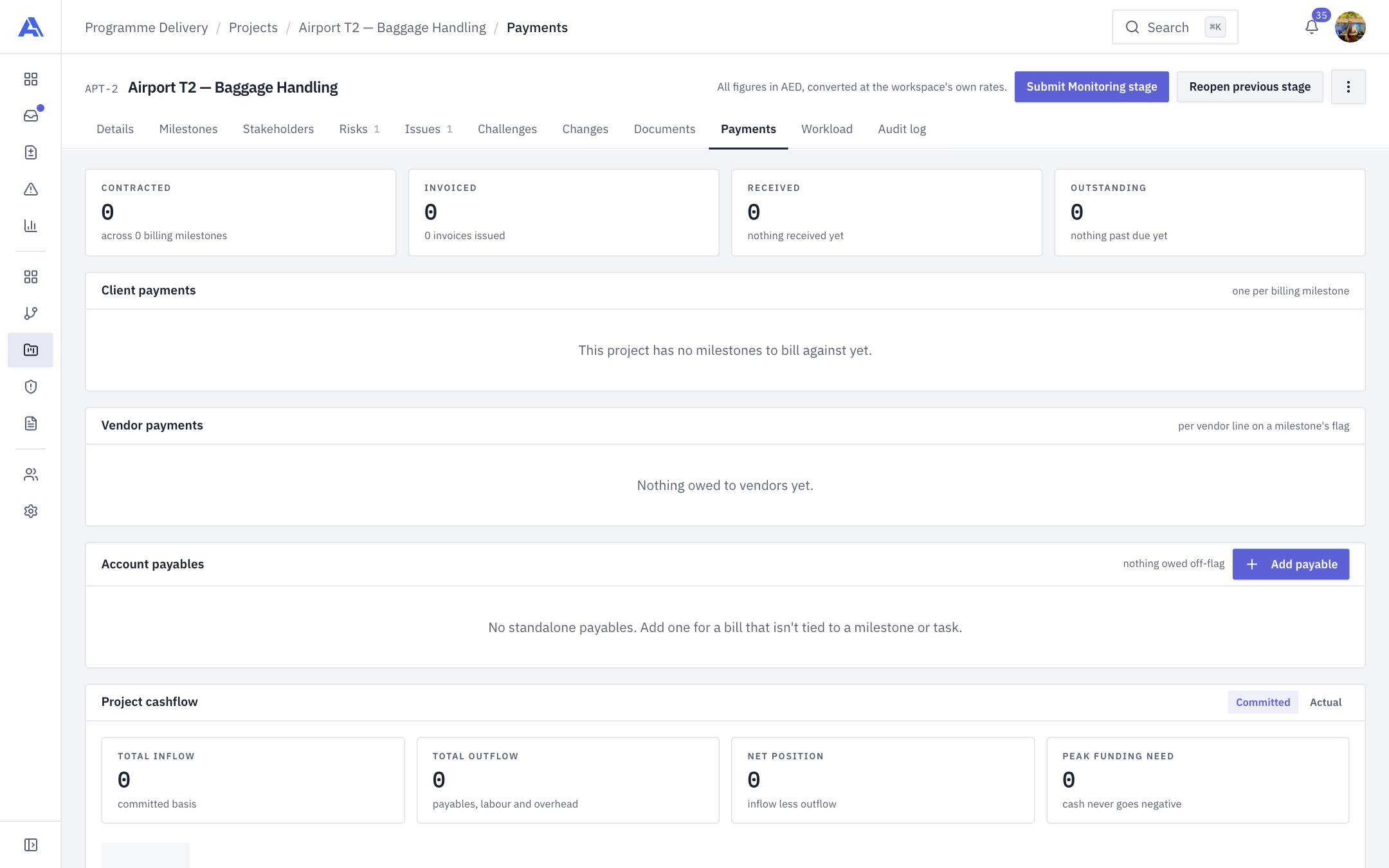
The Payments tab shows the money coming in from the client, the money going out to vendors, standalone bills, and a month-by-month cashflow.
The tab on a project that has no billing milestones yet (the empty states read "This project has no milestones to bill against yet."):
Who can do what
| Action | Permission | Default roles |
|---|---|---|
| View the tab | payment.view | Everyone |
| Record invoices and receipts, add and mark payables | payment.manage | Owner, Admin, PMO, Manager, Finance |
Finance in particular needs payment.manage to save a payment flag. Everyone who sees the tab sees it read-only unless they hold it.
All figures are shown in the project's currency, converted at the workspace's own rates. If a currency has no rate, the tab warns that totals are short, and that line counts as zero.
Where the data comes from
You do not type client payments on this tab. They come from payment flags on milestones (and tasks). On the Milestones tab, click a milestone's $ Payment chip to open the flag. This tab then summarises them.
The payment flag
| Section | What it holds |
|---|---|
| Customer Invoice (switch) | Send an invoice to the project client on completion. Enter Amount and Currency. |
| Customer Invoice File | Once the milestone is completed, an invoice document is created in Documents → Invoices. Upload the invoice there or here (PDF, Word or image; up to 10 MB). Uploading marks it Invoiced; there is no manual toggle. |
| Invoice Number | Optional. |
| Mark as paid | Records the receipt and its date. |
| Payment will be made within N days | Shown from the project's payment terms, until it is paid. |
| Vendor Payments | Add Vendor lines, only if vendors are enabled for the project. |
| This flag | Totals: Receivable, Payable, Project Budget, Resource Cost, PM Overhead and Profit (committed). |
A delivery note banner shows when a delivery note exists ("Awaiting client signature" or "Signed by client"). When a milestone is complete with an invoice but no delivery note, you can Generate delivery note. See Delivery notes.
INFO
If your workspace has switched to the newer payment module, the flag shows a notice that flags have been replaced and points you to Project → Payments.
Vendor lines are capped at the project's contract value (in project currency). The cap refuses the save if any line has no FX rate. Saving a flag that pays a vendor also links that vendor to the project. A vendor picker offers the project's vendors and + Add new vendor….
The tab
The four tiles
Contracted (total across billing milestones), Invoiced (count of invoices issued), Received (and the date of the last receipt), Outstanding (contracted but not received, with the number of lines past due and how many days late).
Internal and funded initiatives show a note instead: they have no client billing, and the tab keeps what they spend.
Client payments
One line per billing milestone: Source, Milestone, Due, Amount, FX rate, amount in the project currency, Timeliness, Invoice, Status and File. Click the file icon to open the invoice.
| Status | Meaning |
|---|---|
| Paid | Money received. |
| Overdue | Invoiced, unpaid and past due. If the milestone has no due date, its start date is used. |
| Invoiced | Invoice issued, not yet due or paid. |
| Milestone is late | Not invoiced and past due. |
| Pending | Not yet due. |
| Not billed | No payment is attached. |
Timeliness reads On time, Delayed or Overdue. An invoice number with no date is dated today. A received payment cannot be removed.
Vendor payments
One line per vendor line on a milestone's flag: Source, Vendor, Against, Amount, FX rate, converted amount, Due, Status and File. Shown only if vendor implementation is on.
Account payables
Standalone bills not tied to a milestone or task.
- Click Add payable (needs payment-manage).
- Enter Currency, Description (required), Issue date, Due date, Amount, and tick Already paid if it is settled.
- Click Add payable.
Each row has Mark paid and Remove (confirm "Remove this payable?"). Status shows Pending or Overdue.
Project cashflow
Switch between Committed (by the date each payment falls due) and Actual (by the date each payment was made). It shows Total inflow, Total outflow (payables, labour and overhead), Net position and Peak funding need, month by month (up to 24 months), with a running cash position. Resource cost is calculated from bookings at the rate card. An Outward — resource costs table lists every booking with Hours, Rate and Cost, filterable by resource.
After you save
- Payment figures feed Invoiced to date on Details.
- Stage requirements such as Payment, Invoices uploaded and Client payment settled read from here (Stage gates).
- Payment actions are audited.
Common mistakes
- Looking for "Add client payment" here. Use the milestone's payment flag.
- Expecting to remove a received payment. It cannot be removed.
- Entering a vendor amount above the contract. The cap refuses it.