

Appearance
Google sign-in, Sheets and Drive links
AEVU uses Google in three separate ways. They never mix.
- Sign in with Google. Proves who a person is. It reaches no files and opens only an account the person has already linked from their Profile. It never matches by email address and never creates an account.
- Data consent. A person's own access to Google files (
drive.fileonly: files they pick in Google's Picker, or files AEVU creates for them). It signs nobody in. - Sheets import, Drive links and Sheets export built on that consent.
Who does what
| Step | Who |
|---|---|
| Create the Google OAuth client, consent screen, Picker key; set them on the server | Platform operator (AEVU), once for the whole platform |
| Allow Google for the organisation and workspace | Organisation Owner/Admin (Organization → Integrations); workspace admin (workspace switches) |
| Connect a Google account | Each person, for themselves |
Nothing for you to paste
Organisation and workspace admins never enter Google keys. If Connect my Google account is missing or says Google isn't set up, the platform operator has not configured it yet (integration.notConfigured).
For the platform operator: Google Cloud setup
Do this once per deployment, in the Google Cloud console.
1. Project and APIs
- Create or choose a Google Cloud project.
- Go to APIs & Services → Library and enable Google Sheets API, Google Drive API and Google Picker API.
2. OAuth consent screen
- APIs & Services → OAuth consent screen (Google Auth platform → Branding / Audience in newer consoles).
- User type External (or Internal if every user is in one Google Workspace).
- Set app name, support email, logo, and your privacy policy and terms links.
- Scopes:
openid,email,profile(sign-in) andhttps://www.googleapis.com/auth/drive.file(data consent). No other scope is requested. - Publish the app to In production. Google may require app verification before ordinary users can consent.
3. OAuth client
- APIs & Services → Credentials → Create credentials → OAuth client ID, type Web application.
- Authorized JavaScript origins: your AEVU web address (
<your AEVU app URL>), needed by the Picker. - Authorized redirect URIs: add both, using your public API address:
text
<your AEVU API URL>/api/auth/google/callback
<your AEVU API URL>/api/integrations/oauth/google/callback
The first serves sign-in and profile linking; the second serves data consent. They must match exactly, scheme and host included.
- Copy the client ID and client secret.
- Credentials → Create credentials → API key. Restrict it to the Picker API and your web origin. Note the Cloud project number (the Picker app ID).
4. Server configuration
Set these in the API's configuration (environment variables use double underscores, for example PMO__Google__ClientId). Never put them in a committed file.
| Key | Use |
|---|---|
Google:ClientId, Google:ClientSecret | The OAuth client. The secret stays on the server. |
Google:PublicApiBaseUrl | Your public API address; the two callbacks above are built from it |
Google:PublicWebBaseUrl | Where callbacks send the browser back in the web app |
Google:PickerApiKey, Google:PickerAppId | The Picker's public key and project number. Without them the Picker answers integration.notConfigured |
Google:SignInHostedDomains | Optional. When set, only Google Workspace accounts on those domains may sign in |
The platform must also offer the capabilities (Platform:AvailableCapabilities): Google sign-in, Sheets, Drive links and Chat (and the Microsoft links and Teams capabilities) are not on by default.
For organisation and workspace admins
- Organization → Integrations: switch on the Google capabilities you want (Sign in with Google, Import from Google Sheets, Google Drive file links, Google Chat notifications) and tick each workspace allowed to use Google. Importing from Sheets and Drive links need a plan that includes Google (Team and above); Google Chat notifications need a plan with channel notifications (Team and above); Sign in with Google needs no plan entitlement.
- Settings → Connections → Integrations for this workspace: keep the same switches on.
For each person
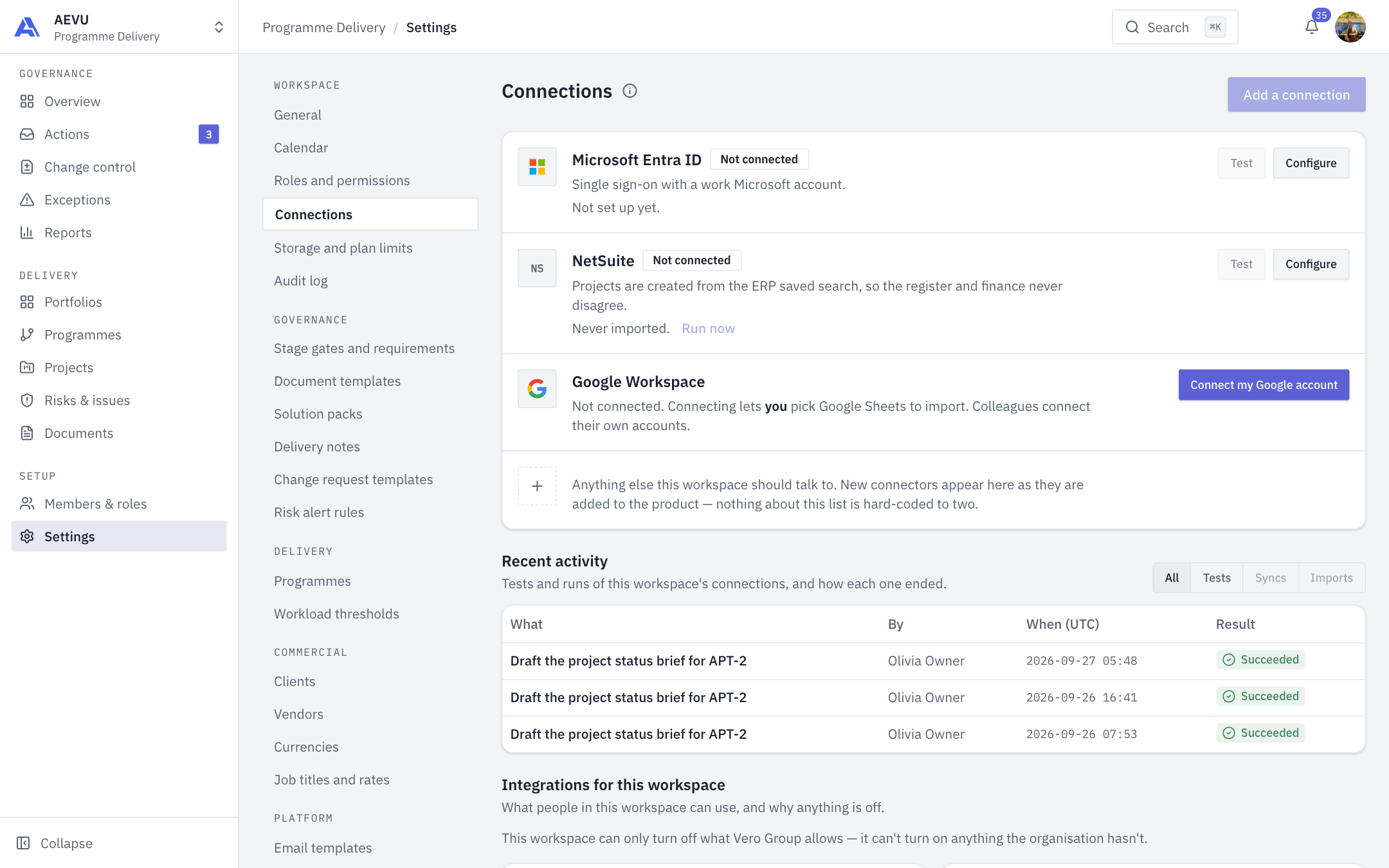
Connect your Google account
- Open Settings → Connections (or use the connect option inside the import wizard if you cannot open Connections).
- On the Google Workspace row select Connect my Google account.
- Read the explanation, then continue to Google and approve access to the files you pick.
The connection belongs to you in this workspace. Colleagues connect their own. Status reads Connected as …, Reconnect required or Not connected. Disconnect is always available.
Partial consent stores nothing
If you untick a permission on Google's consent screen, no connection is saved. Connect again and accept it.
Sign in with Google
- On Profile, in the Google account card, choose Link Google. You need a recent sign-in (within 10 minutes), otherwise choose Sign in again.
- Afterwards use Continue with Google on the sign-in page.
Unlinking signs you out of every session, including the one you unlink from. A Google account nobody has linked lands on "not linked".
Import a Google Sheet
In the import wizard choose Google Sheet, select Pick a Google Sheet and choose the file in Google's Picker, choose the worksheet, then map columns as for any file (see Importing from spreadsheets). AEVU reads one snapshot of at most 5,000 data rows and 100 columns, using the values shown in the cells (never formulas).
Link a Drive file
In a project's Documents choose Add external link, open the Pick from Google Drive tab and select Pick a file. AEVU stores a title and address only; it never reads the file.
Export to Google Sheets
Report Export, format New Google Sheet, creates a new sheet in your own Drive. It never writes into a sheet you already had. See Exports.
Common errors
| Code or message | Meaning and fix |
|---|---|
integration.notConfigured | Platform operator has not set the Google client or Picker key |
integration.connectRequired | You have not connected Google in this workspace |
integration.reconnectRequired | Google refused your saved access. Select Connect again |
integration.scopeMissing | Your connection lacks the needed permission. Reconnect and accept every box |
google.fileNotAccessible | Your Google account cannot open the picked file (or it was deleted) |
provider.unavailable | Google timed out. Try again |
google.accountNotLinked | Link Google from Profile first |
google.signInNotAllowed | The organisation or workspace has Google sign-in off, or your account is inactive |
domain.notAllowed | Your Google account's domain is not in the allowed list |
google.accountLinkedElsewhere | That Google account already opens another AEVU account |
auth.recentSignInRequired | Sign in again, then retry linking |
Security
- Tokens are encrypted at rest and never returned to the browser. The Picker's short-lived token lives only in memory.
- Revoking a connection removes its tokens and cancels your queued Google exports.
- The browser that starts a Google round trip must be the one that finishes it.