

Appearance
Stage gates
Every project moves through five stages. Before a stage can close, the project manager submits it to the PMO, and the PMO approves it or returns it.
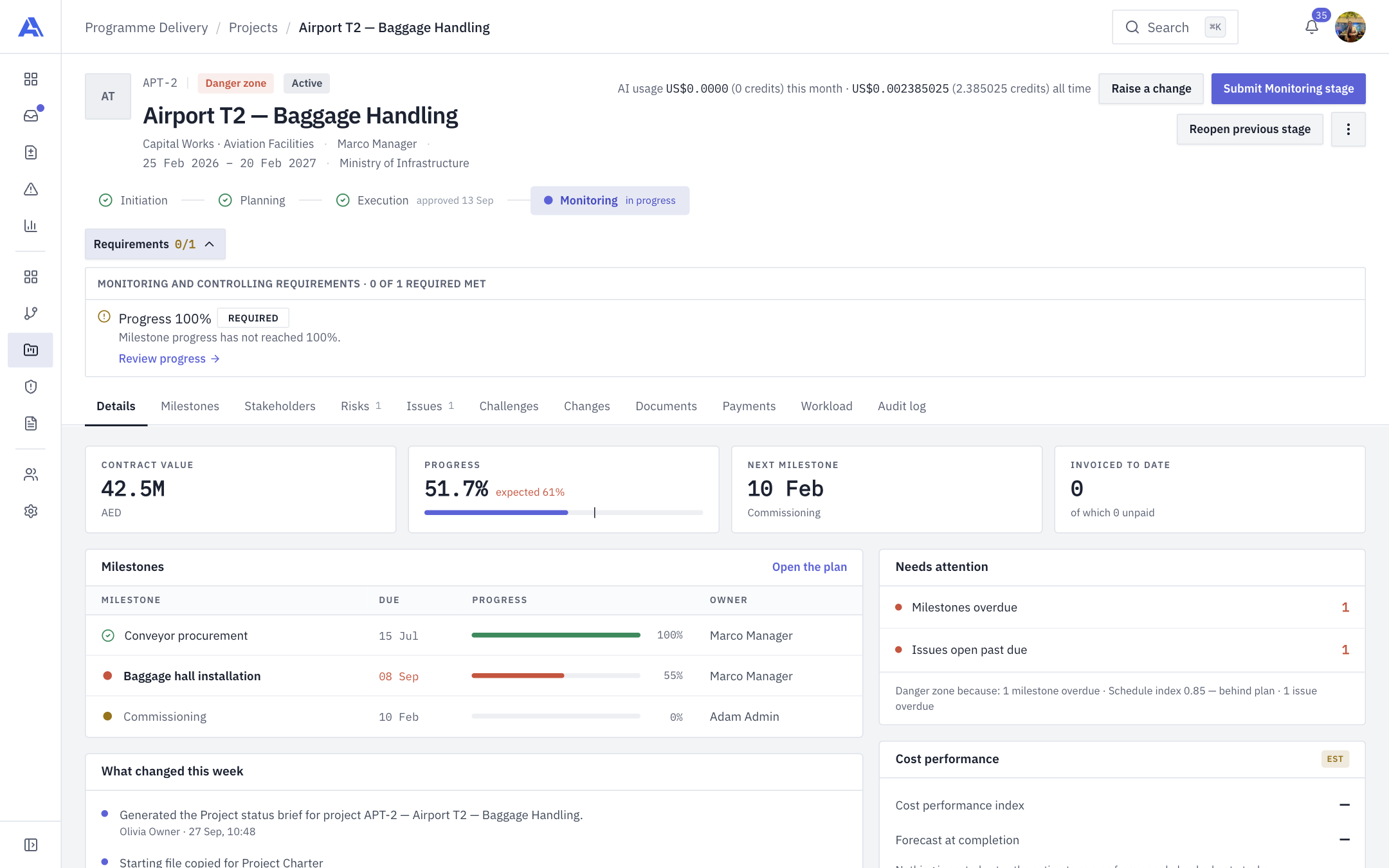
The five stages
Initiation, Planning, Execution, Monitoring, Closing. The stepper in the project header shows each one with its state: approved (with the date), in progress, or awaiting the PMO. Only the current stage is active; approving it opens the next one.
An open stage can have a day limit set by your workspace. If the current stage runs past it, the stepper shows a red ring ("N days past the M-day limit"), and the header shows a Delayed +Nd chip. A stage approved late keeps an amber ring.
What a stage requires
Your workspace decides, once, what a project manager must have in place before each stage can be submitted. This is configured in Stage gates settings. The header's Requirements chip (for example Requirements 3/4) shows how many mandatory requirements are met. Click it to open the checklist.
Each row shows a tick or warning, the requirement's name, a Required or Advisory tag, and, when unmet, a plain sentence saying what is missing and a link to the tab that fixes it.
| Requirement | Met when | Link label |
|---|---|---|
| Document | A file, or a bypass note, is in that requirement's folder. | Opens the Documents tab at the right folder |
| Risk | There is at least one entry on the risk register. | Opens the Risks tab |
| Issue | There is at least one entry on the issue register. | Opens the Issues tab |
| Stakeholder | There is at least one stakeholder. | Add stakeholder |
| Milestone | The project has a milestone. | Add milestone |
| Payment | A milestone carries a client payment. | Add payment |
| Assignment | Every milestone and task has someone assigned. | Assign resources |
| All milestones and tasks complete | Nothing is left open (cancelled ones are ignored). | Review progress |
| Progress complete | Milestone progress has reached 100%. | Review progress |
| Delivery notes signed | A billing milestone has a client-signed delivery note. | Review delivery notes |
| Invoices uploaded | A billing milestone has its invoice file. | Review invoices |
| Client payment settled | A client payment has been received. | Review payments |
| Vendor payment settled | A vendor payment has been paid. | Review payments |
- Required (mandatory) requirements block submission.
- Advisory requirements are listed and travel to the approver as a note, but never block.
- If a stage has no requirements, the chip is hidden.
Submitting a stage
You need the permission to submit stages (project managers have it by default).
- Make the Requirements chip show everything met.
- Click Submit <Stage> stage in the header (for example Submit Monitoring stage).
- A confirmation reads "Submit the <stage> stage?". It lists Can decide (who may approve) and how many requirements are met.
- If a mandatory requirement is still missing, the dialog lists each one under "Still needed before it can be submitted" and offers only Close. Fix them first.
- Click Submit for approval.
The stage becomes Awaiting PMO. It appears in the PMO's Actions queue, the approvers are notified, and the stage is locked until they decide.
WARNING
The server checks the requirements again when you submit, so a disabled or missing button is not a bug: either you lack permission or the stage is not in a submittable state (it must be In progress or Rejected).
How the PMO decides
Holders of the gate-approve permission (Owner and PMO by default) review the stage in Actions.
- Approve. The stage is Approved, the project's current stage advances, and the next stage opens as In progress.
- Return for modification (reject). The reviewer must give a reason of at least 10 characters (up to 1,000). The stage is marked Rejected (described on screen as returned for modification), the reason shows on the stage timeline, and the project manager is notified. The project's health shows Danger zone ("Stage gate rejected — awaiting resubmission") until it is resubmitted.
A returned stage can be fixed and submitted again with the same button.
TIP
If a stage waits five days for a decision the project shows At risk. Chase the approvers, or look at Actions.
Reopen previous stage
The PMO (gate-approve holders) can undo an approval with Reopen previous stage.
- Click Reopen previous stage in the header. It is offered whenever the current stage is not the first and the previous stage is approved.
- Optionally enter Why. This is sent to the approvers and kept on the stage.
- Click Reopen <Stage>.
The previous stage is open again and will need a fresh approval. The current stage is not reached, and its clock starts over. Nothing you have recorded is deleted. If the project had been Completed, it goes back to Active.
Common mistakes
- Submitting before documents are in. A document requirement is only met by a file or a bypass note in the requirement's own folder. See Documents.
- Linking a SharePoint or Drive file instead of uploading. External links never count towards a requirement.
- Expecting a project manager to reopen a stage. Only the PMO can.